

The by Property view allows you to analyze end-to-end integrations based on configured property values assigned to your integration flows. Use this method to find integrations with specific organizational attributes like external IDs, business ownership, lifecycle information or custom process properties.
Workflow Integration: The by Property view connects end-to-end integration discovery with organizational metadata, enabling business-focused analysis that complements technical integration management with enterprise process context.
Navigate to End-to-End → by Property to access property-based integration analysis with configurable property types for targeted integration discovery.
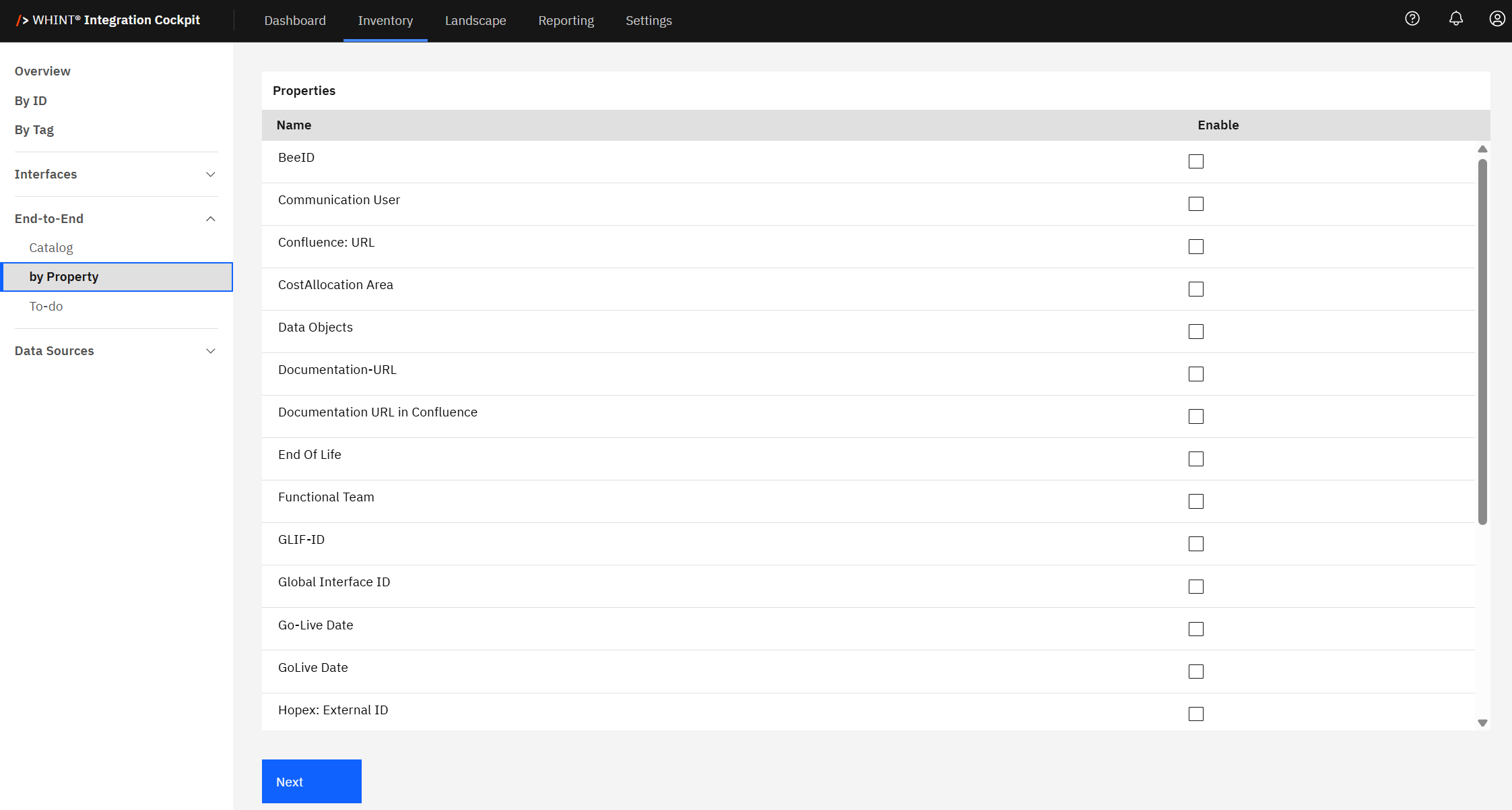
Properties
The Properties configuration displays all available property types that can be enabled for end-to-end integration analysis. Property types include organizational attributes.
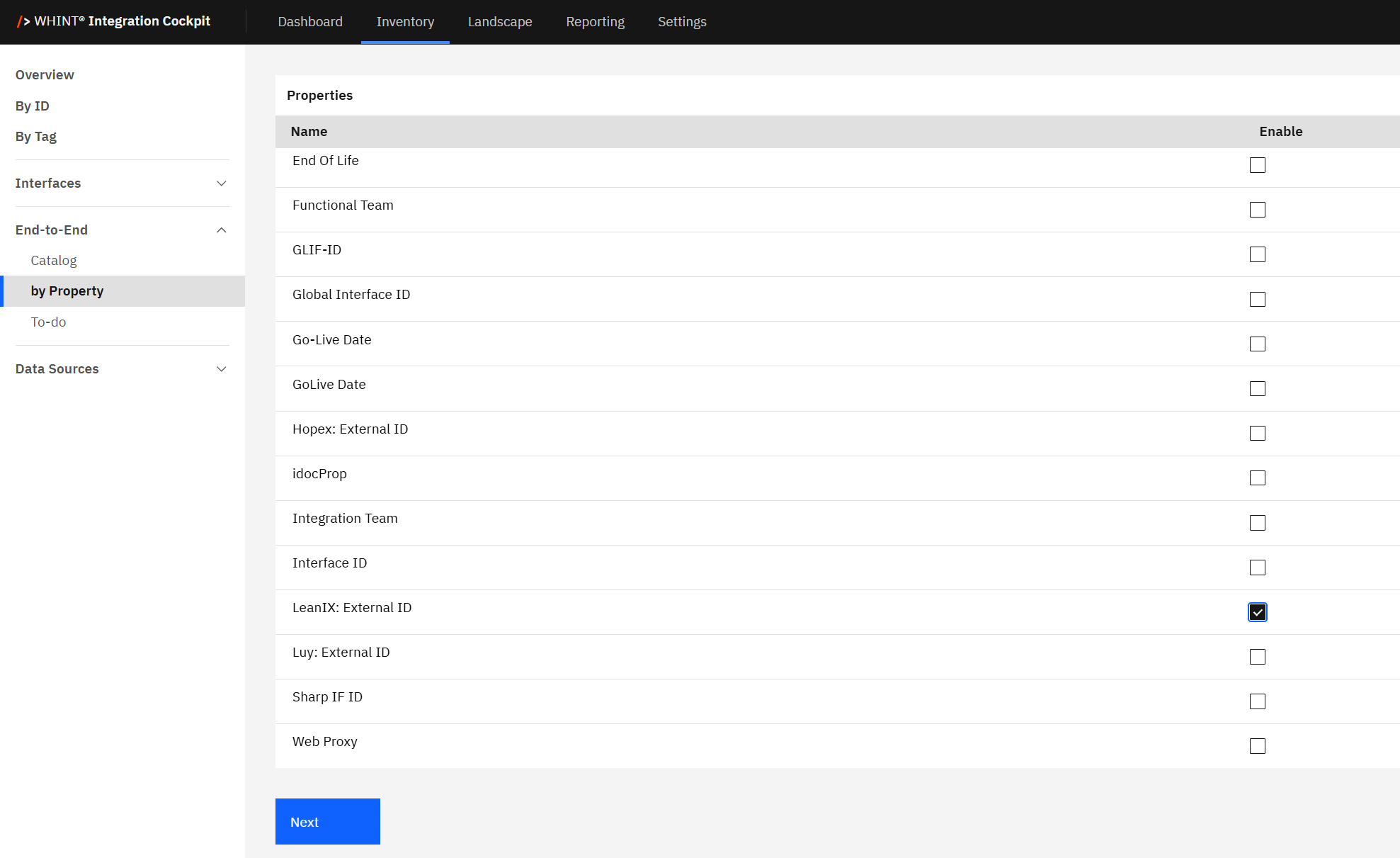
Checking the Enable box for any property type (e.g. "LeanIX: External ID") makes that property available for integration filtering and analysis in the by Property view.
Property Configuration: You can configure which property types are available through Settings → Configuration → Properties. Enable only the properties relevant to your organizational analysis needs for end-to-end integration flows.
Common Use Cases
-
Architect: Review integrations with external system mappings for governance and enterprise architecture alignment
-
Process Owner: Find integrations with specific documentation links, team assignments or business process classifications
Process-Based Analysis: Use by Property when you need to analyze end-to-end integrations by organizational attributes rather than technical characteristics, enabling business-focused integration process portfolio management.
End-to-End Integrations with Properties
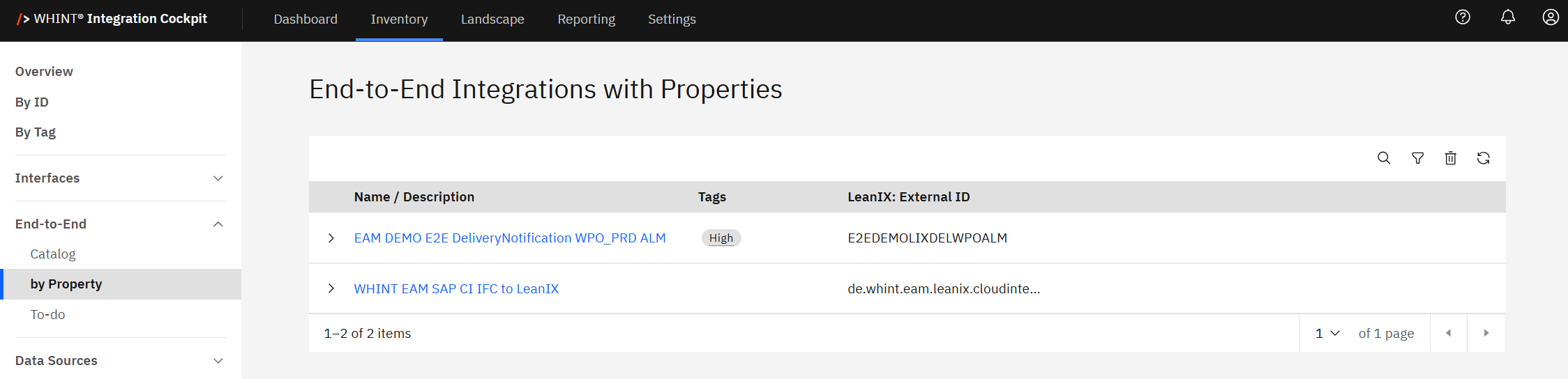
After enabling property types, the by Property view displays end-to-end integrations that have values assigned for the selected properties, organized in a detailed table format.
The table displays:
-
Name / Description: Integration flow name and business description (clickable)
-
Tags: Applied categorization labels for additional context
-
Property Columns: Enabled property values (e.g. LeanIX: External ID showing external system references)
Property Value Analysis
Each enabled property appears as a dedicated column showing:
-
Populated Values: Integrations with assigned property data (e.g. "E2EDEMO1IXDELWPOALM", "de.whint.eam.leanix.cloudinte...")
-
Empty Cells: Integrations without values for that property
-
Multiple Properties: When multiple properties are enabled, you see comprehensive organizational metadata
Clicking an integration name (e.g. "EAM DEMO E2E DeliveryNotification WPO_PRD ALM") opens the detailed integration view with complete configuration, properties, and metadata.
Filtering and Search
Use the toolbar controls to refine your property-based analysis:
-
Search: Find integrations by name, property values, or metadata
-
Filter: Apply criteria to show only integrations with specific property values
-
Refresh: Update the view to reflect recent property assignments
-
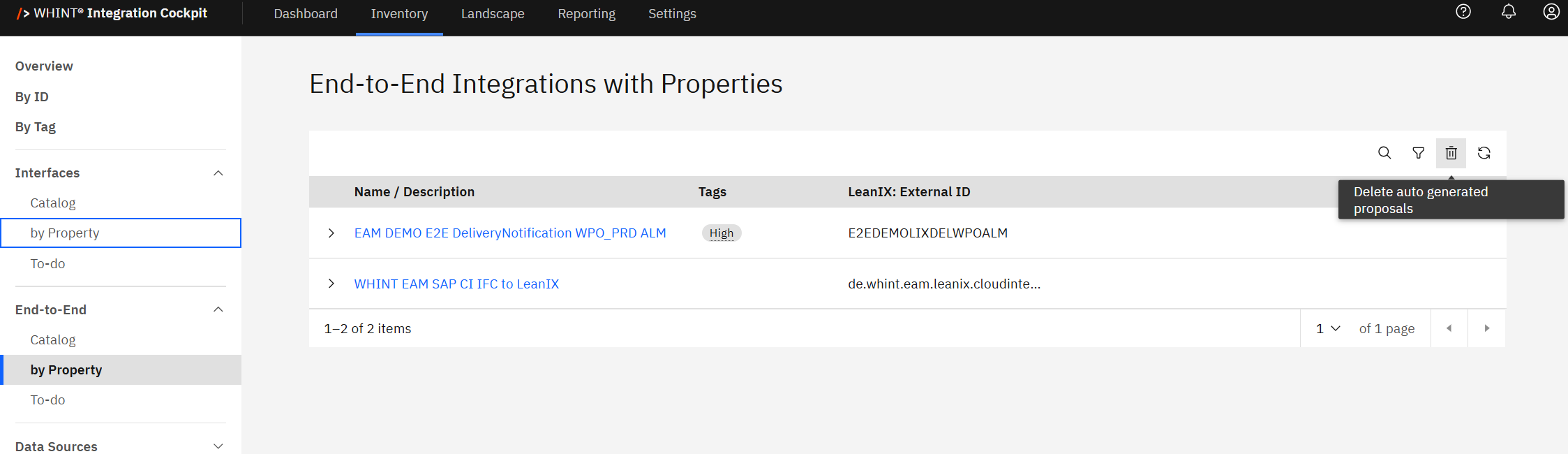
Delete auto generated proposals: Remove system-suggested property configurations that aren't relevant to your analysis needs
Best Practice
Enable only the properties most relevant to your analysis needs to keep the interface clean and focused. Use property-based views for governance reporting, process responsibility tracking, and enterprise architecture alignment of integration flows.
Last Updated: August 19, 2025