

The Decommissioning List identifies interfaces in the Production environment that haven't processed messages within the configured time threshold and are candidates for decommissioning. This view helps you discover unused or inactive interfaces to reduce maintenance overhead, technical debt and optimize your integration landscape.
Navigate to Reporting → Decommissioning List to access the complete list of interfaces flagged for potential decommissioning.
Purpose
Interfaces appear here when they exceed the configured inactivity threshold. The Decommissioning KPI tracks interfaces with no traffic in Production over the past 30 days, helping identify inactive, outdated or unused interfaces that may be candidates for cleanup or retirement. For configuration details, see Onboarding Guide - 2.2.3 Decommissioning.
Decommissioning Overview
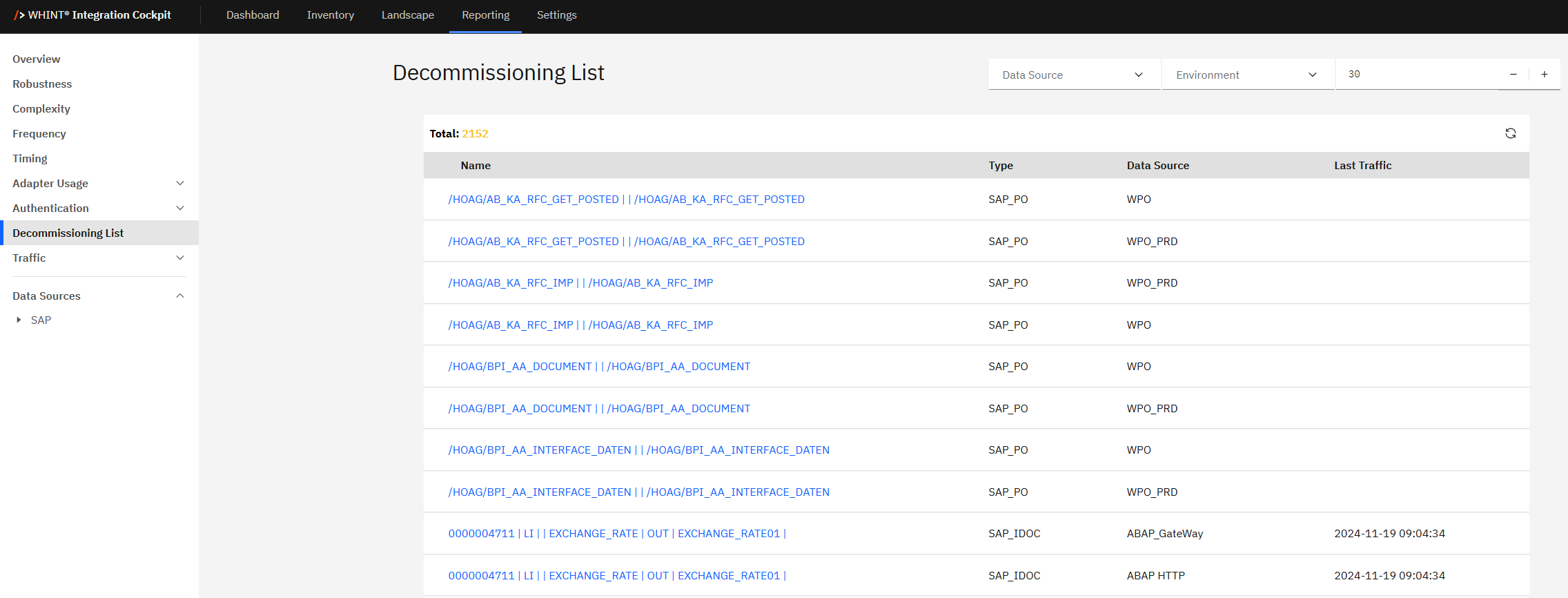
The Decommissioning List displays a comprehensive table of inactive interfaces across your integration landscape, allowing you to identify optimization opportunities and reduce technical debt.
What you see:
-
Total count showing the number of interfaces flagged for decommissioning (e.g. 2140)
-
Interface details table with Name, Type, Data Source and Last Traffic information
-
Data Source filter to focus on specific integration platforms
-
Environment filter to switch between Production, Test, Development views
-
Days selector (e.g. "32" with + and - controls) to adjust the time period for traffic analysis - for configuration details, see Onboarding Guide - 2.2.3 Decommissioning
Using Decommissioning Information
The interface table provides essential information for decommissioning decisions:
|
Column |
Description |
Purpose |
|---|---|---|
|
Name |
Interface identifier (clickable blue links) |
Navigate to detailed interface analysis |
|
Type |
Integration platform type (SAP_PO, SAP_IDOC) |
Understand source platform |
|
Data Source |
Source system identifier |
See which platform contains the inactive interface |
|
Last Traffic |
Last message processing timestamp |
Verify inactivity period |
How to interpret the decommissioning data:
Interface names (blue links):
-
Click "/HOAG/AB_KA_RFC_GET_POSTED | | /HOAG/AB_KA_RFC_GET_POSTED" → Review interface details before decommissioning
-
Click "0000004711 | LT | | EXCHANGE_RATE | OUT | EXCHANGE_RATE01 |" → Analyze business impact of removal
-
Click any interface name to access comprehensive interface documentation for decommissioning validation
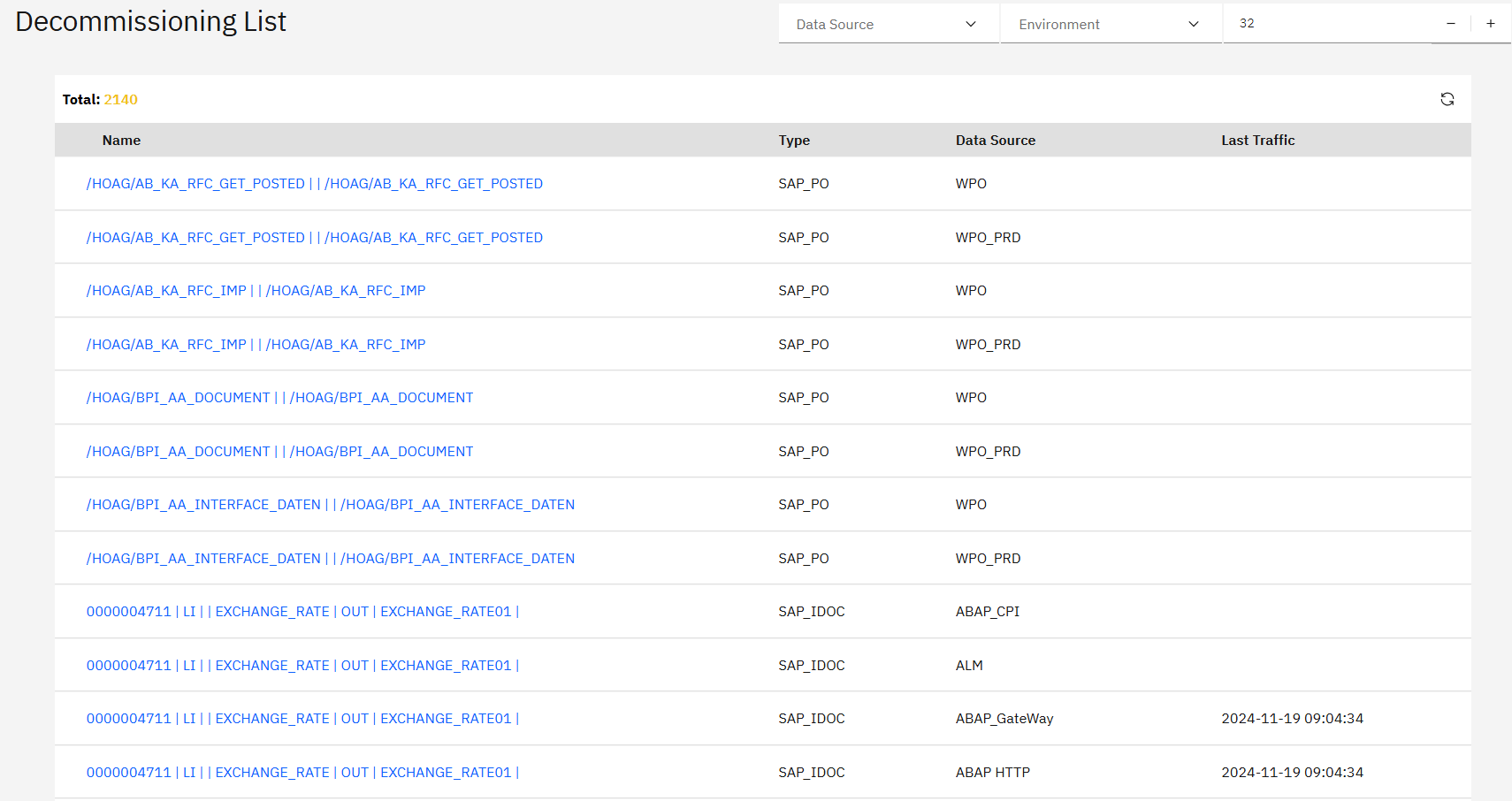
Type classifications examples:
-
SAP_PO → SAP Process Orchestration interfaces
-
SAP_IDOC → SAP ABAP Backend IDoc interfaces
Data Source information examples:
-
WPO / WPO_PRD → Process Orchestration systems (Development/Production)
-
ABAP_CPI / ABAP_GateWay / ABAP HTTP → SAP Backend systems
-
ALM → Application Lifecycle Management systems
Last Traffic analysis:
-
Empty → No traffic recorded within the decommissioning threshold period
-
Date timestamp (e.g. 2024-11-19 09:04:34) → Recent activity indicating the interface may still be active
Filtering and Analysis
Filter options help you focus your decommissioning review on specific systems and environments:
Data Source Filter:
-
Filter by integration platform (WPO, WPO_PRD, ABAP_CPI, ABAP_GateWay, ALM, etc.)
-
Focus decommissioning efforts on specific system landscapes
-
Coordinate with platform-specific teams for validation and removal
Environment Filter:
-
Switch between Production, Test, Development environments
-
Production environments are the primary focus for decommissioning KPI calculation
-
Test/Development environments may allow faster decommissioning cycles for development cleanup
Production Focus: The Decommissioning KPI specifically tracks interfaces in the Production environment with no traffic over the past 30 days, as these represent the highest impact opportunities for cost optimization and risk reduction.
Decommissioning workflow:
-
Use filters to focus on specific platforms or environments
-
Review interface names to understand business context
-
Click interface links to validate business criticality and dependencies
-
Coordinate with business stakeholders for final decommissioning approval
-
Document decommissioning decisions and maintain audit trail
Decommissioning Validation Process
Before decommissioning interfaces:
Business validation:
-
Verify with business process owners that interfaces are truly no longer needed
-
Check for seasonal or periodic usage patterns (interfaces with no traffic for 30+ days may still be business-critical)
-
Validate that replacement processes are in place if the interface was part of a migration
-
Consider the configured threshold period (default 45 days) vs. actual business cycle requirements
Technical validation:
-
Review interface dependencies and downstream systems
-
Check for hard-coded references in other integration flows
-
Verify that removing the interface won't impact error handling or monitoring processes
Documentation:
-
Document the decommissioning decision with business justification
-
Maintain records of removed interfaces for audit and compliance purposes
-
Update architecture documentation and system inventories
Decommissioning Business Impact
Technical Debt and System Complexity
A high number of inactive interfaces indicates technical debt - components that are no longer in use but still exist in the current landscape. This technical debt can include:
-
Temporary workarounds that were never properly replaced
-
"No Fit" adapters from legacy implementations that should be modernized
-
Outdated integration patterns that have been superseded by better solutions
For detailed information about the business impact and KPI thresholds, see Dashboard Overview - Decommissioning.
Cost Optimization and Quality Impact
The Decommissioning KPI supports cost optimization, reduces system complexity and helps improve overall integration quality. The more unused or outdated interfaces remain, the harder and riskier it becomes to:
-
Maintain your integration landscape
-
Scale integration capabilities
-
Troubleshoot issues across the environment
By removing what is no longer needed, you keep your integration environment clean and stable.
Additional Decommissioning Benefits
Landscape optimization:
-
Reduce maintenance overhead by removing unused interfaces and their associated configurations
-
Lower operational costs through decreased monitoring, backup, and support requirements
-
Simplify integration architecture by eliminating technical debt and obsolete connections
Risk management:
-
Improve security posture by reducing the attack surface of unused integration endpoints
-
Enhance system performance by removing unnecessary background processes and connections
-
Reduce compliance scope by eliminating unused data flows from audit requirements
Resource allocation:
-
Free up system resources previously consumed by inactive interfaces
-
Reallocate development focus from maintaining obsolete interfaces to new business requirements
-
Optimize license usage by removing unused connectors and adapters
Navigation
Deep dive into interfaces:
-
Click blue interface names to access detailed interface documentation for decommissioning validation
-
Use interface-level data to assess business impact and technical dependencies
-
Cross-reference with Robustness, Complexity, and Frequency KPIs for comprehensive analysis
Return to reporting overview:
-
Access other reporting sections via left navigation menu
-
Compare decommissioning candidates with active interfaces in other KPI views
-
Use Dashboard for overall landscape health monitoring
Related Documentation
For comprehensive decommissioning configuration and insights:
-
Onboarding Guide - 2.2.3 Decommissioning - Threshold configuration and best practices
-
Dashboard Overview - Decommissioning KPI - Understanding the decommissioning metrics and business impact
Last Updated: August 25, 2025