

The Reporting Overview combines key reporting metrics in a single view: robustness, message traffic, adapter usage, and operational monitoring.
Navigate to Reporting → Overview to open the reporting dashboard.
Reporting Overview
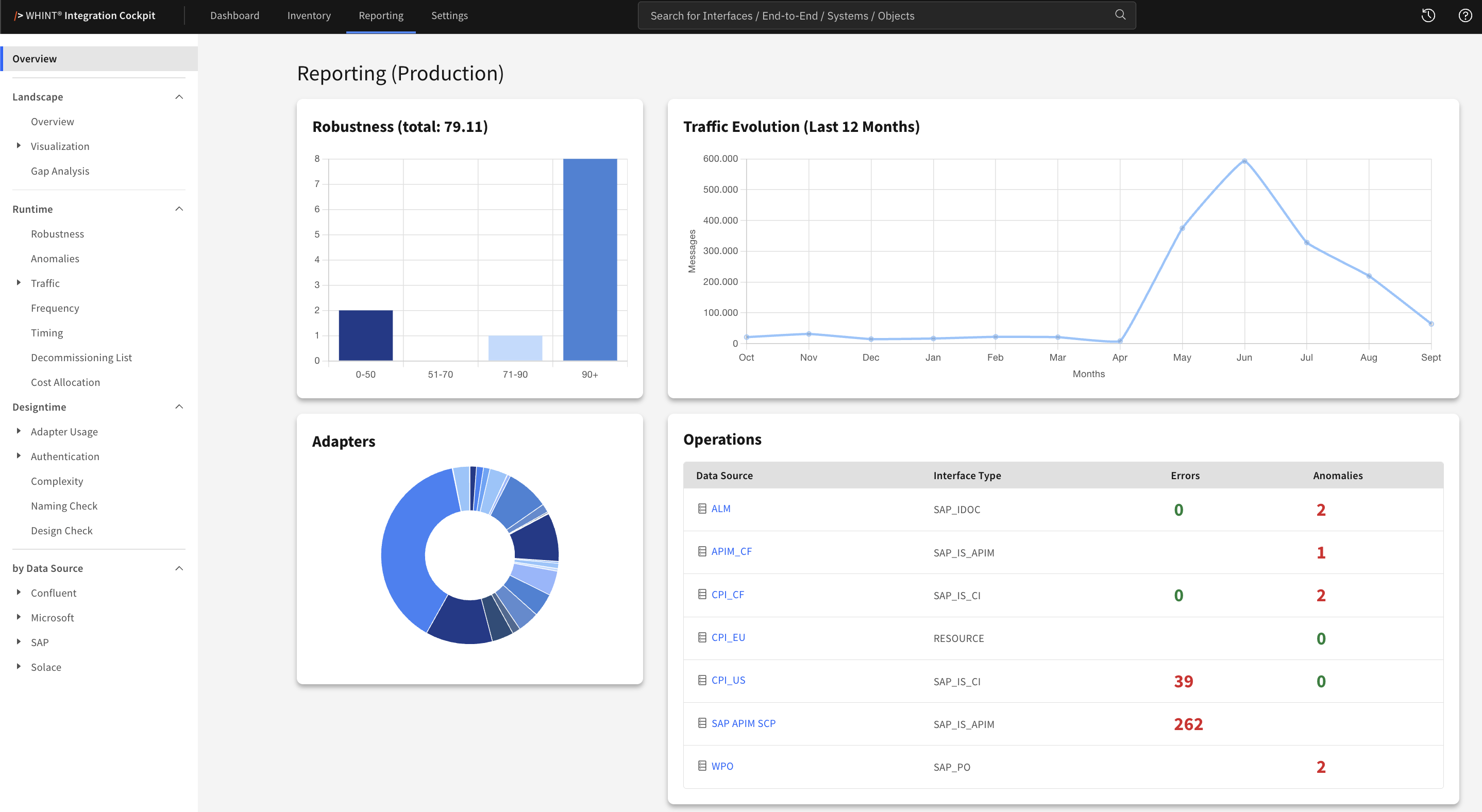
What you see:
-
Robustness — Distribution of interfaces across robustness score ranges and the average robustness score
-
Traffic Evolution (Last 12 Months) — Total message volume per month over the last 12 months
-
Adapters — Distribution of adapter occurrences by technology
-
Operations — Configured errors and anomalies by data source and interface type
The three charts show the Production environment. The Operations table is not restricted to Production and shows configured entries regardless of environment.
Robustness
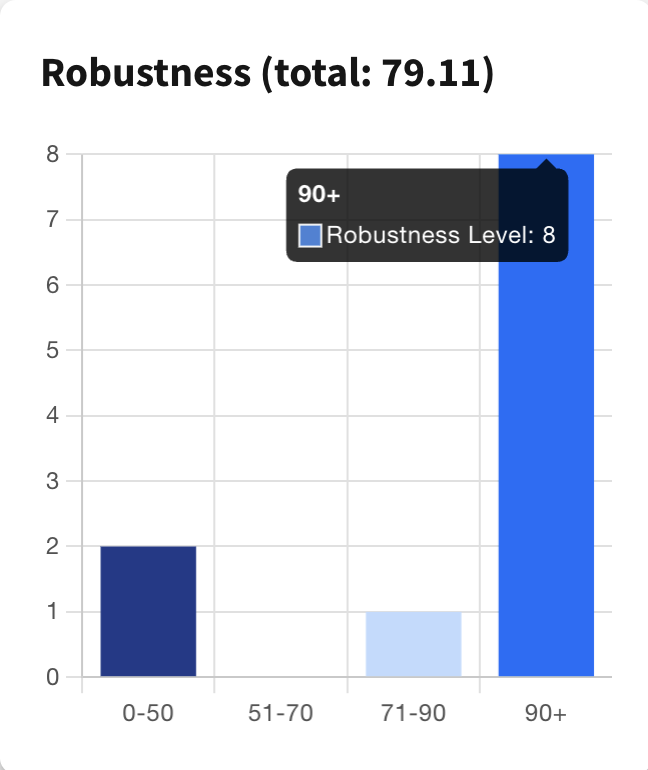
The Robustness chart groups interfaces into four score ranges:
-
0–50
-
51–70
-
71–90
-
90+
The value in the panel title, for example Robustness (total: 79.11), is the average score across all evaluated interfaces.
Only interfaces with recent message traffic are included. For SAP BTP tenants, Robustness must also be enabled on the data source. The chart can therefore contain fewer interfaces than the Inventory.
Hover over a bar to see the number of interfaces in the respective range.
For interface-level details, see Robustness under Reporting → Runtime.
Traffic Evolution
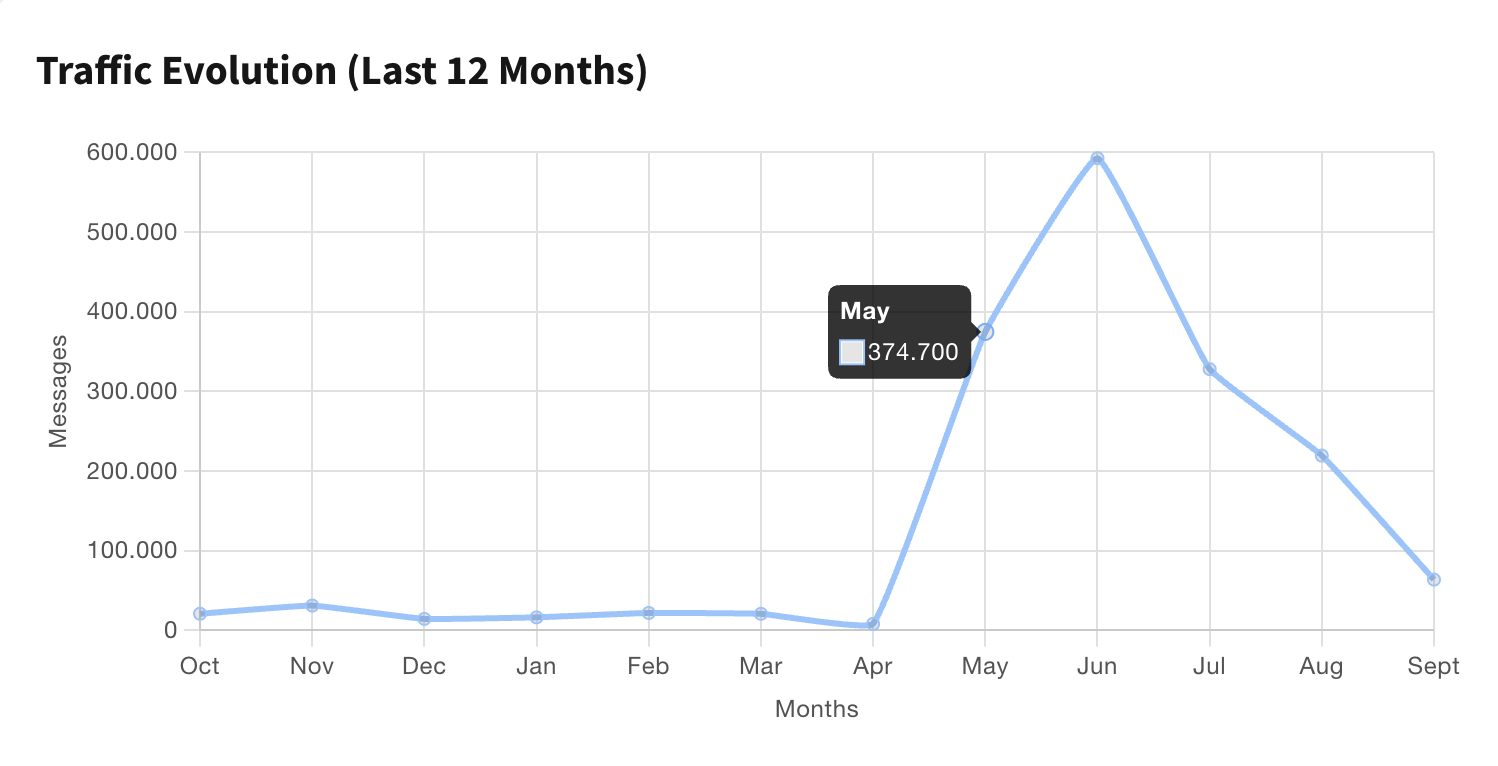
The Traffic Evolution (Last 12 Months) chart shows the total message volume per month over the last 12 months.
The last data point represents the current month and is therefore still incomplete.
Hover over a data point to see the message volume for the respective month.
For detailed traffic analysis, see Traffic under Reporting → Runtime:
-
Top 10 Interfaces — Interfaces with the highest message volume
-
Month by Data Source — Monthly message volume per data source
-
Month by Interface — Monthly message volume per interface
Adapters
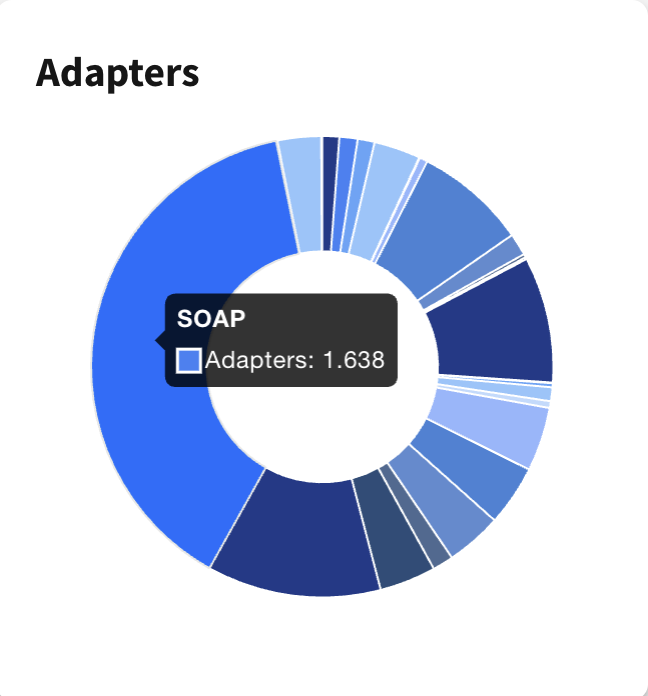
The Adapters chart shows the distribution of adapter technologies across the integration landscape.
The values represent adapter occurrences, not unique interfaces. An interface can therefore contribute more than once to the chart.
Hover over a segment to see the adapter technology and its value.
For detailed adapter reporting, see Adapter Usage → Overview under Reporting → Designtime.
Operations
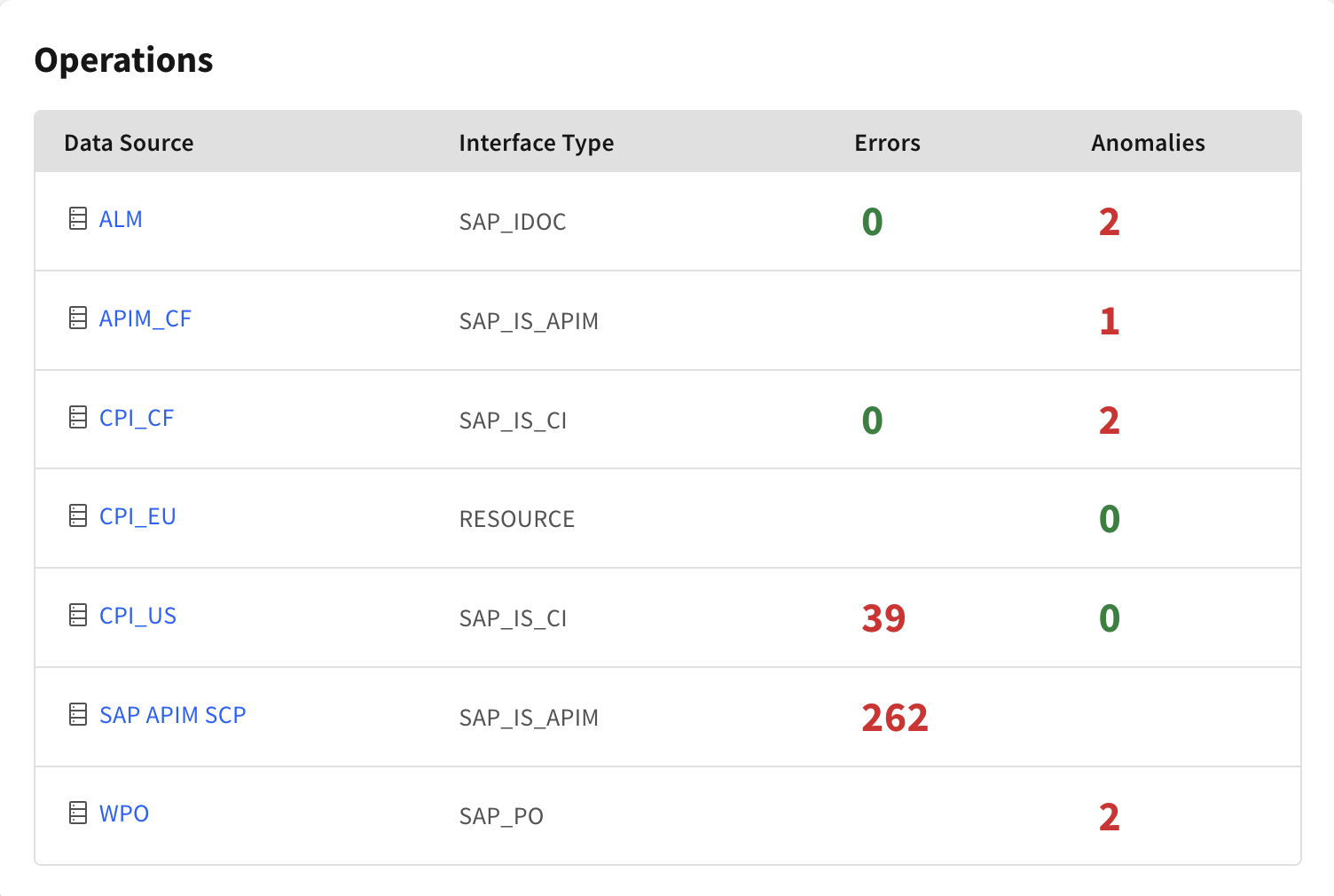
The Operations table shows errors and anomalies for configured data sources and interface types.
|
Column |
Description |
|---|---|
|
Data Source |
Data source for which monitoring is configured |
|
Interface Type |
Interface type covered by the monitoring entry |
|
Errors |
Number of errors within the configured time window |
|
Anomalies |
Number of monitored interfaces outside their configured message volume range |
A value of 0 is shown in green, values greater than 0 are shown in red.
Click the Data Source name to open the corresponding data source configuration. Click an Errors or Anomalies value to open the corresponding detailed report.
The table reflects your monitoring configuration, it is not an automatic scan.
Errors are configured under Settings → Runtime → Errors. The displayed count uses the time window configured for the respective entry.
Anomalies are configured under Settings → Runtime → Anomalies. The configured minimum, maximum, and period determine whether an interface is counted as anomalous.
An empty cell means that no corresponding monitoring entry is configured for that data source and interface type.
Error evaluation is supported for SAP XI, IDoc, SAP API Management and Cloud Integration. Anomaly evaluation additionally supports Process Orchestration. For an unsupported interface type, a displayed 0 means that the type is not evaluated, it does not confirm that no errors or anomalies occurred.
For detailed anomaly results, see Anomalies under Reporting → Runtime.
Related Documentation
-
Reporting → Runtime → Robustness — Detailed robustness reporting per interface
-
Reporting → Runtime → Traffic — Detailed message traffic analysis
-
Reporting → Runtime → Anomalies — Interfaces outside their configured message volume ranges
-
Reporting → Designtime → Adapter Usage → Overview — Detailed adapter usage across interfaces and End-to-End connections
-
Settings → Runtime → Errors — Configure error monitoring for the Operations table
-
Settings → Runtime → Anomalies — Configure anomaly monitoring for the Operations table
Last Updated: September 8, 2026