

This only applies to the deployment model “Hosted in Your Own BTP Subaccount”
The Proxies management interface allows you to configure proxy connections for secure access to backend systems, typically used with SAP Cloud Connector to enable Integration Cockpit connectivity to on-premise systems.
Purpose: Configure proxy connections for secure data source connectivity, particularly for accessing on-premise backend systems through SAP Cloud Connector or other proxy services.
Navigate to Settings → Connectivity → Proxies to manage your proxy configurations.
Proxies Overview

What you see:
-
Proxy list showing configured proxy connections (e.g. SAP CloudConnector CSCC, SAP CloudConnector WPO)
-
Add button to create new proxy configurations
-
Management controls for searching and managing existing proxies
Proxy Management
Adding New Proxies
-
Click "+" Add button to create a new proxy connection
-
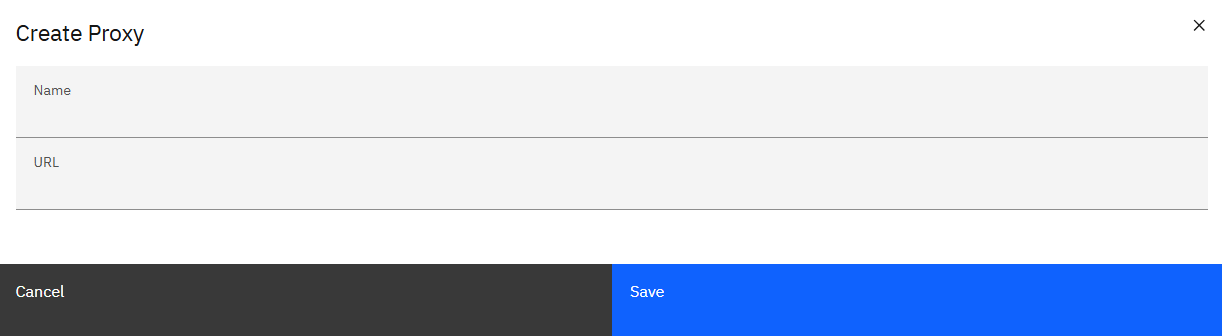
Create Proxy dialog appears with basic configuration fields:
-
Name - Identifier for the proxy (e.g. "SAP CloudConnector WIC")
-
URL - Proxy endpoint URL (see Onboarding Guide (SAP BTP Subaccount Configuration) for details on how to obtain the URL)
-
Managing Existing Proxies
-
Click on proxy names to edit detailed configurations
-
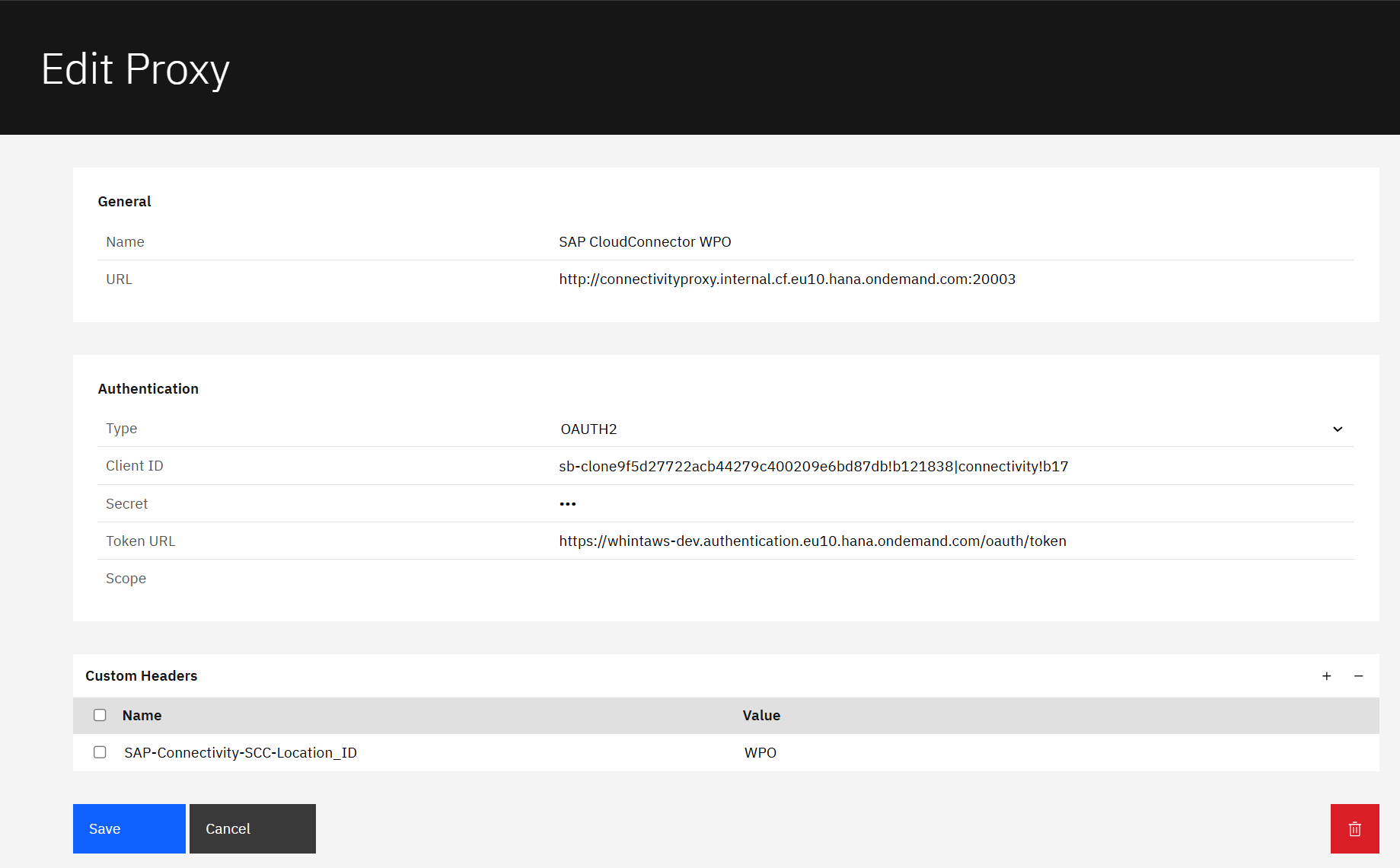
Edit Proxy interface provides comprehensive configuration options:
-
General settings (Name, URL)
-
Authentication configuration (OAuth2, Client ID, Secret, Token URL, Scope)
-
Custom Headers for additional proxy requirements
-
SAP Cloud Connector Integration
Proxies in Integration Cockpit are commonly used with SAP Cloud Connector for secure backend connectivity:
Prerequisites:
-
SAP BTP Connectivity Service instance created in BTP Cockpit with service key
-
SAP Cloud Connector configured with access policy set to "Path And All Sub-Paths"
-
Application binding established for the connectivity service
See the SAP BTP Subaccount Configuration section in the Onboarding Guide for the required details
Configuration Details:
-
Use URL from BTP Connectivity Service credentials (e.g.
http://connectivityproxy.internal.cf.eu10.hana.ondemand.com:20003) -
Configure OAuth2 authentication with client credentials from service key
-
Add Custom Headers such as
SAP-Connectivity-SCC-Location_IDfor multi-connector setups
Usage in Data Sources:
-
Select configured proxy in Data Source → Connection Details → Proxy field
-
Enables secure connectivity to backend systems (SAP ABAP, etc.) via Cloud Connector
-
Supports both HTTP and RFC connection types
Last Updated: August 27, 2026