

The Gap Analysis compares End-to-End integrations, interfaces, enterprise architecture objects, and planned interfaces to show which items are linked and where links are missing.
Purpose: Identify missing or inconsistent links between landscape data by comparing shared identifiers across the selected categories.
Navigate to Reporting → Landscape → Gap Analysis to open the analysis.
Gap Analysis Overview
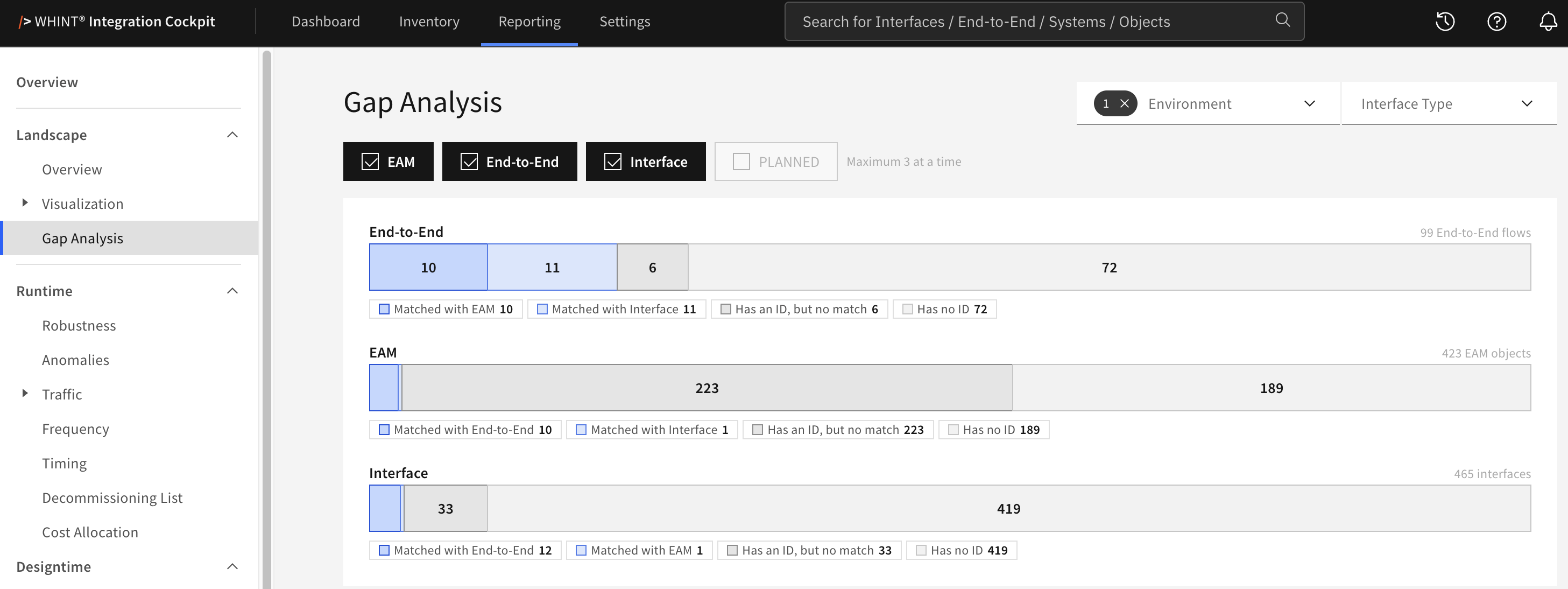
What you see:
-
Category buttons — Select two or three categories to compare
-
One bar per selected category — Shows all items in that category, divided into matched and unmatched segments
-
Legend below each bar — Shows the meaning and count of each segment
-
Total on the right — The number of items represented by the bar, for example 423 EAM objects
Items are matched through identifiers. Two items match when they use the same property of format ID with the same value.
Categories
|
Category |
Items |
|---|---|
|
End-to-End |
End-to-End integrations |
|
Interface |
Interfaces, excluding enterprise architecture objects and planned interfaces |
|
EAM |
Objects read from connected enterprise architecture tools such as LeanIX, LUY, HOPEX, or Bee360 |
|
PLANNED |
Planned interfaces read from connected planning sources such as SAP Integration Assessment, Jira, or Azure DevOps |
A maximum of three categories can be compared at the same time. When three are selected, the remaining category cannot be selected until one is deselected.
EAM is shown whenever enterprise architecture objects exist in the landscape, even if the current filters exclude them. PLANNED is always shown and contains data once planned interfaces have been collected from a connected source.
Reading the Bars
Each bar can contain the following segments:
|
Segment |
Meaning |
|---|---|
|
Matched with … |
The item has an identifier that also exists in the named category |
|
Matched with … and … |
The identifier exists in both other selected categories |
|
Has an ID, but no match |
The item has an identifier, but no item in the selected categories uses the same one |
|
Has no ID |
The item has no identifier and therefore cannot be matched |
Each bar uses the unit of its own category: the End-to-End bar counts integrations, the Interface bar counts interfaces. The numbers in corresponding matched segments can therefore differ, because one End-to-End integration can be linked to several interfaces.
Matching is always evaluated against the categories currently selected. Deselecting a category moves the items that only matched that one into Has an ID, but no match, so the same bar can show different numbers for a different selection.
Click a segment to open the corresponding items in the Inventory. Segments with more than 500 items cannot be opened.
A large Has no ID segment means that an identifier is not maintained for those items. A large Has an ID, but no match segment has two common causes: no corresponding item exists in the selected categories, or the corresponding items use different identifiers.
To create a match, the corresponding items must use the same ID property and value. Define ID properties under Settings → Properties. Property Extraction can be used where identifiers should be derived automatically.
End-to-End Coverage
Selecting exactly End-to-End and Interface switches the analysis to End-to-End coverage.
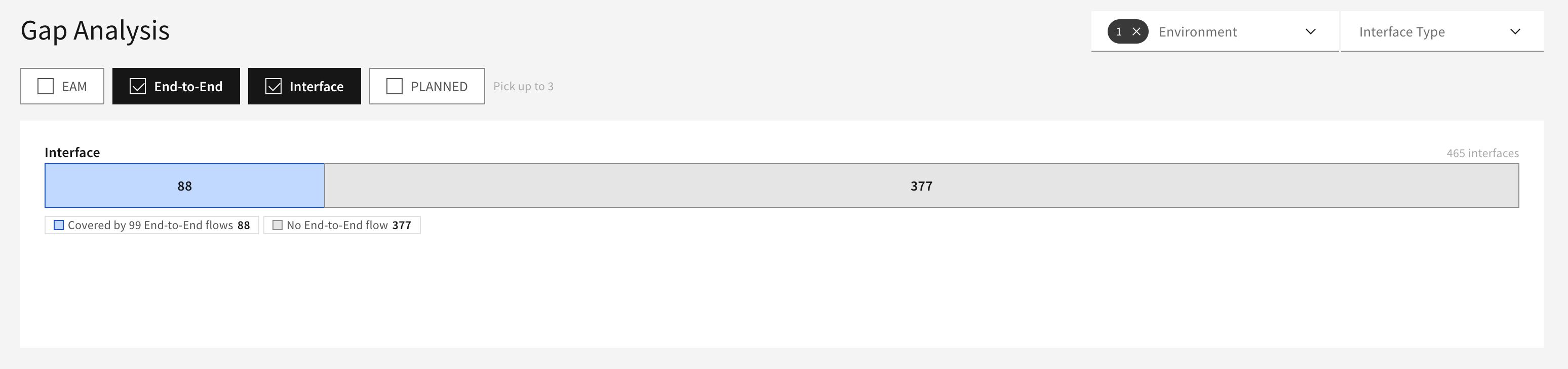
Instead of comparing identifiers, a single bar shows how many interfaces are already part of an End-to-End integration:
-
Covered by … End-to-End flows
-
No End-to-End flow
Use this view to find interfaces that are not yet represented in an End-to-End integration.
Filters
-
Environment — Environments to include. The analysis opens with Production selected
-
Interface Type — Limits the analysis to selected interface types
Interfaces and End-to-End integrations carrying a tag value configured under Settings → Tags → Ignore are excluded from the analysis.
If fewer than two categories are selected, the page prompts you to select additional categories. If the selected filters return no matching data, the page indicates that no data was found.
Related Documentation
-
Reporting → Landscape → Overview — View the landscape counts behind the analysis
-
Inventory → Interfaces — Browse the interfaces represented in the analysis
-
Inventory → End-to-End — Browse the End-to-End integrations represented in the analysis
-
Settings → Properties — Define the properties used as identifiers
-
Settings → Properties → Extraction — Derive property values automatically from artifact data
-
Settings → Tags → Ignore — Exclude tagged objects from landscape evaluations
Last Updated: September 29, 2026