

The Logs section shows the system log of your Integration Cockpit instance — task runs, API requests, user sessions and errors.
Purpose: Find out what the platform did and when: which task ran, how long it took, which request failed and why. This is the first place to look when a data source stops delivering or a task fails.
Navigate to Settings → Operations → Logs to open the system log.
Logs Overview
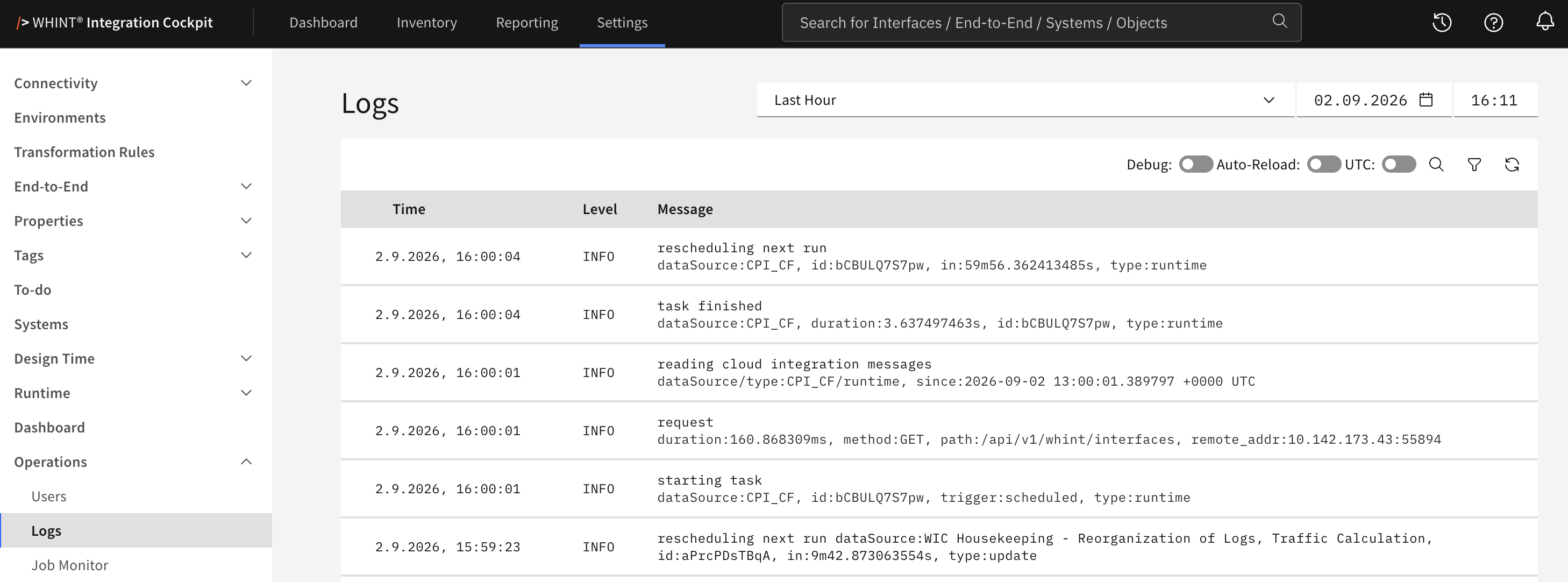
What you see:
-
Time range – an interval and the end date and time of the range
-
Debug, Auto-Reload and UTC toggles, plus search, filter and refresh
-
Time, Level and Message – the log entries, newest first, 20 per page
Selecting the Time Range
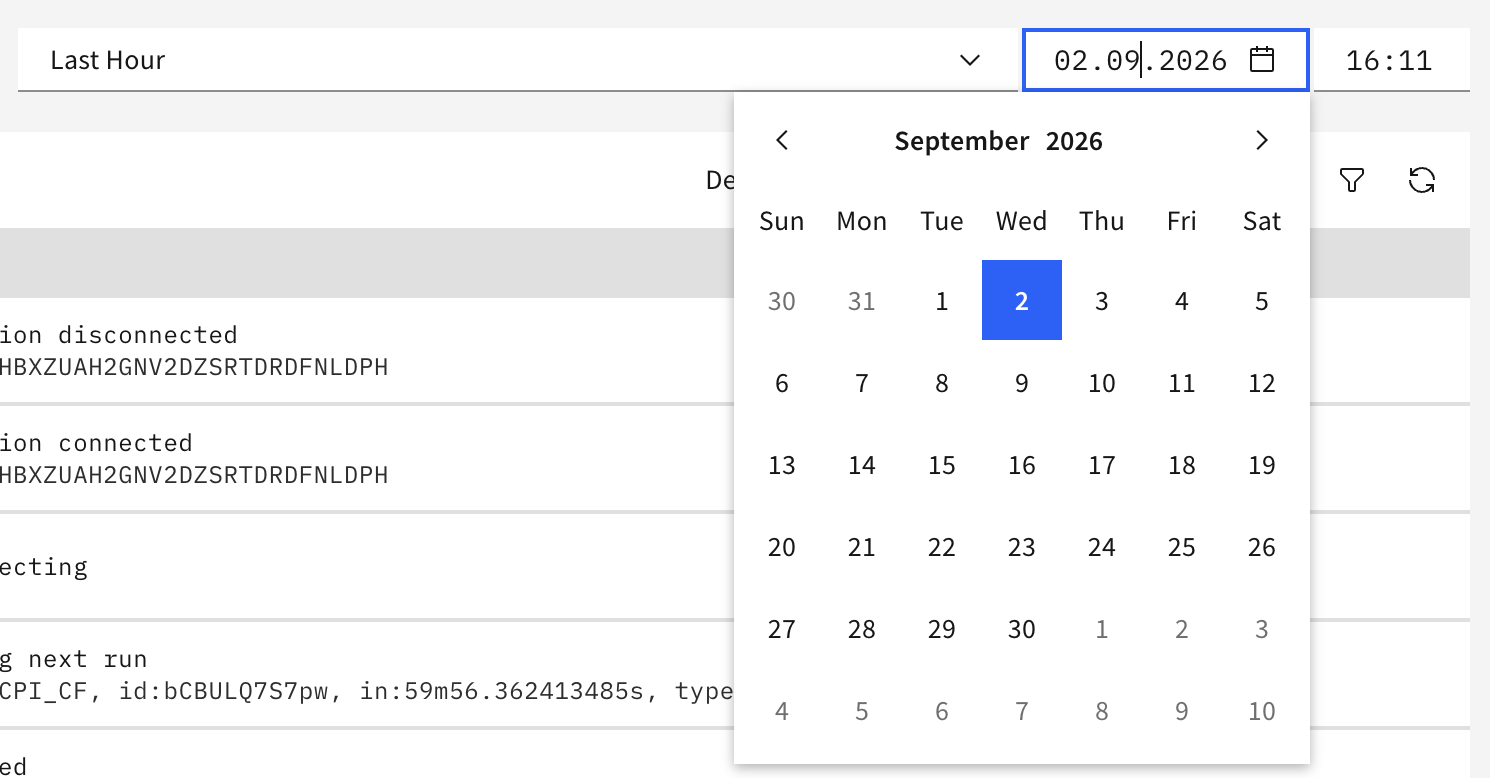
The range is defined by two controls that work together:
-
The interval dropdown:
Last Hour,Last 24 Hours,Last 7 Days,Last 30 Days,Last 90 Days,Last 6 Months -
The date and time fields on the right, which set the end of the range
For the predefined intervals, the start of the range is calculated from the selected end date and time. For example, an end of 02.09.2026 16:11 with Last Hour shows entries from 15:11 to 16:11.
Filtering and Search

Search looks for your text in the complete log message, including its attributes.
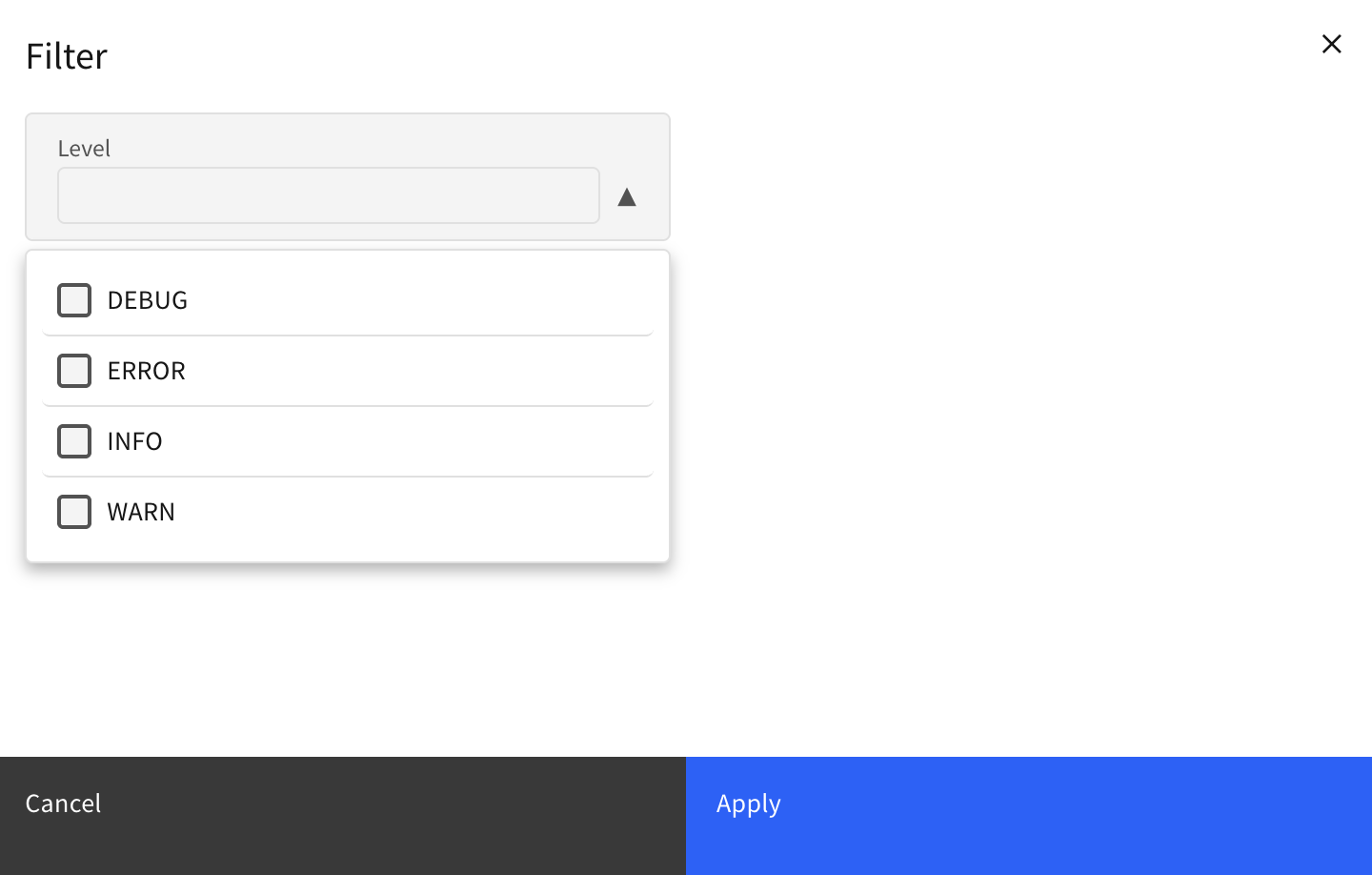
The filter icon opens the Filter dialog with the Level list:
|
Level |
Meaning |
|---|---|
|
|
Detailed diagnostic entries, only written while debug logging is active |
|
|
Failed operations |
|
|
Normal operation, such as task starts and completions, requests and scheduling |
|
|
Situations that did not stop processing but need attention |
Select the levels you want to see and click “Apply”.
Debug Logging
The Debug toggle does not filter the view, it switches debug logging on the server on or off.
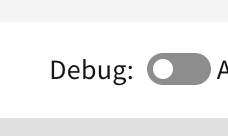
Debug logging is a system-wide setting. It applies to the whole instance and to all users, not just your session, and it increases the log volume considerably. Switch it on only while investigating a specific problem, and switch it off afterwards.
Auto-Reload and Time Zone
Auto-Reload refreshes the log every 10 seconds. It is off by default. While it is on, every reload resets the pagination and returns you to the top of the list — switch it off before paging through older entries.
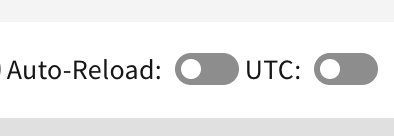
UTC switches the Time column between your local time and UTC. Timestamps inside a message stay unchanged, so this toggle is the quickest way to compare them with the displayed time.
Reading a Log Entry
An entry consists of the message and a line of attributes below it. The attributes provide the context of the event, for example:
|
Attribute |
Meaning |
|---|---|
|
|
The connection the event belongs to |
|
|
The task type, for example |
|
|
The task run identifier |
|
|
How long the operation took |
|
|
Whether the task was started manually or by the schedule |
Requests are logged with method, path and duration, making it visible whether a call reached the platform and how long it took.
Log Retention
Log entries are removed automatically by the Update task of the Housekeeping data source:
|
Entries |
Deleted after |
|---|---|
|
|
1 day |
|
All other levels |
7 days |
Related Documentation
-
Job Monitor – Task runs with their status and duration
-
Users – Session history per user
-
Housekeeping – The data source that reorganizes the logs
Last Updated: September 2, 2026