

The Environments configuration allows you to define and manage the landscape tiers used throughout Integration Cockpit for organizing data sources, filtering reports and supporting landscape management workflows.
Purpose: Define environment classifications (e.g. Development, Test, Production, etc.) that are used throughout Integration Cockpit for data source organization, reporting filters and landscape management functionality.
Navigate to Settings → Environments to manage your integration landscape environment definitions.
Environments Overview
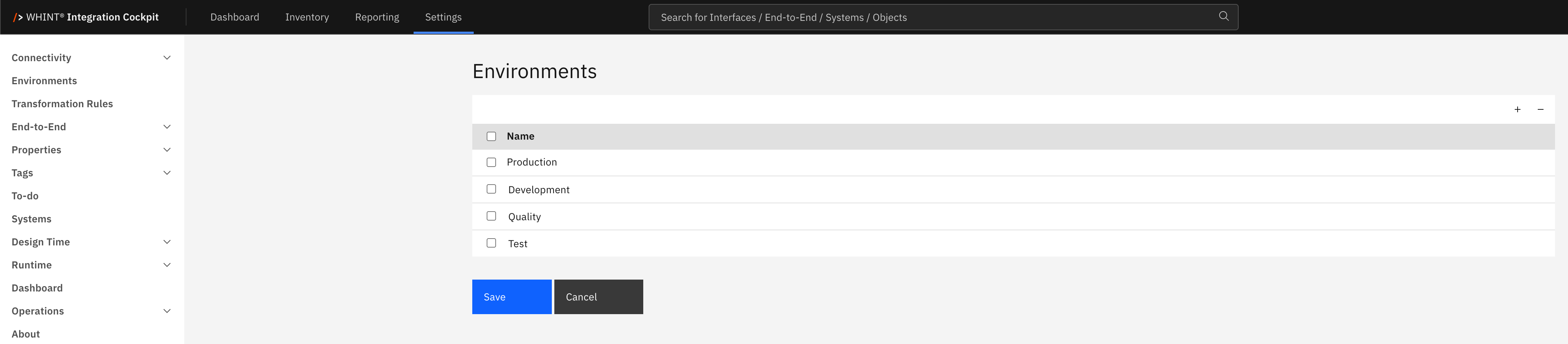
What you see:
-
Environment list with checkboxes for selection (e.g. Production, Development, Quality, Test)
-
Add/Remove controls (+ and - buttons) for managing environment definitions
-
Save/Cancel buttons to apply or discard changes
Environment Management
Adding and removing Environments
-
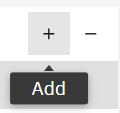
Click "+" Add button to create a new environment
-
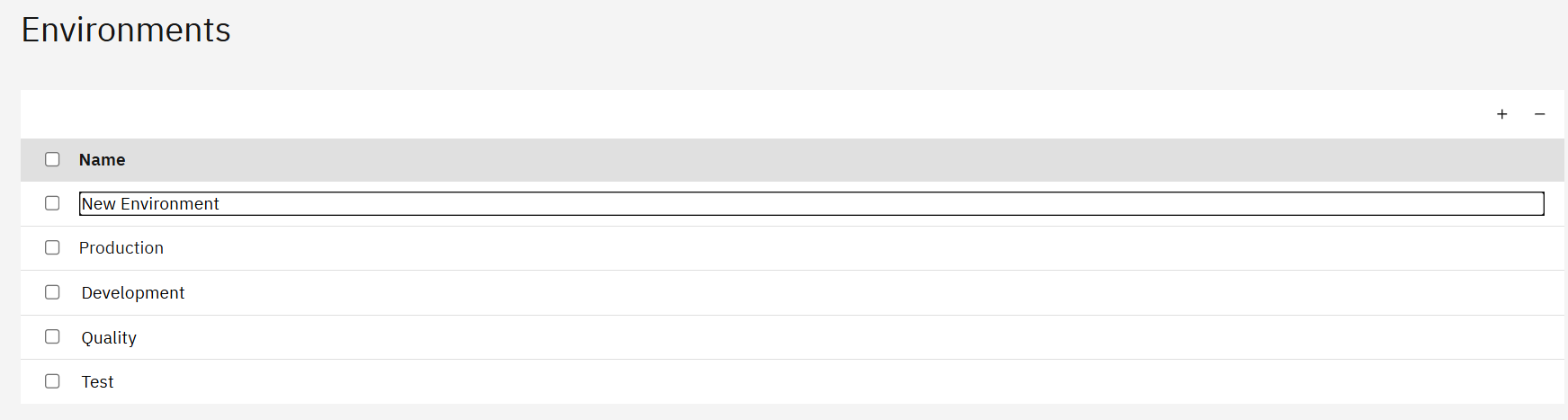
New environment row appears with editable name field
-
Enter environment name (e.g. "Quality", "Production")
-
Click Save to apply changes
Removing Environments
-
Select checkbox next to environments you want to remove
-
Click "-" Remove button to delete selected environments
-
Click Save to confirm changes
Standard Environment Types
For comprehensive environment setup guidance and best practices, see Onboarding Guide - 2.5 Environments.
Recommended DTAP Model
-
Development → Development and testing environment
-
Test → User acceptance and business testing environment
-
Quality → Quality assurance and integration testing environment
-
Production → Live production environment
Environment Usage
Environment definitions are used throughout Integration Cockpit for:
-
Data Source Configuration → Classify data sources by landscape tier
-
Reporting Filters → Filter views by environment (Production, Test, etc.)
-
Dashboard Organization → Environment-specific KPI displays
-
Landscape Management → Support landscape comparison and validation workflows
Related Documentation
For comprehensive environment setup and landscape management:
-
Onboarding Guide - 2.5 Environments - Detailed environment configuration and best practices
Last Updated: August 28, 2026