

Transformation rules harmonize interface metadata from diverse data sources into consistent, standardized formats. Use transformation rules to map inconsistent system names like "SFTP" or "RabbitMQ" to standardized business systems and automatically tag interfaces with relevant business objects.
New to transformation rules?
Start with the Onboarding Guide - Step 3: Configure Transformation Rules for complete setup. This step covers daily usage and advanced configuration.
Access Transformation Rules
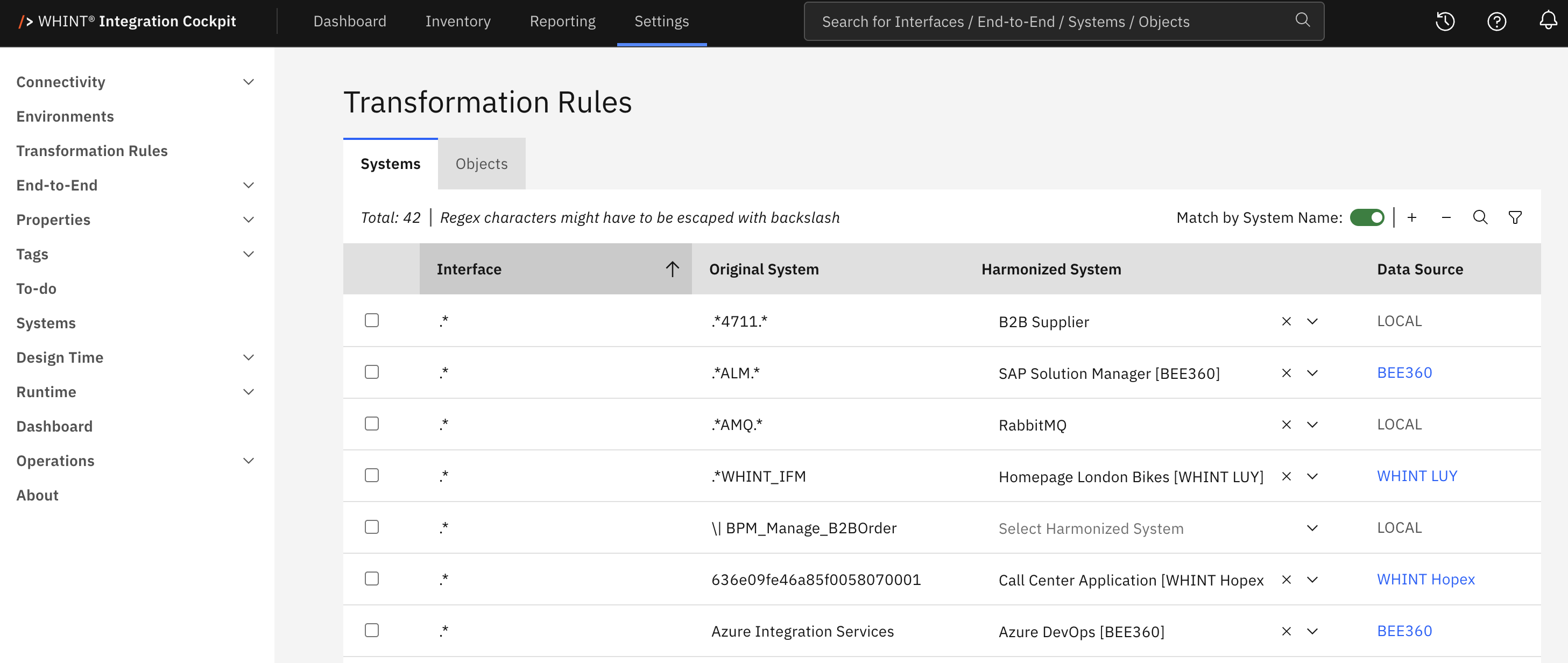
Navigate to Settings → Transformation Rules to configure both system and object mapping rules.
Systems
The Systems tab harmonizes sender and receiver system names. The first matching rule is applied (first-match-wins logic).
What you see:
-
Interface column: Regex patterns for interface matching (optional: leave empty to match all interfaces)
-
Original System column: Raw system names from data sources
-
Harmonized System dropdown: Select standardized system names (see Systems)
-
Data Source column: Data source the harmonized system comes from, or
LOCALif created manually -
Match by System Name toggle (top right): changes fallback matching behavior — see below for details
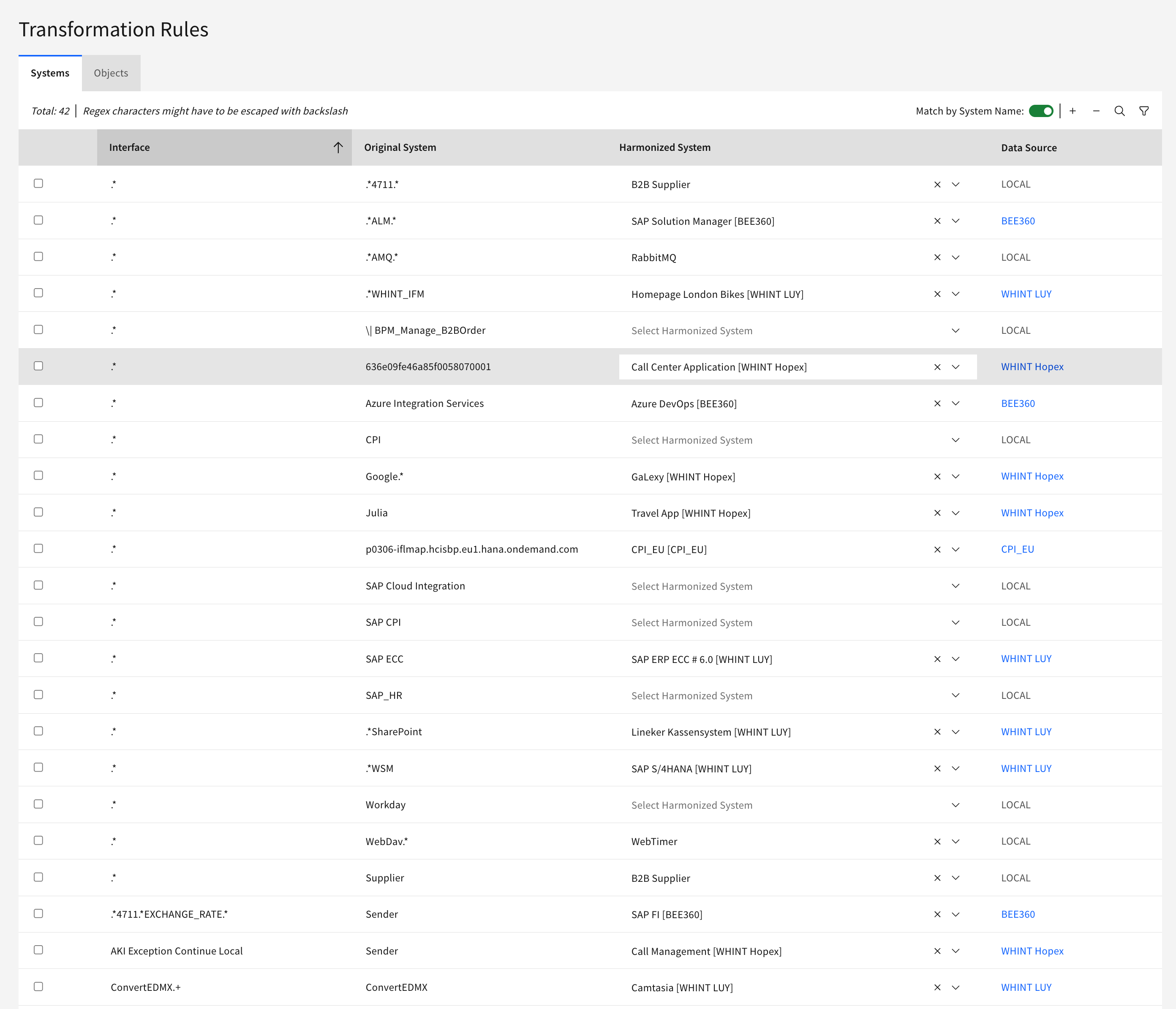
A rule without a Harmonized System selected is ignored during processing.
How to use:
-
Click "+" to add system mapping rules
-
Configure Interface pattern (use
.*for any interface) -
Enter Original System name as it appears in raw data
-
Select Harmonized System from dropdown
-
Enable with checkbox and Save
Rule logic examples:
-
Map by system:
.*+ "SFTP" → "File Server (xChange)" -
Map by interface:
.*DeletedMessage.*+ "RabbitMQ" → "Messaging Broker"
Order matters for system rules - place specific patterns before general wildcards since the first matching rule wins.
Match by System Name
The Match by System Name toggle in the Systems toolbar changes the fallback matching behavior. When enabled, interfaces that no rule matched fall back to an exact name match between the raw system name and an existing harmonized system name. This toggle is off by default.
Objects
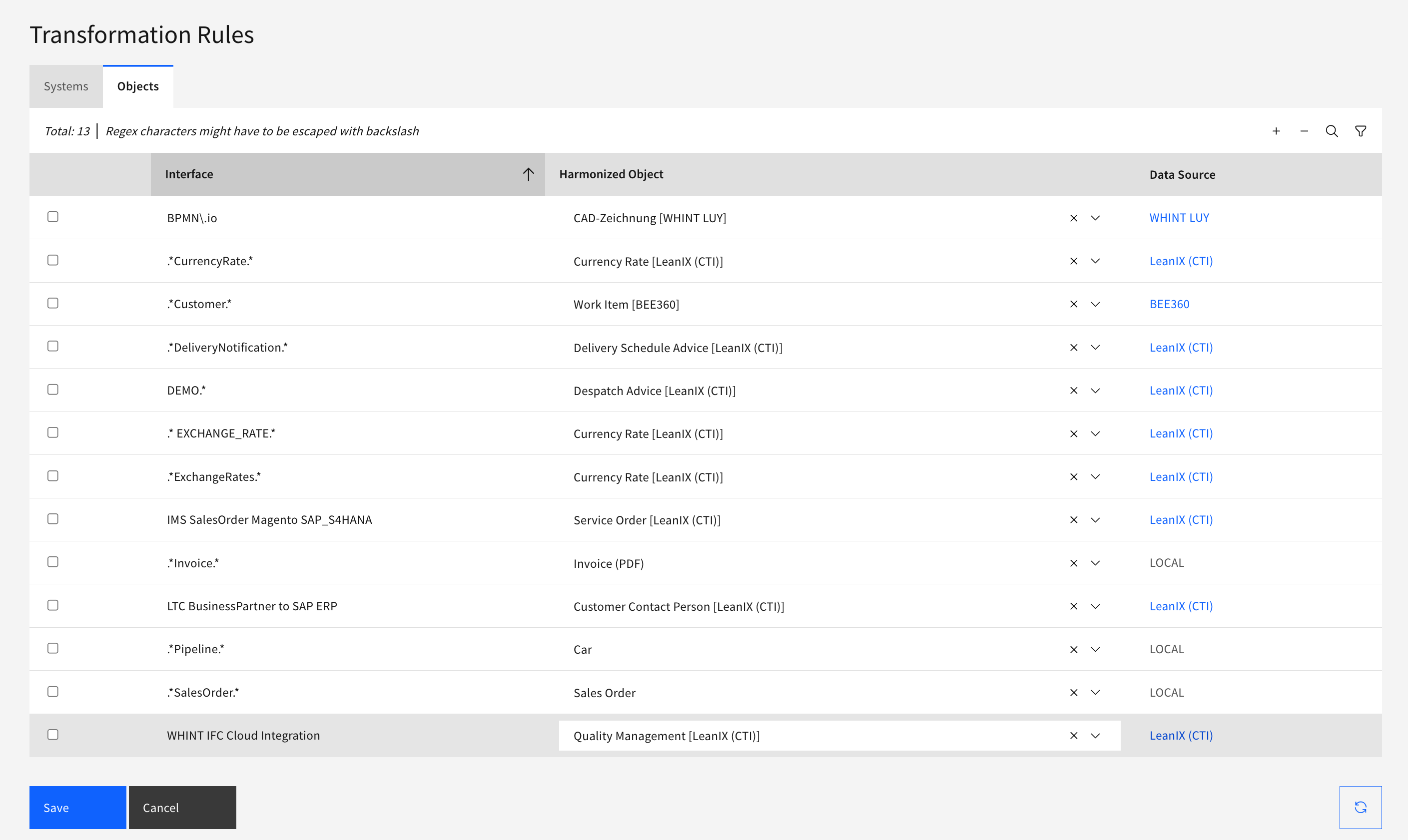
The Objects tab assigns business objects to interfaces based on naming patterns. Multiple objects can be assigned to a single interface when patterns match.
What you see:
-
Interface column: Shows regex patterns (e.g.
.*CurrencyRate.*,.*Customer.*) -
Harmonized Object dropdown: Select from predefined business objects
-
Data Source column: Indicates which data source the rule applies to
How to use:
-
Click "+" to add new object mapping rules
-
Enter interface pattern using regex (use
.*as wildcard) -
Select Harmonized Object from dropdown
-
Click Save to apply changes
Example patterns:
-
.*SalesOrder.*→ Sales Order -
.*Invoice.*→ Invoice -
.*Customer.*→ Customer Data
Apply and Validate
After configuring rules, update your inventory and verify the transformations worked correctly.
Apply transformations:
-
Click Update Inventory on the right side of the UI
-
System processes all existing interfaces against your transformation rules
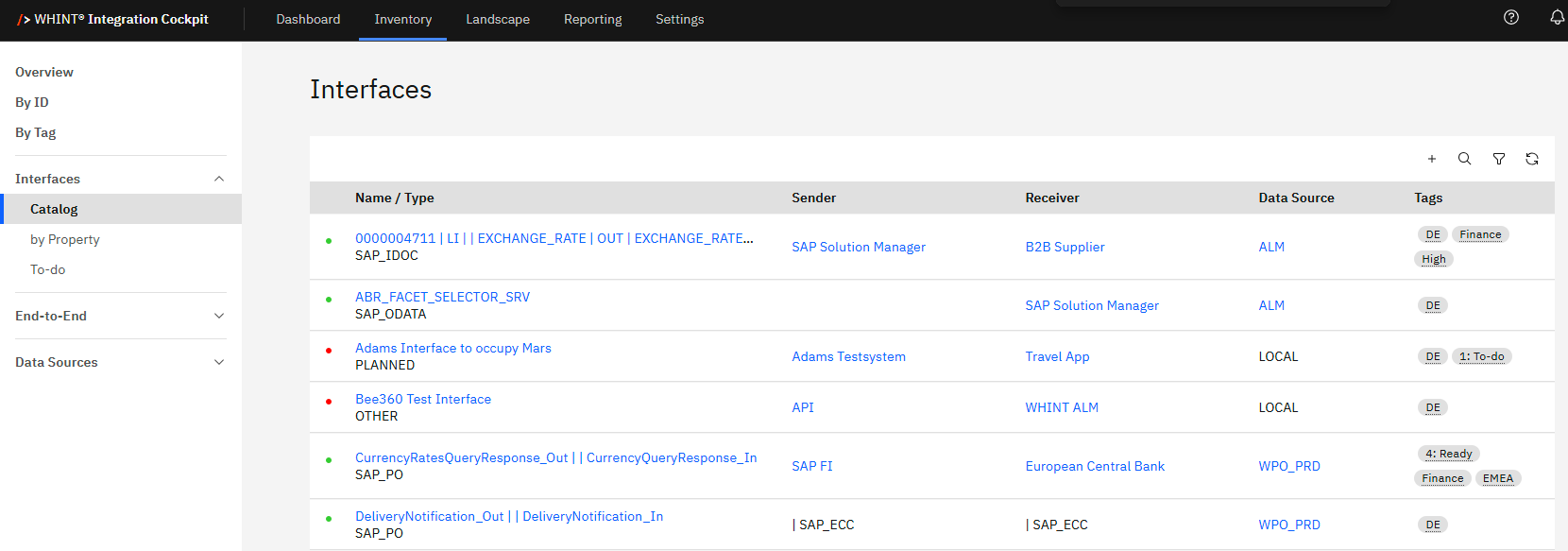
Verify success in Inventory:
-
Navigate to Inventory → Interfaces → Catalog
-
Success indicators: System names appear as blue hyperlinks, business objects populate in Tags column
-
Issues: Check Inventory → To-do for interfaces needing additional rules
Best Practices
-
Test rules with specific patterns before using broad wildcards
-
Use meaningful regex patterns:
.*Order.*,SAP.*,.*API$ -
Document rule purposes in Description fields
-
Review To-do list regularly for unmapped interfaces
-
Order system rules from most specific to most general /expand
Related Documentation
For comprehensive setup and configuration details, see:
-
Onboarding Guide - Step 3: Configure Transformation Rules - Complete transformation rules configuration steps
-
Onboarding Guide - 1.4 EAM & IT Management Tools - Automated import of systems and objects
-
Systems - Creating and managing systems that rules reference
-
Objects - Creating and managing objects that rules reference
Learn more:
Last Updated: August 28, 2026