
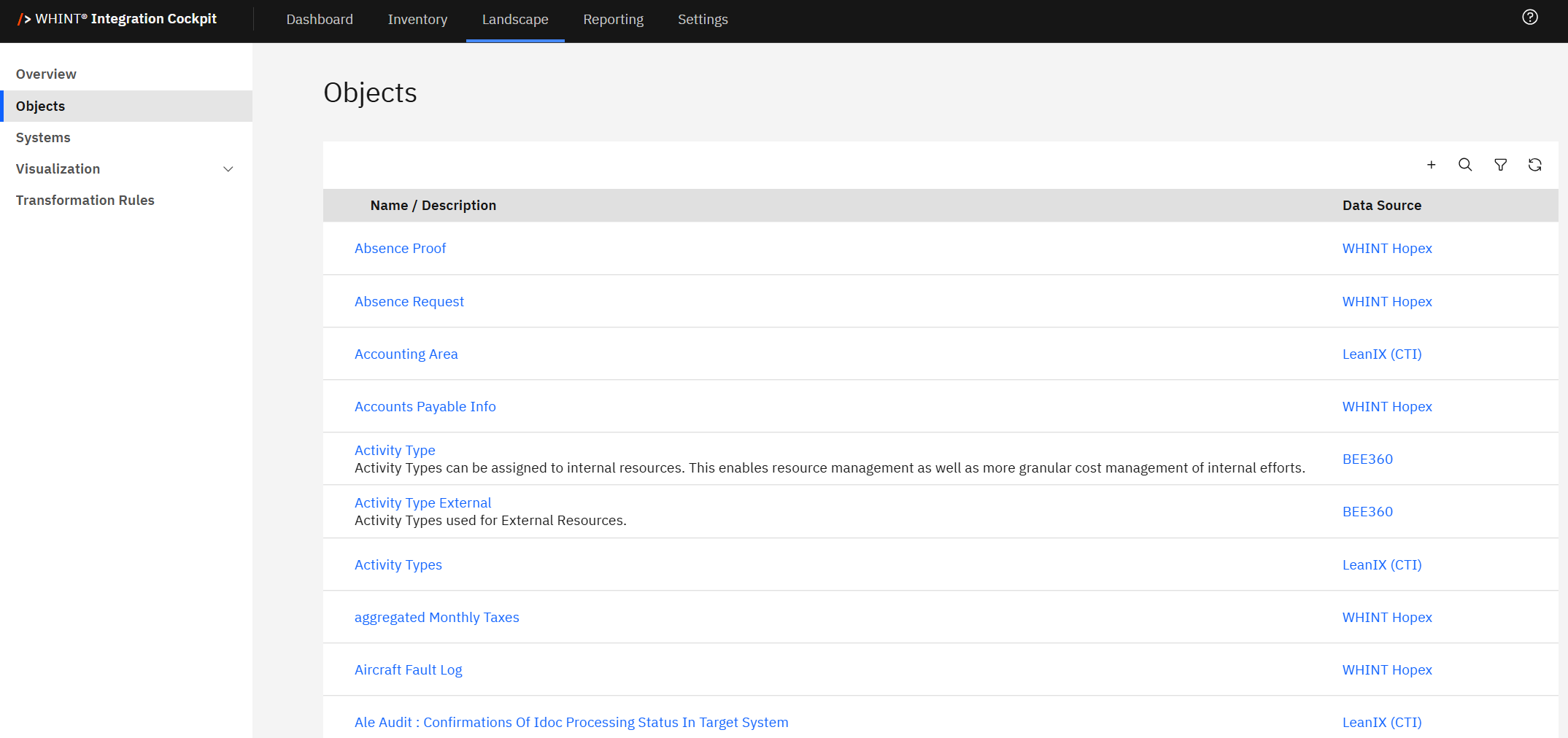
The Objects view displays all business objects and data entities involved in your integration landscape. Use this view to understand what information flows through your integrations and track business object usage across different enterprise architecture platforms.
Workflow Integration: The Objects view connects business context with technical integration analysis, enabling you to find all interfaces handling specific business objects and understand data flow patterns across your enterprise.
Navigate to Inventory → Objects to access the complete business objects catalog with descriptions and data source tracking.
Objects
Objects represent business/data objects like e.g. "Sales Order", "Supplier", "Currency" and can be created in the following ways:
-
Manually: Direct object definition in the Integration Cockpit interface via "+" button
-
Imported from an EAM-tool: Synchronized from enterprise architecture platforms (see EAM & IT Management Tools for setup guidance)
-
Through API-calls: Automated creation from external applications
Transformation Rules: Objects displayed here are harmonized results from transformation rules processing.
The objects you see here are the result of transformation rules processing that harmonizes business objects from raw interface data into standardized object definitions.
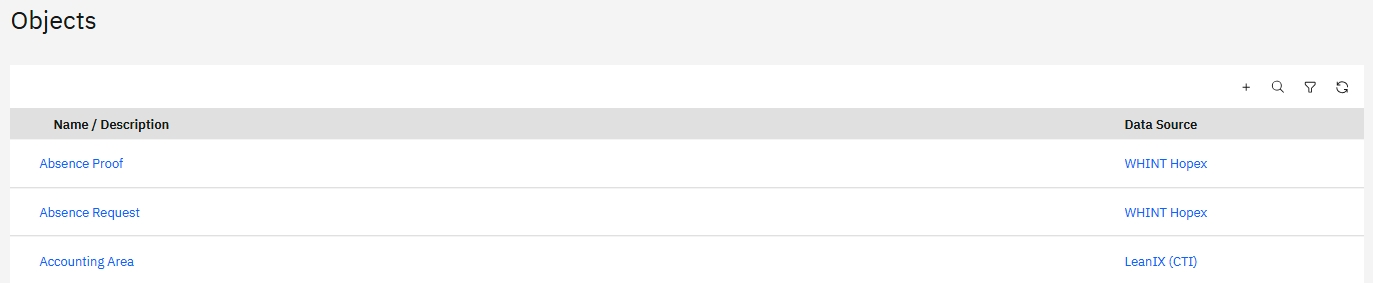
Name / Description: Business object name with detailed business context descriptions
Data Source: Enterprise architecture platform providing the object definition
Object Mapping
Interfaces are assigned to objects through a transformation step which is configured in Transformation Rules and executed during the Inventory Task in the Data Source. Unlike system rules, all matching transformation rules are applied for objects, as there can be several objects attached to a single interface.
This enables comprehensive business context mapping where a single interface can handle multiple business objects like "Sales Order", "Customer Data" and "Currency" simultaneously.
The transformation process maps business objects from enterprise architecture platforms to interface definitions, providing business context for technical integrations.
For detailed guidance on configuring transformation rules for objects, see Configure Transformation Rules in the Onboarding Guide.
Incomplete object assignments appear in Inventory → To-do for manual enrichment and additional rule configuration.
Data Source Integration
Objects are sourced from multiple enterprise architecture platforms:
-
Hopex: Enterprise architecture objects from MEGA HOPEX platform
-
LeanIX (CTI): Business objects from LeanIX enterprise architecture management
-
BEE360: Business objects from BEE360 architecture platform
Enterprise Architecture Integration: Objects are automatically synchronized from connected enterprise architecture platforms (WHINT Hopex, LeanIX, BEE360), ensuring business context remains current with your architectural documentation.
Object Analysis and Usage
Clicking an object name (e.g. "Activity Type") opens the Interfaces view filtered to show all integrations that handle that specific business object, enabling complete data flow analysis.
Business Context: Object descriptions provide essential business context, helping users understand the purpose and scope of data being integrated across systems.
Cross-Platform Visibility: Objects from different enterprise architecture platforms are unified in a single view, providing comprehensive business object landscape visibility.
Object Properties and Configuration
You can add properties to each object. The object properties are defined in Settings → Configuration → Properties (Object). For detailed guidance on configuring properties and tags, see Basic Configuration in the Onboarding Guide.
Filtering and Management
Use the toolbar controls to analyze business objects:
-
Search: Find specific business objects by name or description
-
Filter: Show objects from specific enterprise architecture platforms
-
Add: Create new business object definitions for manual integration documentation
-
Refresh: Update the view to reflect recent transformation rule processing
Business-Technical Alignment: Use Objects to bridge business and technical perspectives. When business stakeholders ask about specific data flows (e.g. "Where do we process Activity Types?"), you can quickly find all related integrations and their technical implementations. Objects are harmonized results from transformation rules processing - configure transformation rules to ensure proper business object assignments across your integration landscape.
For complete information about objects, transformation rules and integration landscape management, see Landscape: Systems & Objects in Integration Cockpit.
Last Updated: August 19, 2025