

The To-do view lists business objects with missing properties, based on the check configured under Settings → To-do.
Purpose: Identify objects with missing information, such as a security classification or data protection assessment, and complete their properties individually or through mass maintenance.
Navigate to Inventory → Objects → To-do to open the view.
Objects to Be Processed
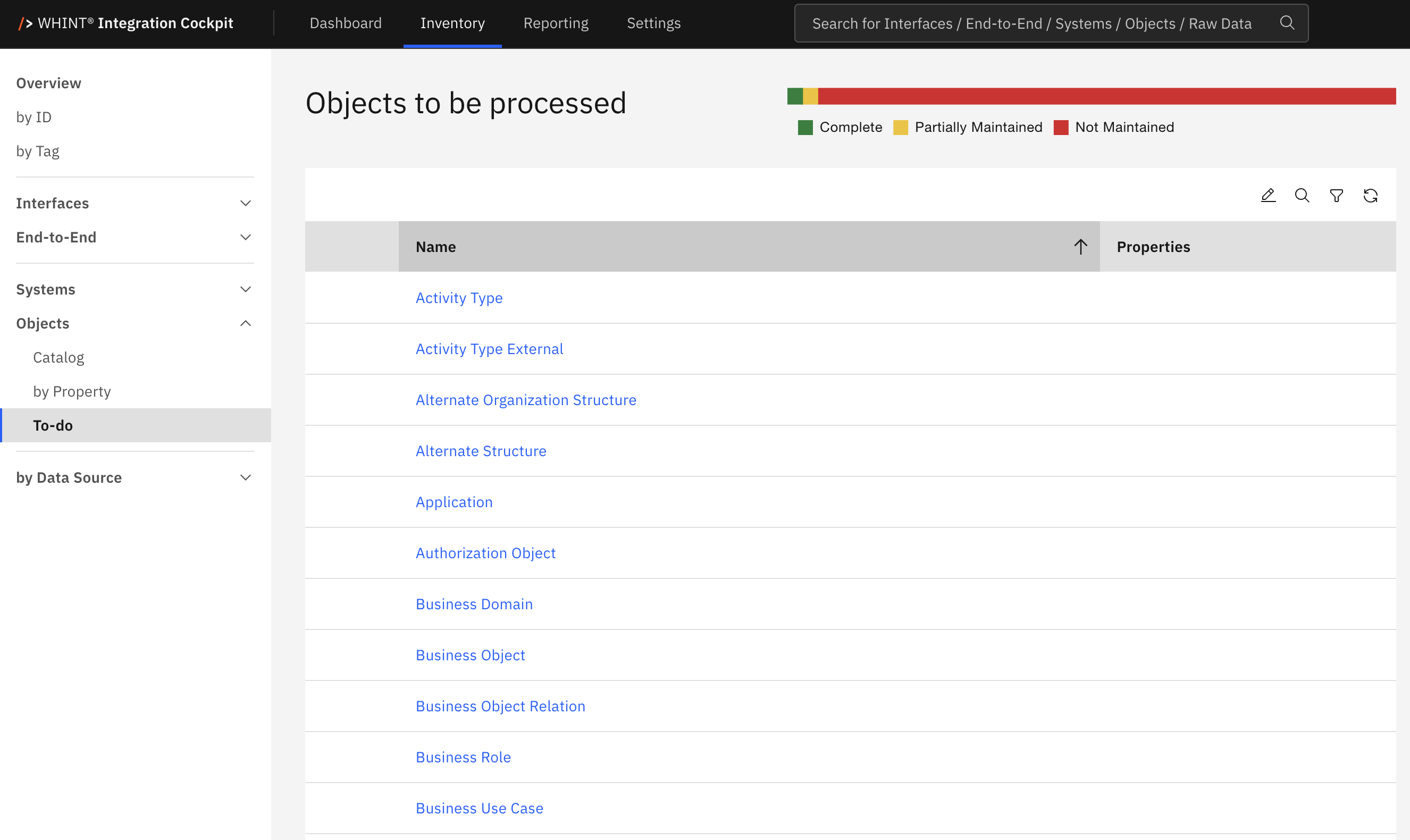
By default, the list shows all objects that are not complete, sorted by name. Click an object name to open its details in Inventory → Objects → Catalog, where you can maintain its properties.
The Properties (Object) setting under Settings → To-do determines which properties an object must have:
|
Setting |
Complete |
Partially Maintained |
Not Maintained |
|---|---|---|---|
|
at least one |
At least one property is assigned. |
Not applicable. |
No properties are assigned. |
|
configured |
All property types marked as required for objects are assigned. |
Some, but not all, required properties are assigned. |
None of the required properties are assigned. |
A property counts as assigned even if it has no value. If configured is selected but no property type is marked as required for objects, any assigned property counts, as with at least one. If Properties (Object) is set to Inactive, the view displays a message instead of the list.
Partially Maintained only applies to configured when at least two property types are marked as required. For example, you can require every object to have a security classification and an indication of whether it contains personal data.
Status Bar
The status bar shows the number of objects in each status: Complete, Partially Maintained and Not Maintained.
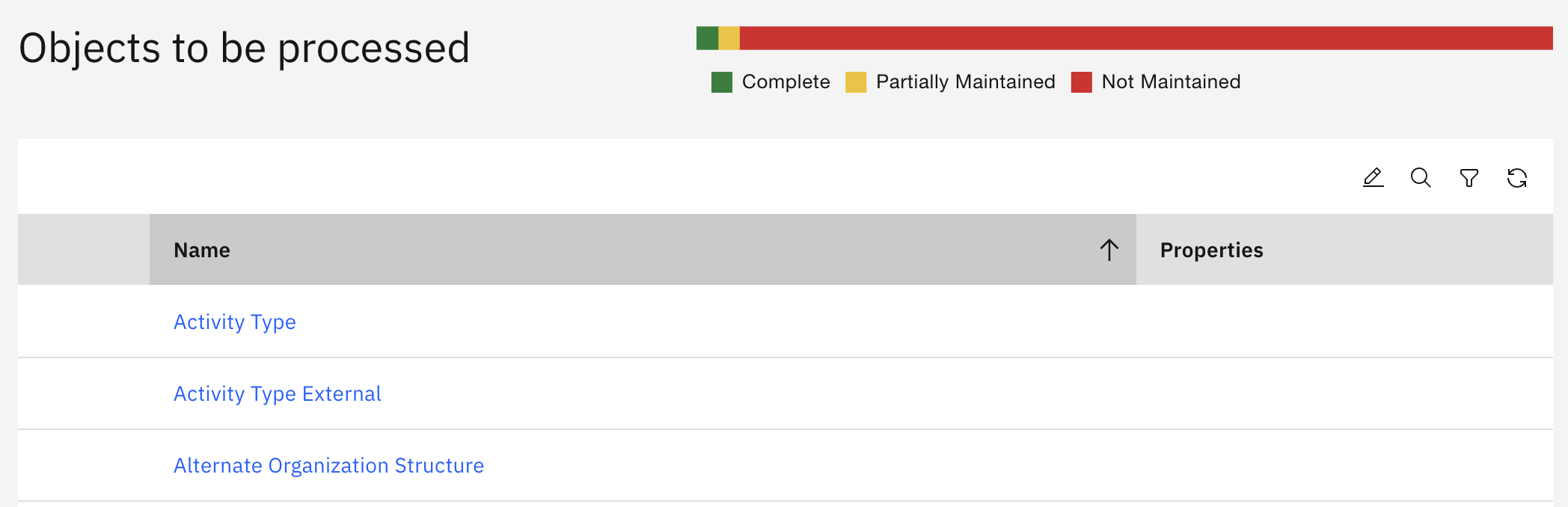
The counts reflect the current search and filters. All three statuses remain visible, even if a status has no matching objects. The status bar is hidden if no objects match the search and filters.
Click a status to filter the list. Click the same status again to return to the default list. The status bar is disabled during mass maintenance.
Properties Column
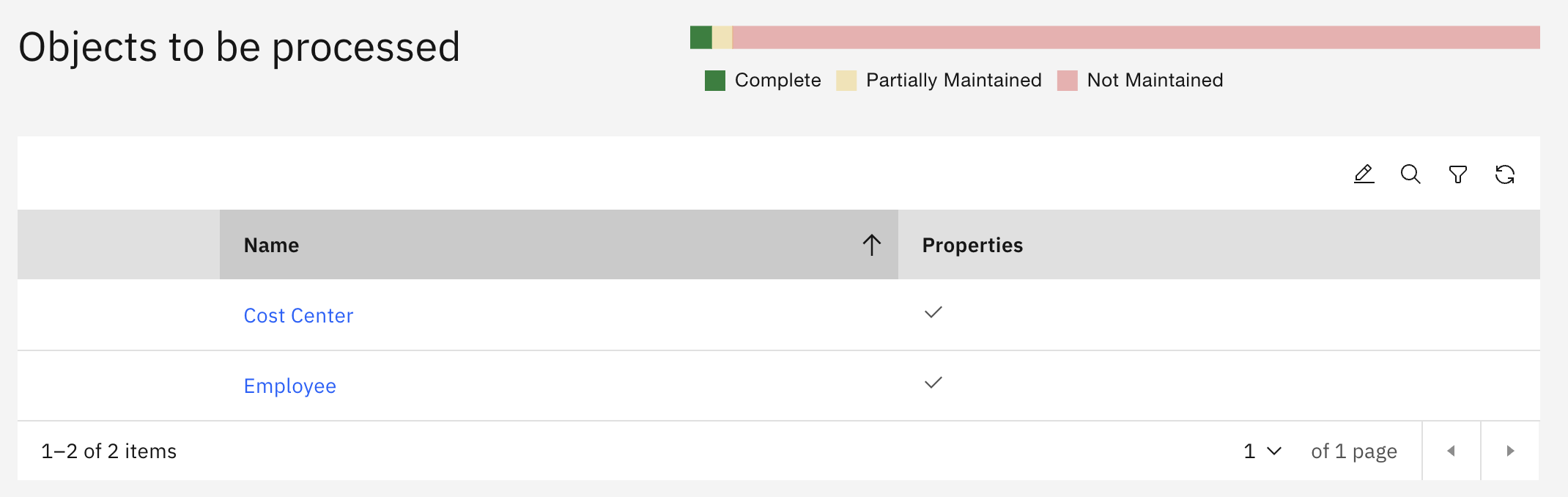
The Properties column displays a check mark only when the list is filtered by Complete. For the default list and the other statuses, the column remains empty.
Toolbar

|
Control |
What it does |
|---|---|
|
Mass maintenance for properties |
Switches the list to selection mode. Select multiple objects to add or remove properties for all selected objects. |
|
Search |
Searches object names. |
|
Filter |
Filters by Status, Data Source and Property. |
|
Reload |
Reloads the list. |
Mass maintenance is only available to users with write permission. Unlike in the Objects Catalog, you cannot delete objects from this view.
After mass maintenance, the list and status bar are updated. Objects that are now complete disappear from the default list.
Related Documentation
-
Inventory → Objects → Catalog — Open an object and maintain its properties.
-
Inventory → Objects → by Property — Compare property values across objects.
-
Settings → To-do — Configure the object check and required properties.
-
Settings → Properties → Overview — Define the property types available for objects.
-
Inventory → Systems → To-do — View systems with missing properties.
-
Inventory → Interfaces → To-do — View interfaces with missing properties.
Last Updated: November 4, 2026