

The Catalog lists the business objects in your landscape, such as Sales Order, Supplier or Cost Center. Objects describe the data exchanged through your interfaces and End-to-End integrations.
Purpose: Maintain the business objects assigned to your interfaces, classify them using properties, and see which interfaces, End-to-End integrations and systems handle each object.
Navigate to Inventory → Objects → Catalog to open the list.
Catalog
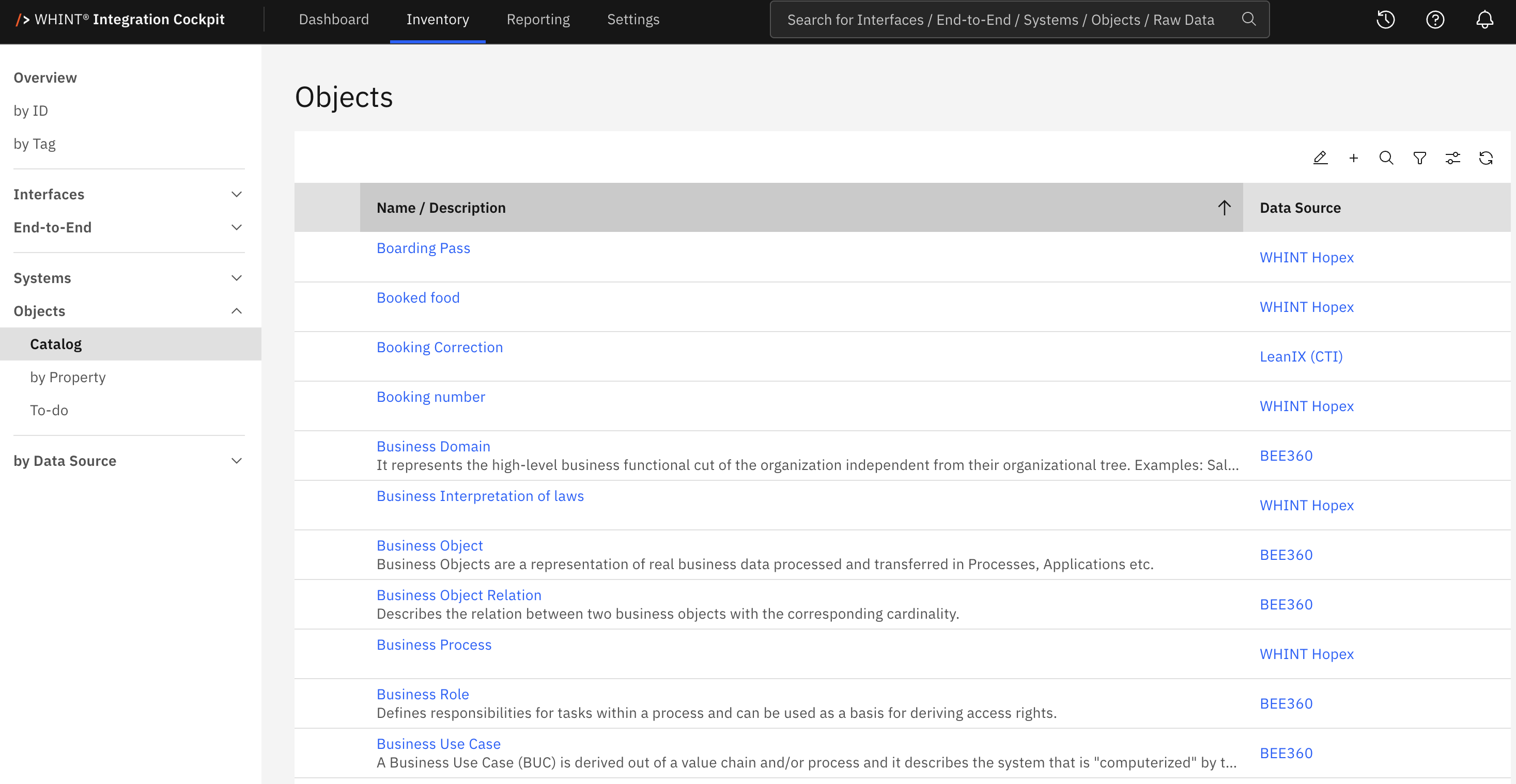
The list displays Name / Description and Data Source. It is sorted by name. Use Configure columns to show the Properties and Metadata columns. Each displays the first two entries, followed by +N more if additional entries exist.
Where Objects Come From
The cockpit does not create objects automatically from interface data. Objects come from two sources:
-
Add — Objects created manually in this catalog.
-
EAM tools — Objects imported from a connected enterprise architecture tool, such as LeanIX, HOPEX, LUY or Bee360. For setup instructions, see EAM & IT Management Tools in the Onboarding Guide.
Interfaces are assigned to objects through the object mapping under Settings → Transformation Rules. Unlike system mapping, all matching rules are applied. This means that a single interface can be assigned multiple objects. End-to-End integrations can also be assigned objects directly in their detail view.
Toolbar

|
Control |
What it does |
|---|---|
|
Mass maintenance for properties |
Switches the list to selection mode. Select multiple rows to add or remove properties for all selected objects, or delete the selected objects. |
|
Add |
Create new Object — Prompts you to enter a name and opens the new object. |
|
Search |
Searches object names, descriptions, property values and metadata values. |
|
Filter |
Filters by Data Source and Property. You can select a property with or without specifying a value. |
|
Configure columns |
Shows or hides columns, including Properties and Metadata. |
|
Reload |
Reloads the list. |
Mass maintenance and Add are only available to users with write permission.
Object Detail View
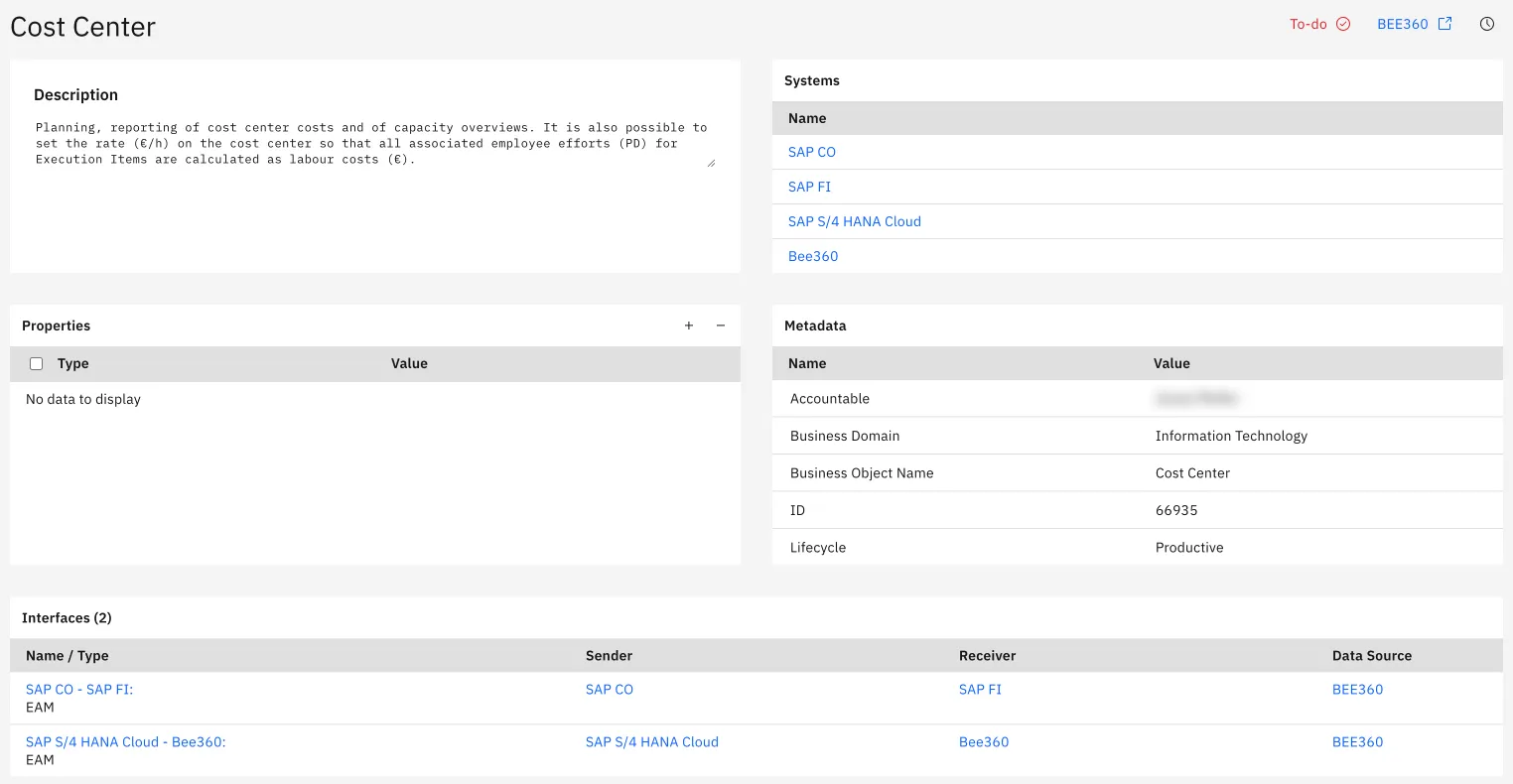
Click an object name to open its detail view. The page contains the following cards:
|
Card |
Content |
|---|---|
|
Description |
Free-text description of the object. |
|
Systems |
Systems that send or receive the object through their interfaces. Read-only. |
|
Properties |
Classification of the object using your own properties. |
|
Metadata |
Name-value pairs, for example, attributes provided by an EAM tool for the object. |
|
End-to-End |
End-to-End integrations that carry the object, either directly or through one of their interfaces. The card title shows the number of integrations. |
|
Interfaces |
Interfaces that carry the object. The card title shows the number of interfaces. |
The page header provides the following elements:
-
To-do — Opens the object's configuration checklist (see below).
-
Data Source — A button showing the name of the source from which the object originates. Opens the corresponding data source settings.
-
Show Changes — Displays the change history.
Properties and Metadata

Use Add to insert a row and Remove to delete the selected rows. How you enter a property value depends on its property type: free text, a link or a selection from a value list. The available property types are defined under Settings → Properties → Overview.
Metadata can only be edited for objects created manually. For objects imported from an EAM tool, the Metadata card is read-only.
Configuration Checklist
The To-do badge contains a single check: Properties.
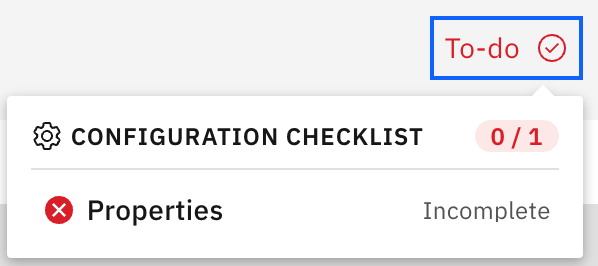
Depending on the Properties (Object) setting under Settings → To-do, the check requires either at least one property or all property types marked as required for objects. If the setting is Inactive, the badge is not displayed.
End-to-End and Interfaces

In the Receiver column of the Interfaces table, +N more indicates that an interface has additional receivers. A card is only displayed if it contains at least one entry.
The following entries are not displayed here:
-
End-to-End integrations and interfaces that have a tag value listed under Settings → Tags → Ignore.
-
Entries from other environments when you open the object from Reporting → Landscape → Overview with an environment selected.
Saving
|
Button |
What it does |
|---|---|
|
Save |
Saves all changes on the page. Ctrl+S (Cmd+S on macOS) does the same. |
|
Cancel |
Returns to the previous view without saving changes. |
|
Delete |
Deletes the object after confirmation. |
Users without write permission only see the Cancel button.
Related Documentation
-
Settings → Transformation Rules — Assign interfaces to objects.
-
Settings → Properties → Overview — Define the property types available for objects.
-
Settings → To-do — Configure the object checklist.
-
Settings → Tags → Ignore — Exclude interfaces and integrations based on tag values.
-
Inventory → Systems → Catalog — View the systems that send or receive an object.
-
Inventory → End-to-End → Catalog — View End-to-End integrations.
Last Updated: November 4, 2026