

The Interfaces catalog provides a comprehensive view of all discovered integration interfaces across your landscape. Use this central listing to browse, search and analyze interface details with advanced filtering capabilities.
Navigate to Inventory → Interfaces → Catalog to access the complete interface catalog, or reach it through filtered views from Overview, By ID or By Tag navigation.
Catalog
The Catalog displays all interfaces in a structured table format with comprehensive metadata for analysis and navigation.
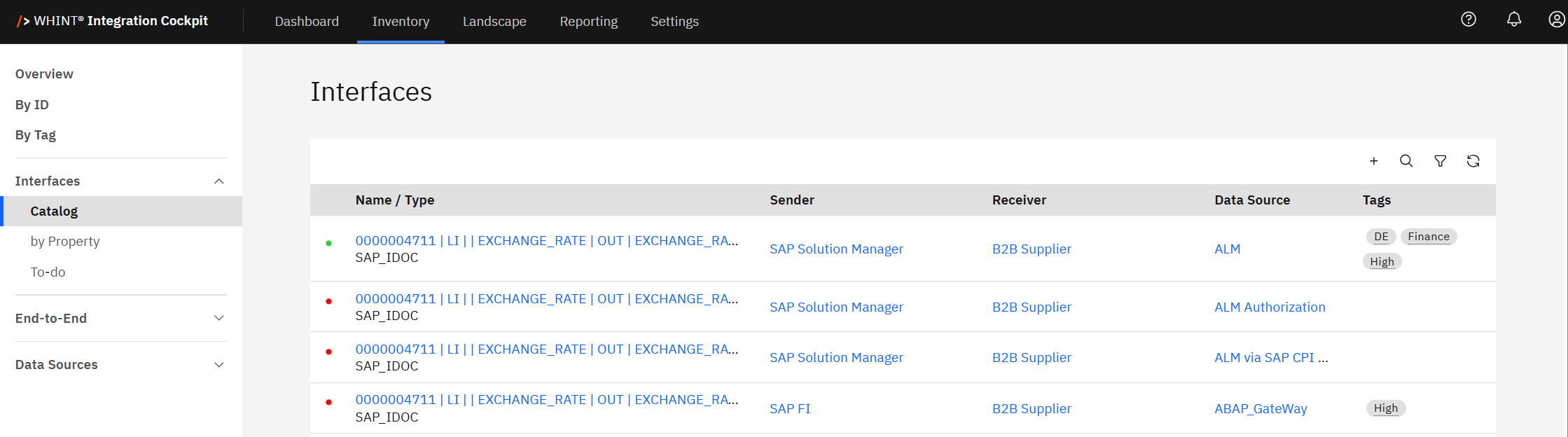
Interface Table Columns
-
Name / Type: Interface identifier and technology classification (e.g. SAP_IDOC, SAP_XI)
-
Sender: Source system sending data (clickable)
-
Receiver: Target system receiving data (clickable)
-
Data Source: Connected system providing the interface data (clickable)
-
Tags: Applied categorization labels for filtering and organization
Interface Status Indicators
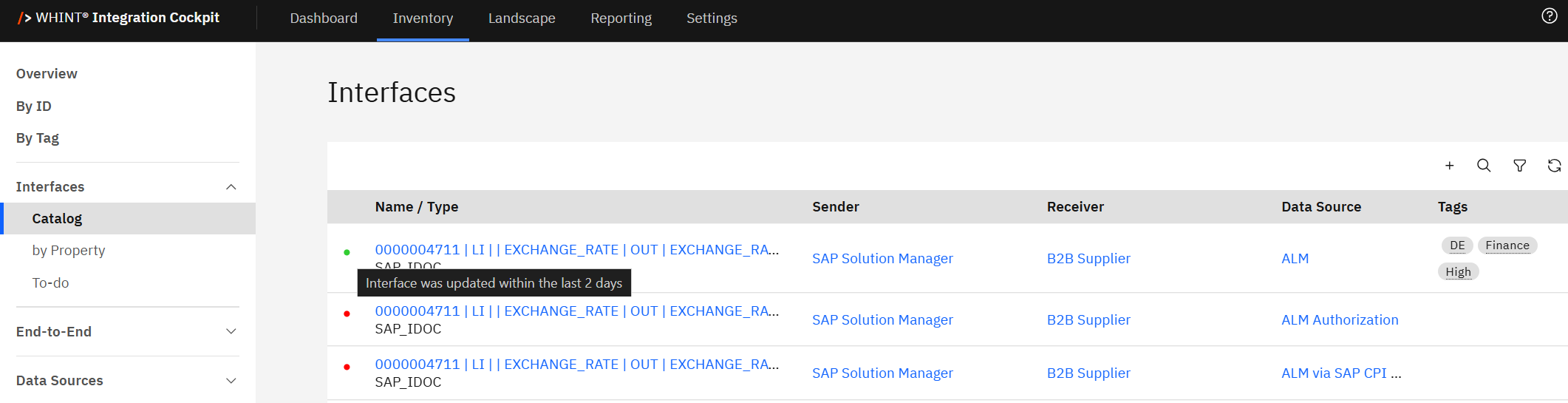
Colored status dots provide quick interface health visibility:
-
Green Dot: Interface was updated within the last 2 days (hover to see exact timeframe)
-
Red Dot: Interface was not updated in the last 7 days (hover to see exact timeframe)
These indicators help identify active versus stale interfaces for maintenance and monitoring purposes.
Interface Discovery and Navigation
Clicking an interface name (e.g. "00000047111 LI | EXCHANGE_RATE") opens the detailed interface view with complete configuration, properties and metadata.
Clicking system names in Sender or Receiver columns navigates to system detail views for deeper landscape analysis.
Clicking Data Source names opens the data source configuration and connection details.
Filtering and Search
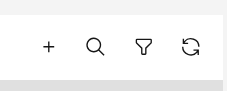
Use the toolbar controls to refine your interface view:
-
Search Field: Find interfaces by name, type, or metadata using the search box in the top-right toolbar
-
Filter Button: Opens comprehensive filter dialog with multiple criteria options
-
Add Button (+): Create new interface entries with the "Create Inventory" dialog
-
Refresh: Refresh the current view
Advanced Filtering Options
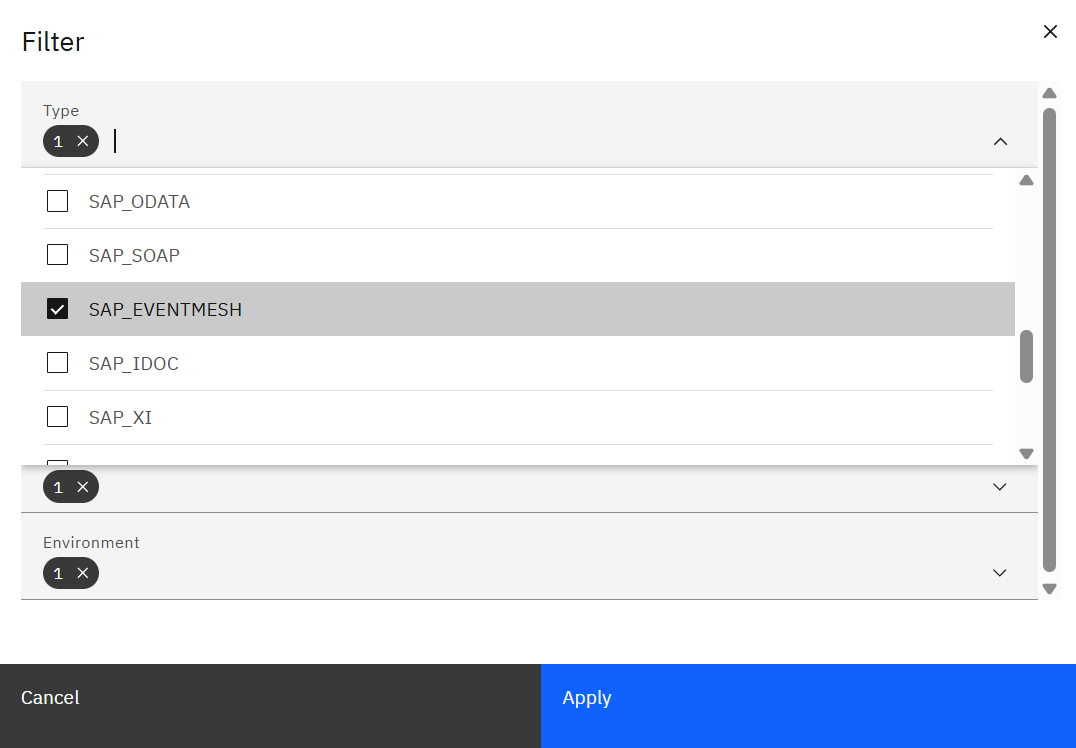
The Filter dialog provides sophisticated filtering capabilities:
-
Type: Filter by interface technology (e.g. SAP_IDOC, MULE_API, SAP_XI)
-
Sender / Receiver: Filter by specific Systems
-
Object: Filter by business objects associated with interfaces
-
Data Source: Filter by connected system providing interface data
-
Tags: Filter by applied categorization labels
-
Environment: Filter by environment classification (e.g. Production, Development)
Clicking Apply applies the selected filter combination to narrow the interface list to matching results.
Creating New Interfaces
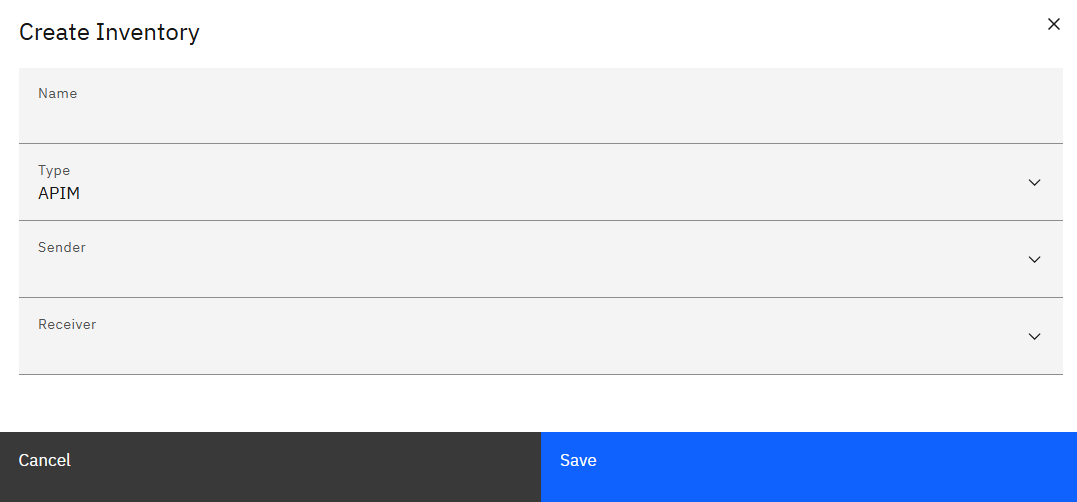
Clicking the Add button (+) opens the "Create Inventory" dialog for manual interface creation:
-
Name: Interface identifier
-
Type: Technology classification dropdown (e.g. MULE_API)
-
Sender: Source system dropdown selection
-
Receiver: Target system dropdown selection
This functionality allows manual interface registration when automatic discovery doesn't capture all integration points.
Create Inventory dialog showing Name, Type, Sender, and Receiver fields for manual interface creation
Filtered Views: When accessing the catalog through Overview counts, By ID selection, or By Tag filtering, the appropriate filters are automatically applied to show relevant interface subsets.
Pagination and Scale
The catalog handles large interface inventories with pagination controls:
-
Items Display: Shows current page range (e.g. "1 - 20 of 6387 items")
-
Page Navigation: Use page controls to navigate through the complete interface set
-
Items per Page: Configurable display count for optimal viewing
Common Use Cases
Integration Manager: Review complete interface inventory for portfolio analysis and governance
Architect: Analyze interface patterns, technology distribution and system relationships
Developer: Locate specific interfaces for configuration, troubleshooting, or enhancement
Efficient Navigation: Use filtering and search to quickly locate specific interfaces rather than browsing through pagination. The catalog supports complex filter combinations for precise interface discovery.
Tag-Based Organization
Interface tags provide flexible categorization for analysis:
-
Criticality Tags: High, Medium, Low priority classifications
-
Domain Tags: Business area or functional groupings
Tags appear as colored labels in the Tags column and support multi-tag filtering for sophisticated interface analysis.
Best Practice: Use the catalog's filtering capabilities to create focused views for specific analysis tasks, such as reviewing all high-criticality production interfaces or analyzing interfaces by technology type.
Last Updated: August 18, 2025