

End-to-End Expand adds the Cloud Integration resources an interface uses — such as value mappings, credentials and destinations — to the End-to-End flow it belongs to. This shows both the interfaces in a flow and the resources they use.
Prerequisite: Expansion applies to the Cloud Integration interfaces in a flow. Flows without Cloud Integration interfaces are not affected.
Navigate to Settings → End-to-End → Expand to choose which resource types are added.
End-to-End Expand Overview

What you see:
-
Resource Types multi-select: Selects the resource types that can be added to your flows — Value Mapping, Message Mapping, Credential, Cloud Connector Entries, BTP Destination and Script Collection. The list is searchable and shows the number of selected entries.
-
Save / Cancel buttons: Apply or discard your changes.
Configuration
-
Select the resource types you want to add to your flows.
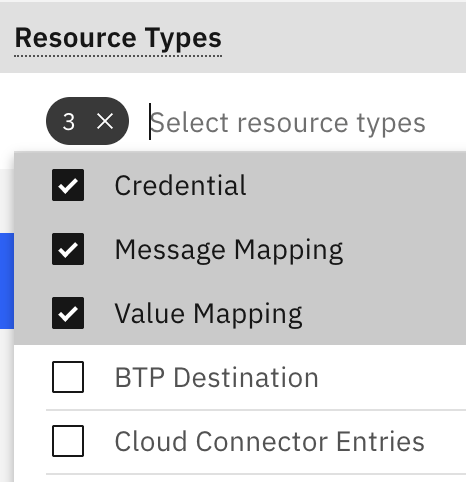
-
Click Save.
Leaving the selection empty disables expansion. Nothing is added to your flows.
How Expansion Works
For each Cloud Integration interface in a flow, resources of the selected types are identified and added to the flow.
-
Resources are placed on the same level as the interface that uses them, not as an additional step in the integration chain.
-
A resource used by several interfaces in the same flow is added only once.
-
Resources already part of the flow are not added again.
How a resource is identified depends on its type:
-
Value Mapping, Message Mapping, Script Collection and Credential are identified from the content and configuration of the integration flow, collected during Cloud Integration inventory.
-
Cloud Connector Entries and BTP Destinations are matched by URL, using the same rules as the predecessor and successor search.
When Expansion Runs
-
Automatically as part of the E2E task, after a flow has been created or updated.
-
Manually via Find E2E predecessors & successors on a flow under Inventory → End-to-End → Catalog. Flows created manually are only expanded this way and are never expanded automatically.

Find E2E predecessors & successors button in the header of an End-to-End flow
Related Documentation
-
End-to-End Generation — Automatic generation of End-to-End flows
-
Step 1: Create Data Sources & Schedule Tasks — Scheduling the E2E task
Last Updated: August 27, 2026