

The Tags configuration allows you to define flexible categorization and filtering criteria used throughout Integration Cockpit for organizing interfaces by business domain, risk level, technology stack or deployment characteristics.
Purpose: Define tag categories and their values for flexible interface classification, enabling business-aligned filtering, reporting segmentation, and dashboard organization across Integration Cockpit.
Navigate to Settings → Tags → Overview to manage your tag category definitions and values.
For detailed guidance on tag configuration, see 2.1.2 Tags in the Onboarding Guide.
Tags Overview
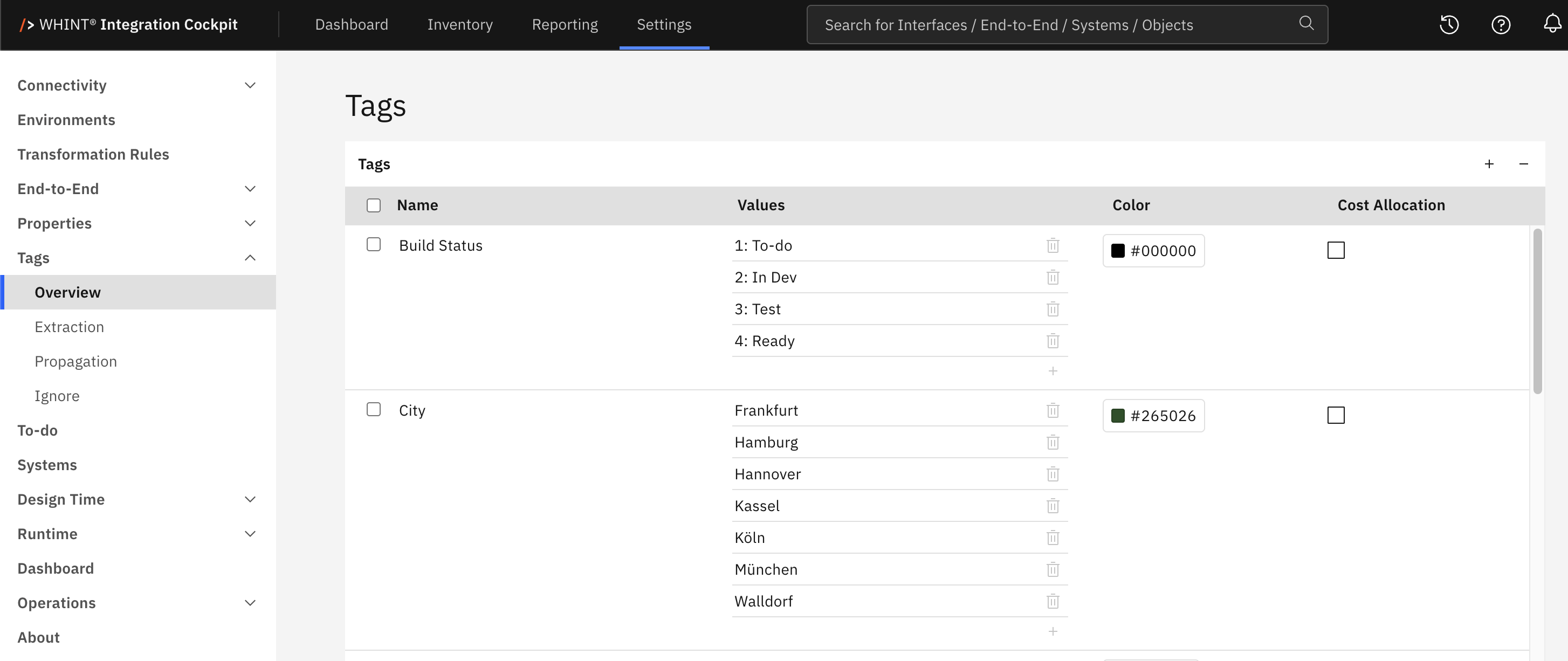
What you see:
-
Tag categories list with checkboxes for selection (Name column)
-
Values column displaying all defined values for each category, with individual add and delete controls
-
Color column with a color picker for the category. New categories default to grey
-
Cost Allocation column with a checkbox marking the category used for cost allocation reporting
-
Add/Remove controls (+ and - buttons) to add or remove Tags
-
Save button to apply all changes.
Tag Management
Adding Tag Categories
-
Click the "+" Add button in the toolbar. A new empty row appears at the top of the list.

-
Enter the category name (e.g. Domain, Criticality, Lifecycle Phase).
-
Click Save to create the category.
Tag category names must be unique across all categories.
Adding Values to Categories
-
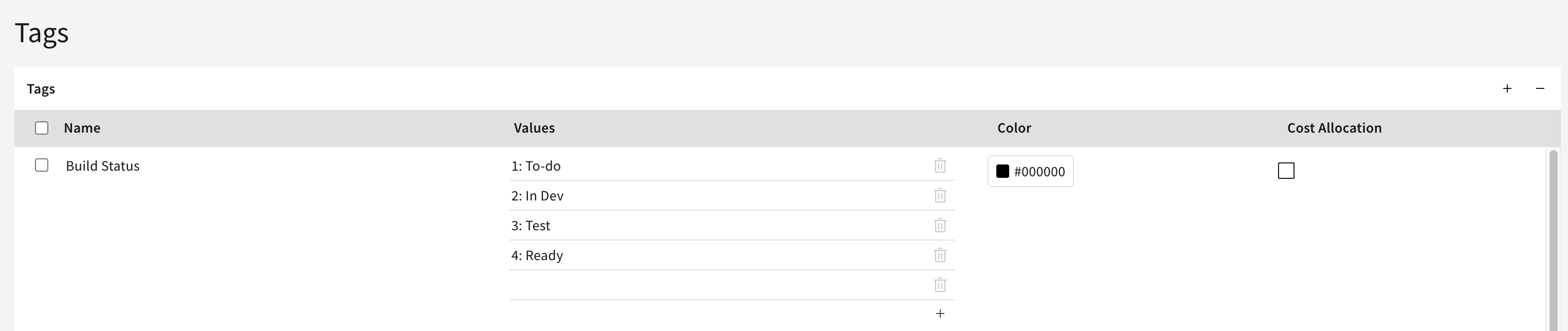
Click the + icon at the bottom of the Values column of the category. A new empty value row appears.
-
Enter the value (e.g. for Domain: Finance, Sales, Logistics).
-
Repeat for as many values as the category needs.
-
Click Save.
Value rows left empty are discarded when you save.
Removing Tag Categories and Values
-
Remove categories: Select the checkbox next to the categories and click the "-" button.
-
Remove values: Use the trash icon next to the individual value.
-
Click Save to confirm all changes.
Warning: Deleting a tag category also deletes its values, every tag assignment made with them on interfaces and End-to-End flows, its Dashboard Inventory panel configuration, and its tag propagation rules. This cannot be undone.
Color and Cost Allocation
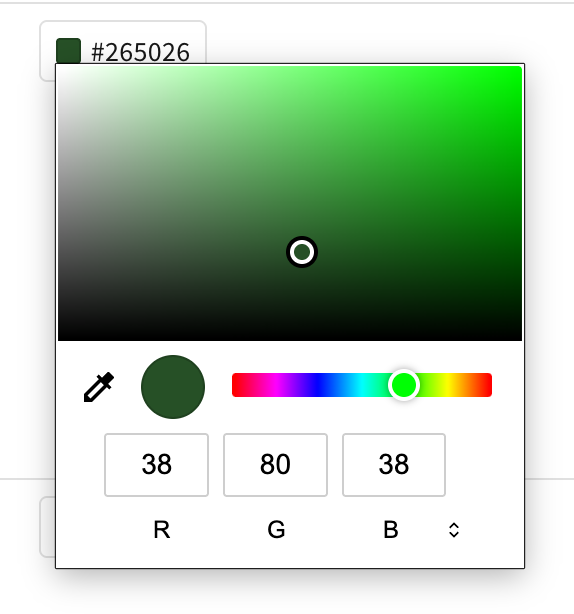
Color determines how the tag is displayed throughout Integration Cockpit. Each category has one color, applied to all of its values. New categories start out grey.
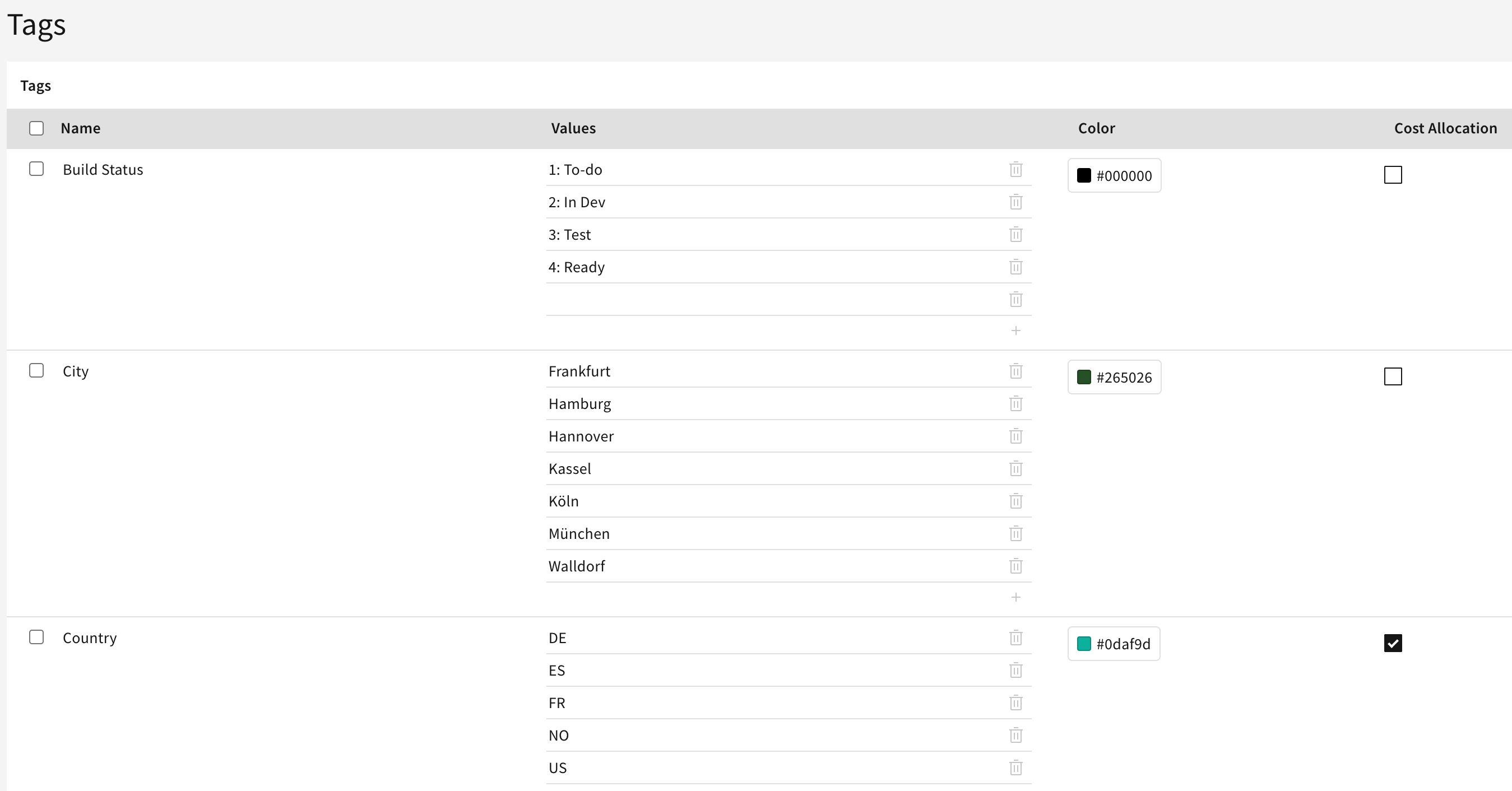
Cost Allocation marks the one category whose values are used to group the cost allocation report under Reporting. The checkbox is exclusive: selecting a category automatically clears the flag on all others, so only one category can be used for cost allocation at a time.
Tag Usage Throughout Integration Cockpit
Tag definitions are used across Integration Cockpit for:
-
Interface classification – Applying tags during interface enrichment and To-do workflows
-
Dashboard Inventory – Interface counts filtered by tag categories and values
-
Reporting – Cost allocation, landscape map visualization, and gap analysis
-
Catalog organization – Grouping and searching interfaces by tag criteria
-
End-to-End integrations – Tagging complete integration flows for business alignment
-
Tag Extraction – Assigning tags automatically during data source processing
-
Tag Propagation – Distributing tag values between interface types
Tag Configuration Requirements
Tags must be configured before they can be used in:
-
Dashboard Inventory panels (see Settings → Dashboard → Inventory)
-
To-do enrichment workflows (see Settings → To-do → Tags)
-
Interface catalog filtering and search operations
-
Cost allocation reporting
Best practice: Start with a small set of core categories, such as Domain, Criticality and Brand/Division, to establish business alignment. Add further categories only when they represent meaningful classification criteria that support your integration governance workflows. Assign a distinct color per category so tags remain readable in the catalog and on the dashboard.
Related Documentation
For comprehensive tag strategy and implementation guidance:
-
Onboarding Guide - 2.1.2 Tags – Detailed tag configuration, business alignment strategies, and advanced classification patterns
-
Tag Extraction – Automatic tag assignment during data source processing
-
Tag Propagation – Transfer of tag values between interface types
-
Tag Ignore – Excluding tags from processing
-
Dashboard Configuration – Using tags in inventory panels and KPI displays
-
To-do Configuration – Enabling tags for interface enrichment workflows
Last Updated: August 28, 2026