

The Design Check section defines which design rule is applied to API Management artifacts, separately for each API Management data source.
Purpose: An API is only exposed in a governed way if it is published through a product — and, depending on your governance, only if that product is actually consumed. Design Check enforces this rule per data source so non-compliant APIs surface in reporting instead of being found manually.
Navigate to Settings → Design Time → Design Check to configure the design rules.
Design Check Overview

What you see:
-
Interface Type – the API Management technology the rule applies to
-
Data Source – the connection the rule is applied to
-
Check – the design rule to be evaluated
-
+ and – – add or remove rules
-
Save and Cancel – apply or discard changes
Configuration
Each rule consists of an Interface Type, Data Source and Check.
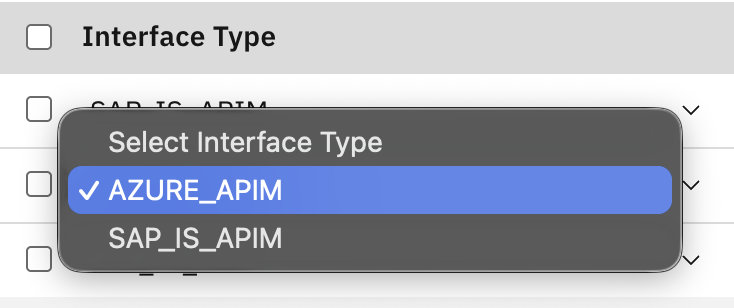
Interface Type
|
Value |
Applies to |
|---|---|
|
|
SAP Integration Suite – API Management |
|
|
Microsoft Azure – API Management |
Data Source
Only data sources that can provide API Management artifacts are available:
-
SAP BTP data sources whose product is API Management
-
Data sources of type Microsoft Azure
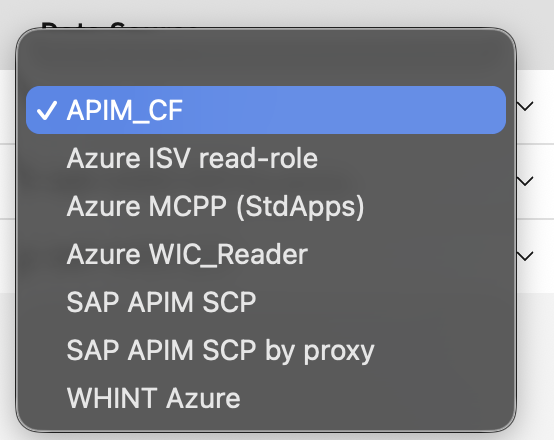
The list is sorted alphabetically by data source name. A data source already used in a saved rule remains available even if it no longer matches these criteria.
The Data Source list is not restricted by the selected Interface Type. Make sure the combination matches. A SAP_IS_APIM rule on an Azure data source, or the other way round, is saved but produces no results.
Check
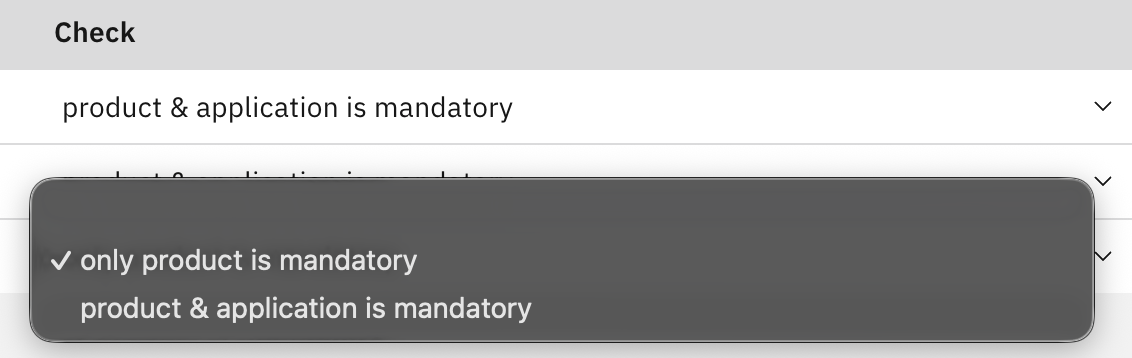
|
Option |
|
|
|---|---|---|
|
only product is mandatory |
Proxy assigned to at least one product |
API assigned to at least one product |
|
product & application is mandatory |
At least one assigned product has at least one application |
At least one assigned product has at least one subscription |
On Azure, a subscription is the counterpart of an application.
Artifacts that fulfill the selected rule are reported as SUCCESS, all others are reported as FAILED.
Managing Rules
Adding a Rule
-
Click + in the table header.
-
Select the Interface Type, Data Source and Check.
-
Click Save.
To remove a rule, select its checkbox, click – and then Save.
Cancel discards unsaved changes.
Validation: Interface Type, Data Source and Check are mandatory. A data source can only be used in one rule.
Where the Results Appear
-
Reporting → Designtime → Design Check – detailed results with
SUCCESSorFAILEDstatus -
Dashboard → Design Check – success and failure counts per data source
-
Inventory → Interfaces → interface detail – result for the individual interface
-
Reporting → Microsoft → Azure → connection → API Management → Design Check – results for the selected Azure connection
The check is evaluated when the report is opened using the data collected from the data source. Changes in the API Management platform become visible after the next data collection run. Changes to the Design Check configuration take effect immediately.
No configuration means no results. If no rule is configured, API Management artifacts are not evaluated and the Design Check reports and dashboard summary remain empty.
Last Updated: September 1, 2026