

The Version Comparison section defines which tenants belong to the same landscape, so objects can be compared across the stages of a promotion path.
Purpose: Compare deployed versions and API policies across your configured tenants to identify differences between landscape stages and detect deployment inconsistencies.
Navigate to Settings → Design Time → Version Comparison to configure the landscapes.
Version Comparison Overview
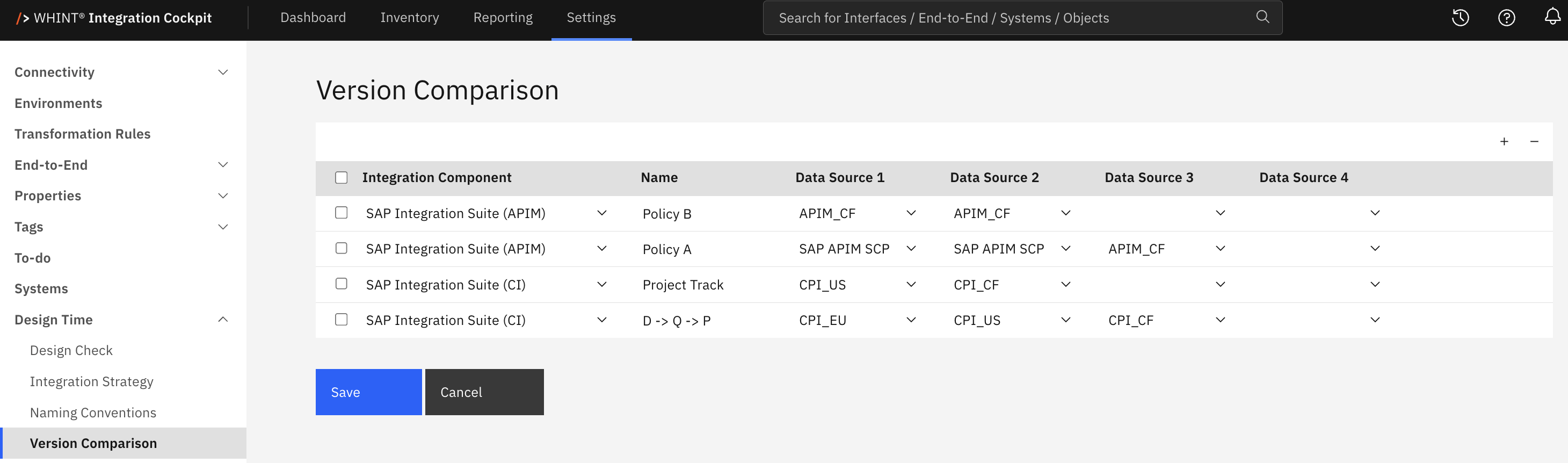
What you see:
-
Integration Component – the technology whose objects are compared
-
Name – the landscape name
-
Data Source 1 to Data Source 4 – the tenants included in the landscape, in promotion order
-
+ and − – add or remove landscapes
-
Save and Cancel – apply or discard changes
Configuration
Each row defines one landscape.
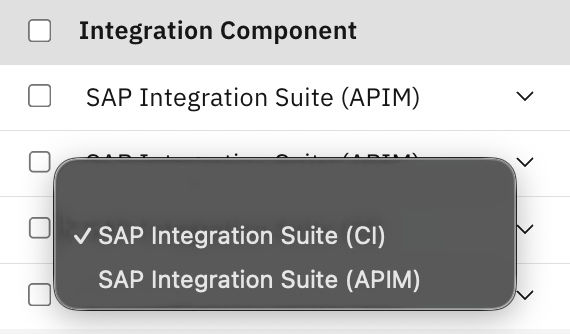
Integration Component
|
Value |
Objects compared |
|---|---|
|
SAP Integration Suite (CI) |
Cloud Integration artifacts |
|
SAP Integration Suite (APIM) |
API Management proxies |
The two components are evaluated independently. Configure a landscape that exists in both components as two separate rows.
Name
The Name identifies the landscape in the Dashboard and Version Check reports.

The name is optional when only one landscape is configured. As soon as more than one landscape exists, every row must have a name.
Data Source 1 to Data Source 4
The dropdowns contain SAP BTP data sources for Cloud Integration and API Management, sorted alphabetically by name.
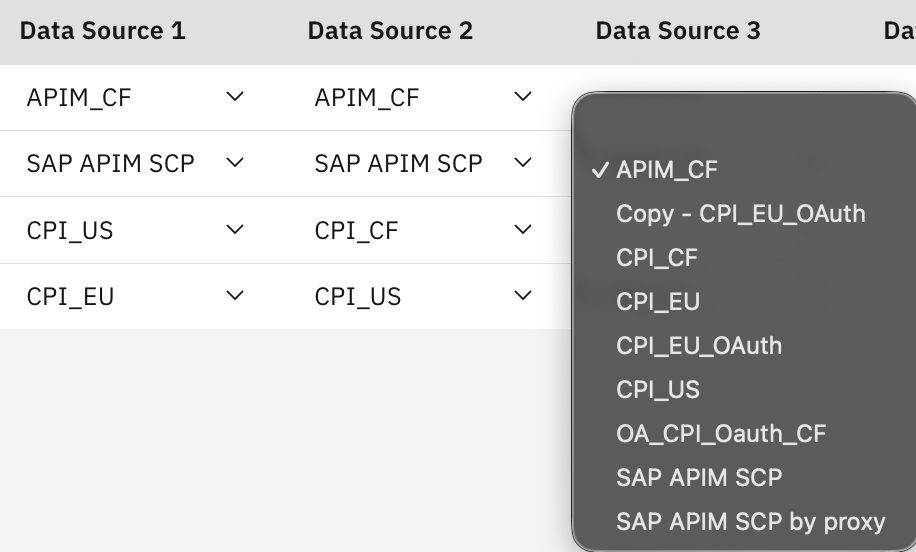
The order defines the promotion path: Data Source 1 is the first stage and Data Source 4 the last.
For example:
Development → Quality → Production

Two to four data sources can be configured. Unused columns can remain empty.
The data source list is not filtered by the selected Integration Component. Select only Cloud Integration tenants for CI landscapes and only API Management tenants for APIM landscapes.
Managing Landscapes
-
Click + in the table header. A new empty row is added at the top.
-
Select the Integration Component, enter a Name if required, and select the data sources.
-
Click Save.
To remove a landscape, select its checkbox, click −, and then Save.
Cancel discards unsaved changes.
Rules for saving:
-
A row must contain at least one value. Empty rows cannot be saved.
-
Once an Integration Component is selected, at least two data sources are required.
-
When more than one landscape is configured, every row must have a Name.
If any of these rules is violated, the configuration is not saved.
What Is Compared
SAP Integration Suite (CI)
For each Cloud Integration artifact, the Cockpit compares:
-
the deployed version with the designtime version within the tenant
-
the artifact version across the configured tenants
|
Result |
Meaning |
|---|---|
|
Green |
The compared versions are identical |
|
Yellow |
The versions differ |
|
Red |
No designtime version was found for the artifact |
|
Grey |
Not compared because the artifact does not exist in all configured tenants or the object type is excluded |
Value mappings, function libraries and JDBC drivers are excluded from the version comparison.
SAP Integration Suite (APIM)
API proxies are matched by name across the configured tenants. The comparison covers the policies of the proxy endpoint and target endpoint.
|
Result |
Meaning |
|---|---|
|
Green |
Policies are identical across the compared tenants |
|
Yellow |
Policies differ |
|
Grey |
The proxy does not exist in all configured tenants |
Missing objects are shown as grey, not as deviations. An object that does not exist in all configured tenants is not included in the version comparison. This means that a missing object is not treated as a version mismatch.
What the Report Shows
Each configured landscape appears as its own block in the Version Check report. For each artifact, you can see:
|
Column |
Content |
|---|---|
|
Name |
The artifact name and its package |
|
Cross-check Designtime |
Comparison of designtime versions across the configured tenants |
|
Cross-check Runtime |
Comparison of deployed versions across the configured tenants |
|
Designtime / Runtime per tenant |
The actual version in each tenant, including the date of the last change or deployment |
The per-tenant columns show what is deployed where, making differences between landscape stages visible without checking each tenant individually.
Where the Results Appear
-
Reporting → SAP → BTP → Cloud Integration → Version Check – the page is titled Version Comparison and shows artifact versions per tenant, filterable by package, artifact and result
-
Reporting → SAP → BTP → API Management → Version Check – API proxy policy comparison per tenant
-
Dashboard → Version Check – configured landscapes with designtime and runtime deviation counts, the element must be enabled under Settings → Dashboard
-
Inventory → Interfaces → Interface Details – version comparison for the interface as part of its checks
The comparison is calculated when a report is opened, so configuration changes take effect immediately. Version changes in the tenants become visible after the next data collection run of the affected data sources.
Related Documentation
-
Dashboard Configuration – Enabling the Version Check element
-
Data Sources – Connecting SAP BTP tenants
Last Updated: September 1, 2026