

The Naming Conventions section defines the naming patterns used to check integration objects by interface type and object type.
Purpose: Define the expected naming pattern for each object type, so the Cockpit reports objects that do not match - across all connected platforms, without manual review.
Navigate to Settings → Design Time → Naming Conventions to configure the patterns.
Naming Conventions Overview
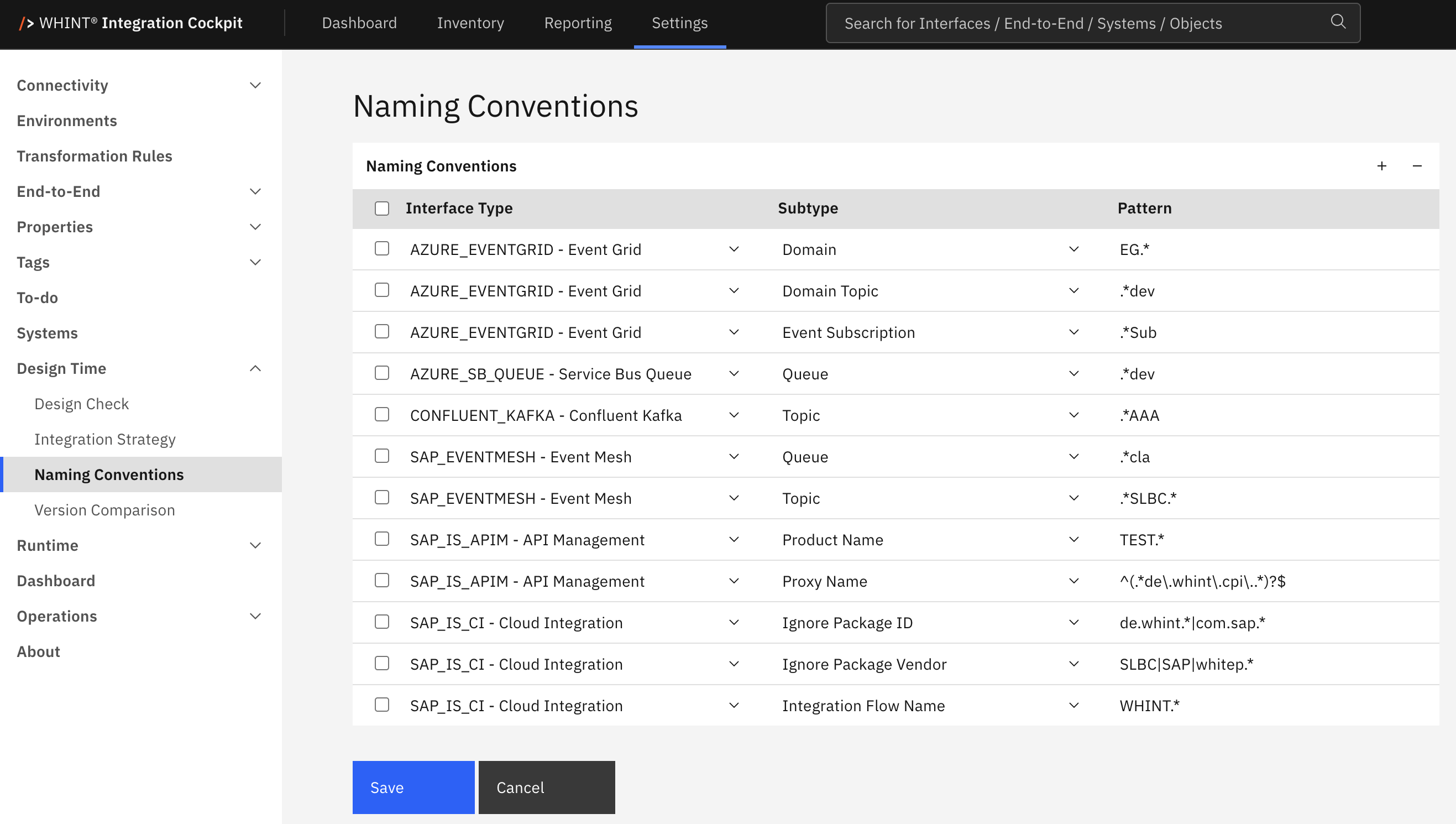
What you see:
-
Interface Type – the platform and technology the rule applies to
-
Subtype – the object type whose name is checked
-
Pattern – the regular expression the name must match
-
+ and − – add or remove rules
-
Save and Cancel – apply or discard changes
Configuration
Each rule consists of an Interface Type, a Subtype and a Pattern.
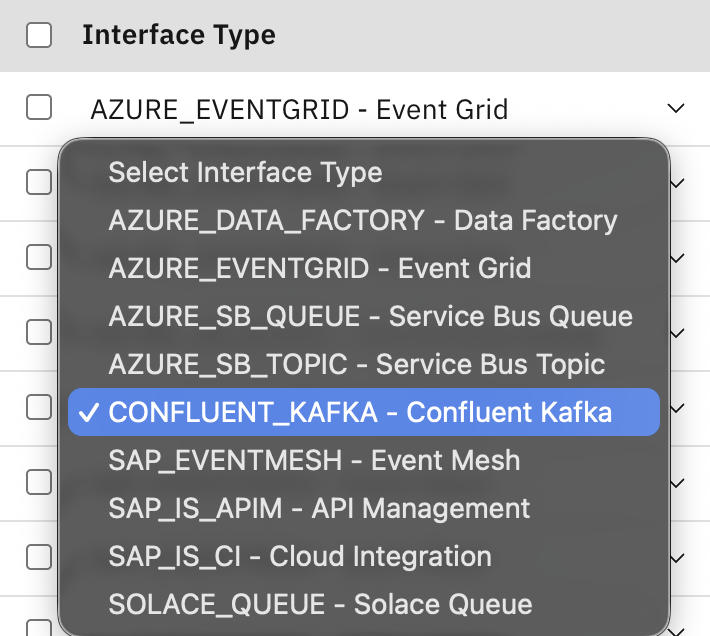
Interface Type
|
Value |
Applies to |
|---|---|
|
|
SAP Integration Suite – Cloud Integration |
|
|
SAP Integration Suite – API Management |
|
|
SAP Event Mesh |
|
|
Microsoft Azure – Service Bus Queue |
|
|
Microsoft Azure – Service Bus Topic |
|
|
Microsoft Azure – Event Grid |
|
|
Solace – Queue |
|
|
Confluent – Kafka Topic |
The dropdown lists all supported interface types, regardless of which connections exist in your system.
Subtype
The available subtypes depend on the selected interface type. The Subtype field stays disabled until an interface type is selected.

|
Interface Type |
Subtypes |
|---|---|
|
|
Integration Flow Name, Integration Flow ID, Package Name, Package ID, Message Mapping Name, Message Mapping ID, Value Mapping Name, Value Mapping ID, Script Collection Name, Script Collection ID, OData API Name, OData API ID |
|
|
Proxy Name, Provider Name, Product Name |
|
|
Queue, Topic |
|
|
Queue |
|
|
Topic |
|
|
Domain, Domain Topic, System Topic, Topic, Event Subscription |
|
|
Queue |
|
|
Topic |
SAP_IS_CI additionally offers Ignore Package Name, Ignore Package ID and Ignore Package Vendor. These exclude packages from the naming check rather than defining a naming rule. See Excluding Packages from the Check.
A Name subtype checks the display name of the object, an ID subtype checks its technical key. Each rule is applied only to objects of its selected type.
Pattern
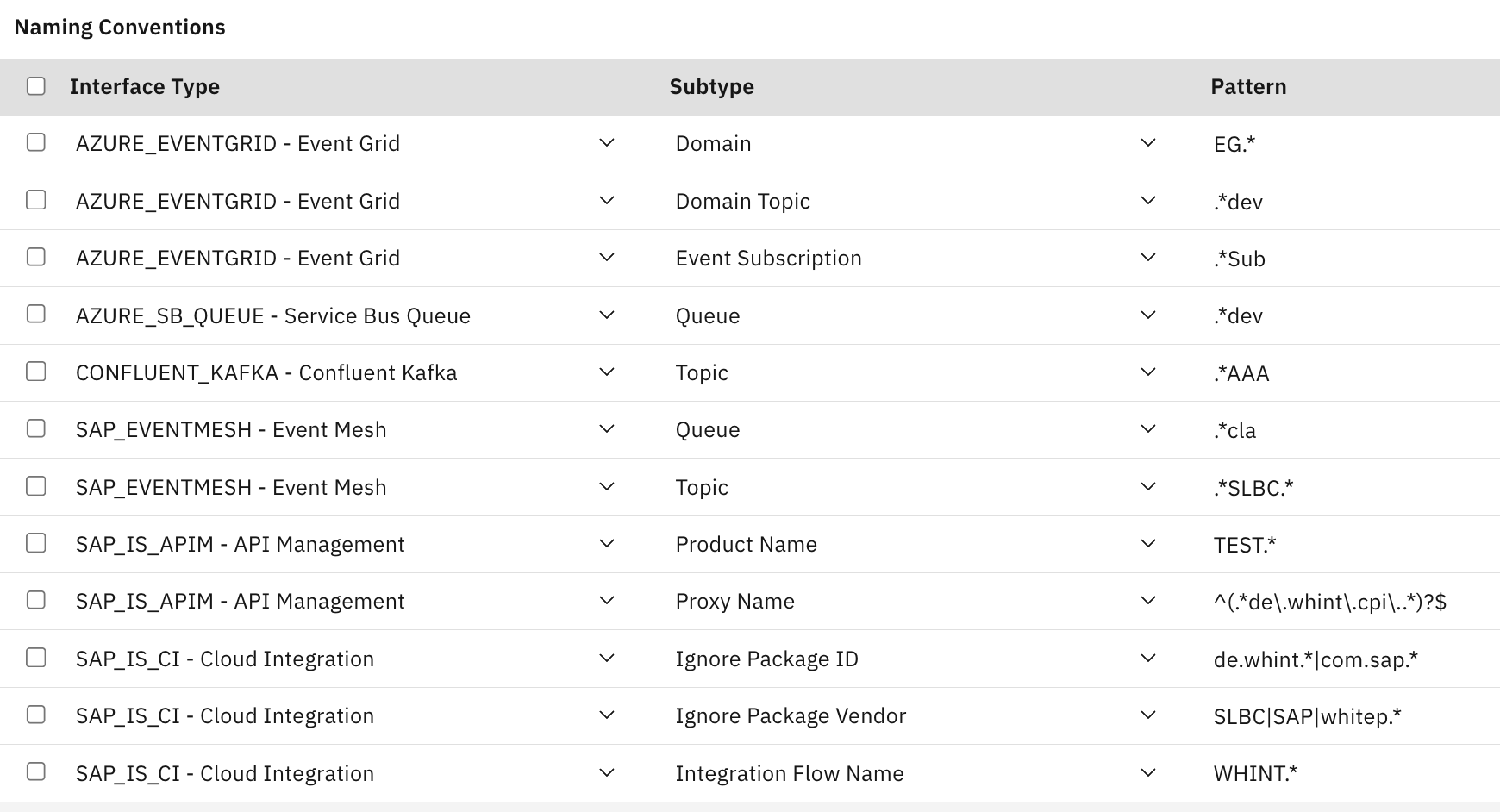
Patterns are regular expressions. Keep the following rules in mind:
-
Patterns are not anchored automatically. A pattern matches when it occurs anywhere in the name.
EG.*therefore matches any name containingEG. To validate the complete name, use^EG.*$. -
A dot matches any character. Write
\\.for a literal dot, for example^WHINT\\..*$. -
Patterns are case-sensitive. Start the pattern with
(?i)to ignore case.
|
Pattern |
Accepts |
|---|---|
|
|
Names starting with three uppercase letters and an underscore |
|
|
Complete names starting with an uppercase letter, followed by letters, digits or underscores |
|
|
Names ending with |
|
|
Complete names starting with |
Alternatives are separated by |. For example, ^(SLBC|WHINT) accepts names starting with either SLBC or WHINT.
Only one pattern per Interface Type and Subtype is effective. A second rule can be saved, but only one of the rules is applied. Keep one rule per combination.
Excluding Packages from the Check
For SAP_IS_CI, three subtypes exclude Cloud Integration content from the naming check:
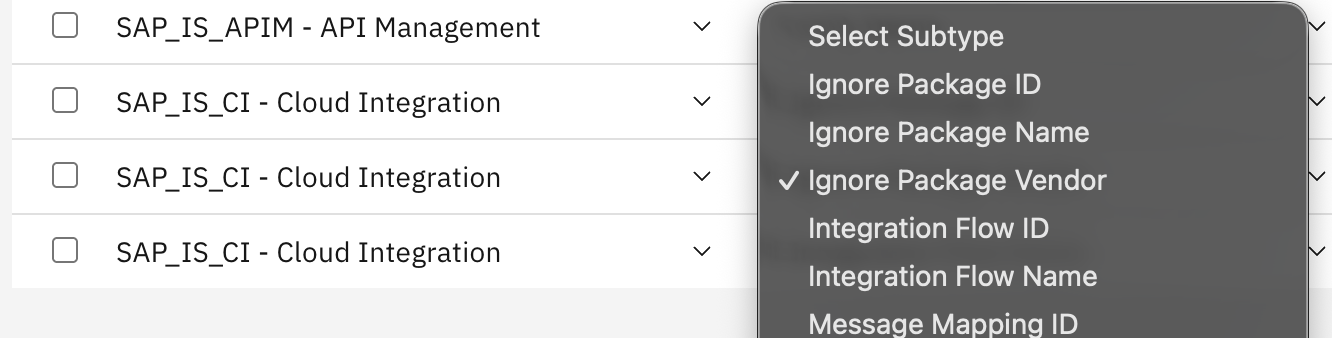
|
Subtype |
Excludes |
|---|---|
|
Ignore Package Name |
All artifacts in packages whose name matches the pattern |
|
Ignore Package ID |
All artifacts in packages whose ID matches the pattern |
|
Ignore Package Vendor |
All artifacts in packages whose vendor matches the pattern |
An artifact is skipped as soon as one of the three patterns matches its package, for all Cloud Integration subtypes. Use these options to exclude standard content, such as SAP-delivered packages, from the naming check.
Managing Rules
-
Click + in the table header. A new empty row is added at the top.
-
Select the Interface Type, then the Subtype, and enter the Pattern.
-
Click Save.
To remove a rule, select its checkbox, click −, and then Save.
Cancel discards unsaved changes.
Validation: Interface Type, Subtype and Pattern are mandatory. Nothing is saved while a validation message is shown.
Where the Results Appear
-
Reporting → Designtime → Naming Check – all violations, grouped by environment and interface type, with drill-down to the affected objects
-
Dashboard → Naming Check – violation counts per environment and interface type the element must be enabled under Settings → Dashboard
-
Reporting → connection → Naming Check – violations for a single connection
-
Inventory → Interfaces → Interface Details – naming violations for the interface as part of its checks
The check is evaluated when a report is opened, so pattern changes take effect immediately. Objects created in the source system become visible after the next data collection run of the data source.
Last Updated: September 1, 2026