

The Decommissioning section defines when an interface counts as a decommissioning candidate and which interfaces are excluded from that evaluation.
Purpose: Interfaces that no longer carry traffic still consume licences, monitoring effort and review time. Define how long an interface may remain without traffic before the Cockpit lists it as a candidate, and exclude interfaces where silence is expected.
Navigate to Settings → Runtime → Decommissioning to configure the evaluation.
Decommissioning Overview
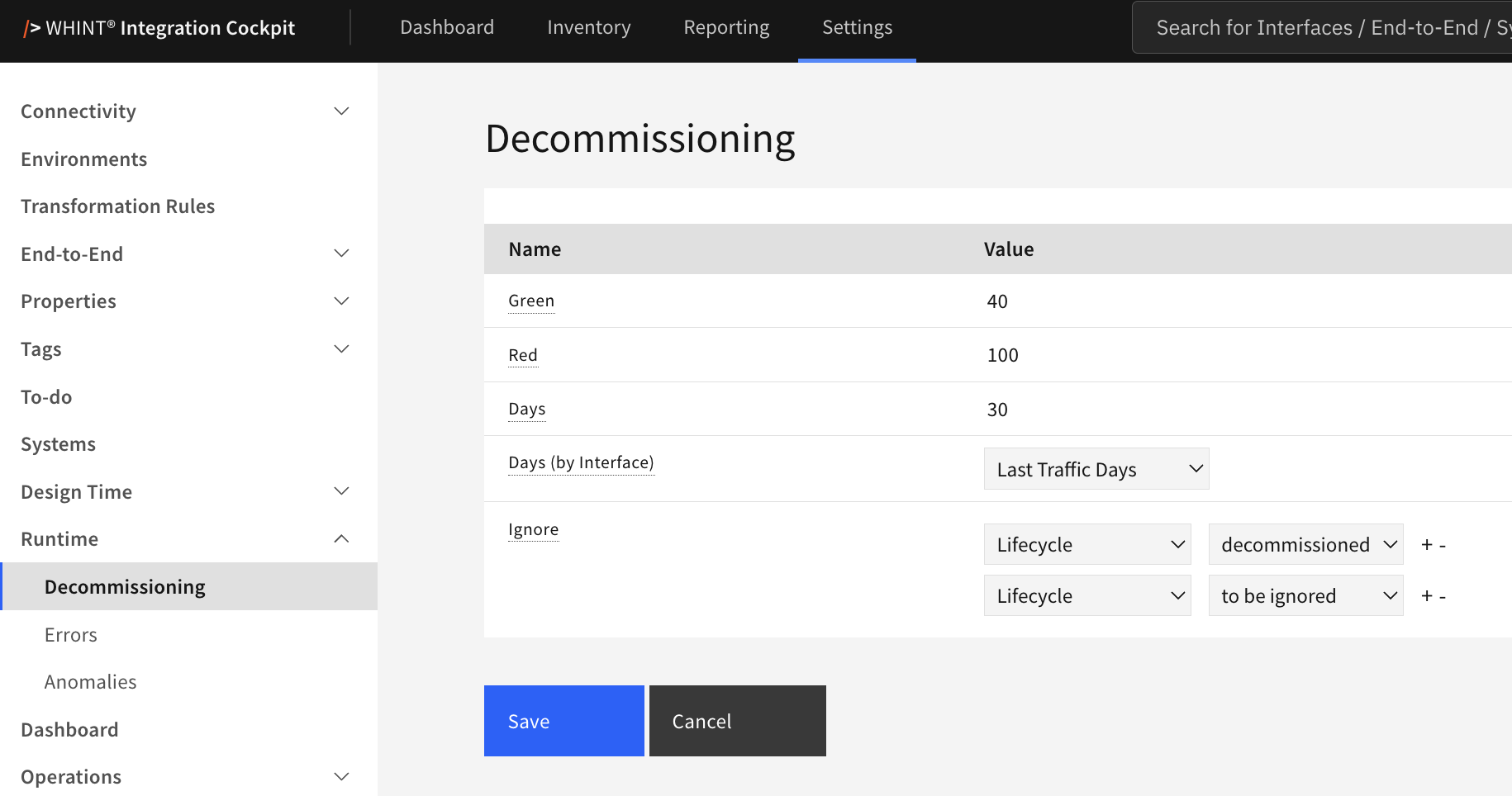
What you see:
-
Green and Red – thresholds that determine the colour of the decommissioning candidate count
-
Days – how long an interface may remain without traffic
-
Days (by Interface) – an interface property that overrides Days for individual interfaces
-
Ignore – tag values whose interfaces are excluded from the decommissioning evaluation
-
Save and Cancel – apply or discard changes
Each setting has a tooltip with a short explanation.
Settings
Green and Red
Both values refer to the number of decommissioning candidates, not to days. They determine the colour shown for the candidate count:
|
Number of candidates |
Colour |
|---|---|
|
Below Green |
Green |
|
Between Green and Red |
Yellow |
|
Above Red |
Red |
The delivered defaults are 30 and 100.
Days
The number of days an interface may remain without traffic. An interface becomes a decommissioning candidate when its last traffic is older than this value.
Interfaces for which no traffic information has been collected are not evaluated and therefore never appear as candidates.
The evaluation covers:
-
SAP Cloud Integration
-
SAP Process Orchestration
-
SAP API Management
-
SAP IDoc
-
Azure API Management
-
Azure Logic Apps (Consumption)
-
Azure Functions
-
Azure Service Bus Queues
-
Azure Service Bus Topics
The Decommissioning List has its own Days field. When opened from the Dashboard, it uses the configured Days value. When opened directly from the menu, it starts with 30 days and can be changed for the current view. The Dashboard number always uses the configured value.
Days (by Interface)
Some interfaces run quarterly or yearly, so a single global period may not fit them. Select an interface property here whose value is used as the number of days for that interface instead of Days.
The dropdown offers all interface properties with the format Number, sorted by name. Select Select Property Type to remove the assignment.
Interfaces without a value for the selected property continue to use Days.
Ignore
Interfaces that carry one of the configured tag values are excluded from the decommissioning evaluation. Each row is a pair: first the tag category, then one of its values. Use + and – to add or remove rows, the last row cannot be removed.
This is the same setting as Settings → Tags → Ignore. Both pages maintain the same exclusion list. The selected tag values also exclude matching interfaces and End-to-End flows from other evaluations, such as interface counts and End-to-End generation.
Managing the Configuration
Enter the values, select the property type and tag values, and click Save.
Cancel discards unsaved changes.
The configuration is system-wide and applies to the entire landscape.
Where the Settings Take Effect
-
Dashboard → Decommissioning – the number of candidates in the Production environment, coloured according to Green and Red, the element must be enabled under Settings → Dashboard
-
Reporting → Runtime → Decommissioning List – the candidates with interface type, data source and last traffic date, filterable by environment and data source, the total is coloured according to the same thresholds
The evaluation is calculated when the Dashboard or report is opened, so configuration changes take effect immediately. Updated traffic dates become available after the next data collection run of the affected data sources.
Related Documentation
-
Tags → Ignore – Maintaining the exclusion list
-
Dashboard Configuration – Enabling the Decommissioning element
-
Properties → Overview – Creating the number property for Days (by Interface)
Last Updated: September 1, 2026