

Tag Extraction assigns tags automatically. You define rules that match interface names or package names against a regular expression, and every matching interface receives the configured tag value.
Purpose: Derive tags from the naming conventions already present in your integration platforms, so classifications such as domain or criticality are applied consistently as new interfaces are inventoried.
Navigate to Settings → Tags → Extraction to manage your extraction rules.
For detailed guidance on tag configuration, see 2.1.2 Tags in the Onboarding Guide.
Tag Extraction Overview
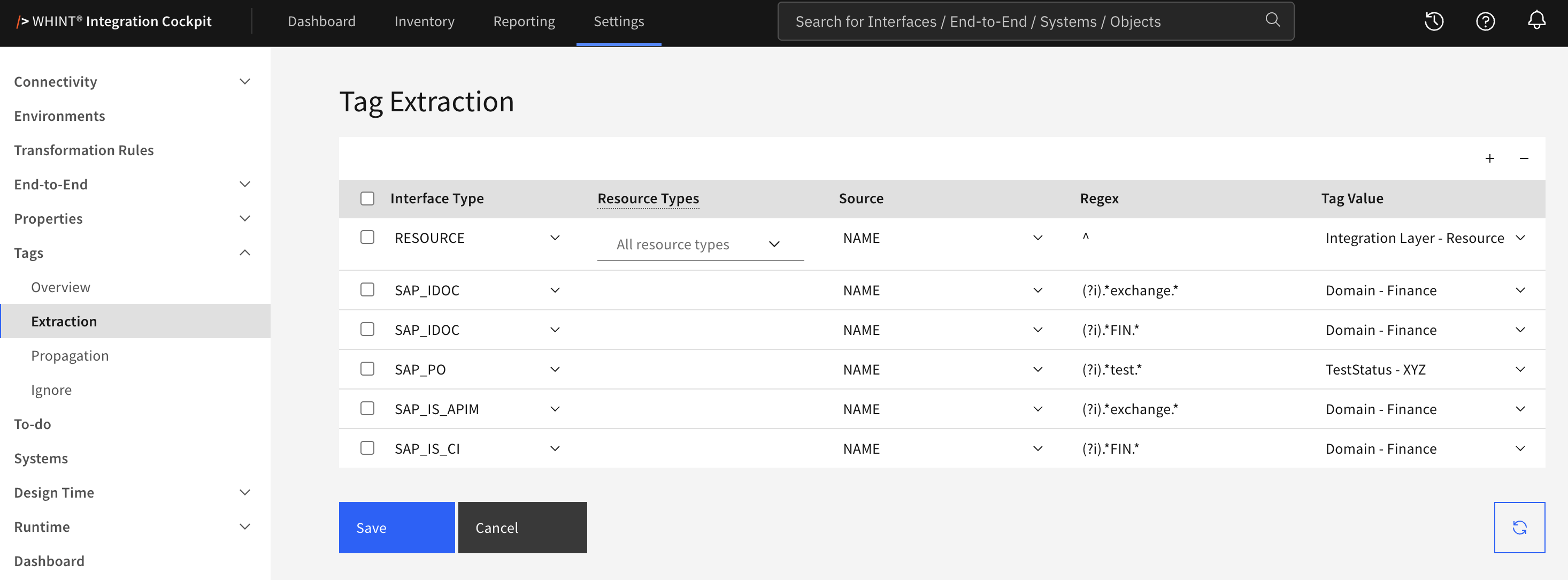
What you see:
-
Interface Type column with a dropdown selecting the interface type the rule applies to. The list contains the types that support extraction
-
Resource Types column, used only for rules with the Interface Type
RESOURCE -
Source column selecting what the regular expression is matched against
-
Regex column with the pattern, in Go RE2 syntax
-
Tag Value column with a dropdown of all configured tag values, shown as Category - Value
-
Add/Remove controls (+ and - buttons) in the toolbar for managing rules
-
Save and Cancel buttons to apply or discard your changes
-
Update Inventory button in the bottom right corner to apply changes
Rule Management
Adding Extraction Rules
-
Click the "+" Add button in the toolbar. A new empty row appears at the top of the list.
-
Select the Interface Type.
-
Select the Source:
-
NAME– the regular expression is matched against the interface name -
PACKAGE– the regular expression is matched against the package name. Only available for the interface typeSAP_IS_CI
-
-
Enter the Regex.
-
Select the Tag Value to assign.
-
Click Save.
All four fields — Interface Type, Source, Regex and Tag Value — are mandatory. Saving with a field left empty is rejected with a message naming the row.
Removing Extraction Rules
-
Select the checkbox next to the rules you want to remove.
-
Click the "-" button.
-
Click Save to confirm.
Removing a rule does not remove tags it has already assigned. Those stay on the interfaces until they are removed there.
Resource Types
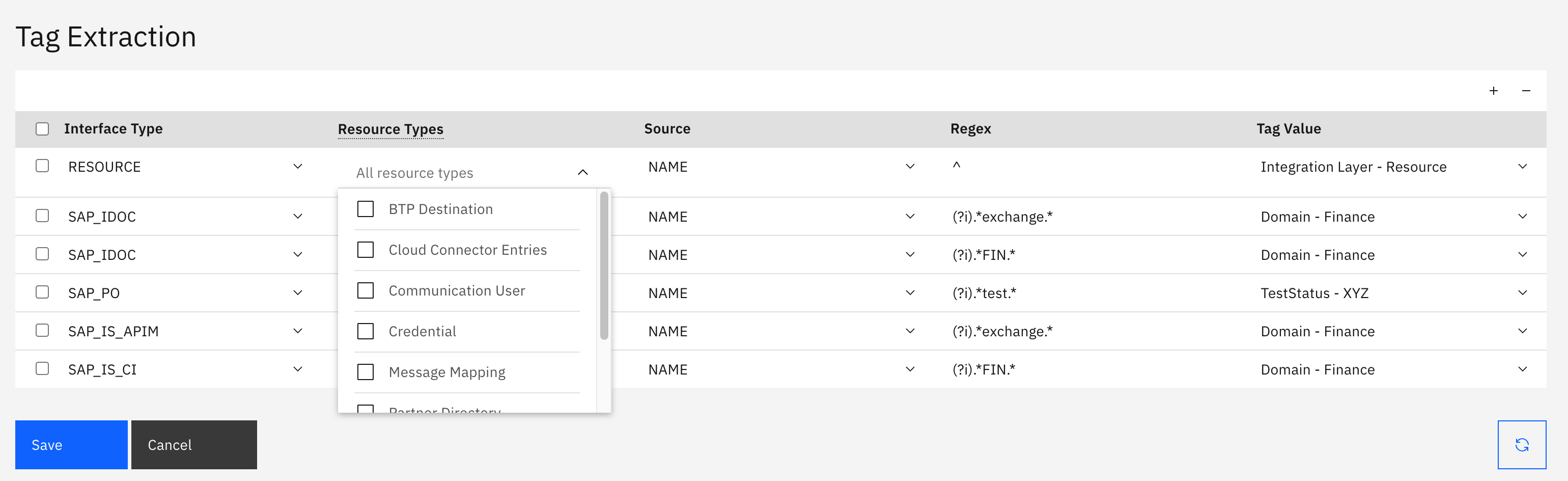
Interfaces of the type RESOURCE cover several kinds of artifacts:
-
Value Mapping
-
Message Mapping
-
Script Collection
-
Credential
-
Cloud Connector Entries
-
BTP Destination
-
Communication User
A RESOURCE rule can be limited to specific kinds using the Resource Types column.
Leaving the selection empty applies the rule to all resource kinds. This is what the All resource types placeholder indicates.
How Rules Are Applied
Extraction runs during the INVENTORY task of a data source. Each interface that is inventoried is matched against the rules configured for its interface type.
-
All matching rules apply. An interface that matches three rules receives all three tag values. There is no first-match-wins.
-
Patterns match anywhere in the source value, so leading and trailing
.*are optional. -
Patterns must be valid Go RE2 regular expressions.
Lookaheads, lookbehinds and backreferences are not supported — such rules are skipped during the inventory run without a message in the interface. -
You can create several rules with the same interface type, source and pattern.
They are not deduplicated.
Pattern Examples
|
Regex |
Matches |
Typical use |
|---|---|---|
|
|
any source value containing "finance", in any capitalization |
case-insensitive classification |
|
|
source values starting with |
tag by system or client prefix |
|
|
every source value |
tag all interfaces of that type |
|
|
source values ending in |
tag by direction |
|
|
only the source value |
exact value instead of a substring |
|
|
three uppercase letters followed by an underscore |
tag by naming scheme |
|
|
source values starting with ten digits |
tag by numeric partner or client number |
|
|
source values ending in |
both directions in one rule |
|
|
the literal text |
match a segment of a pipe-separated name |
Keep in mind:
-
Patterns are case-sensitive. Prefix a pattern with
(?i)to ignore case. -
|means “or” and must be escaped as\|to match a literal pipe. An unescaped| OUT |matches every source value, because it reads as “empty, or OUT, or empty”. -
.means "any character". Write\.to match a literal dot. -
Word boundaries
\bcan be misleading when underscores are involved:_counts as a word character, so\btest\bdoes not matchTEST_IMS. -
A
$anchor matches only at the end of the source value, so trailing spaces can prevent a match. For example,finance$does not matchS/4HANA Financebecause the value ends with a space.
See the RE2 syntax reference for the full syntax.
Applying Changes
Saving a rule stores it, but existing interfaces are not re-evaluated automatically.
Use the Update Inventory button in the bottom right corner to apply your rules to the interfaces already in your inventory.
New rules also take effect on their own with the next scheduled INVENTORY run of the affected data sources.
Related Documentation
-
Tags – Defining tag categories and their values
-
Tag Propagation – Transfer of tag values between interface types
-
Tag Ignore – Excluding tags from processing
-
RE2 Syntax Reference – Full regular expression syntax, including the constructs that are not supported
Last Updated: August 31, 2026