

The Microsoft Azure Service Bus section displays enterprise messaging components from your Azure Service Bus namespaces organized into Queues and Topics. This inventory helps organizations manage asynchronous communication between applications, track message delivery patterns and maintain visibility into enterprise messaging infrastructure for reliable data transfer and application decoupling.
Navigate to Inventory → Data Sources → Microsoft → Azure → <Azure Subscription> → <Resource Group> → <Data Source Name> → Logic Apps → Service Bus to access these messaging catalogs.
Queues
The Queues catalog displays point-to-point messaging entities that provide FIFO (First In, First Out) message delivery between producers and consumers. This view helps you understand message flow patterns, monitor queue health and manage asynchronous communication where each message is processed by a single consumer.
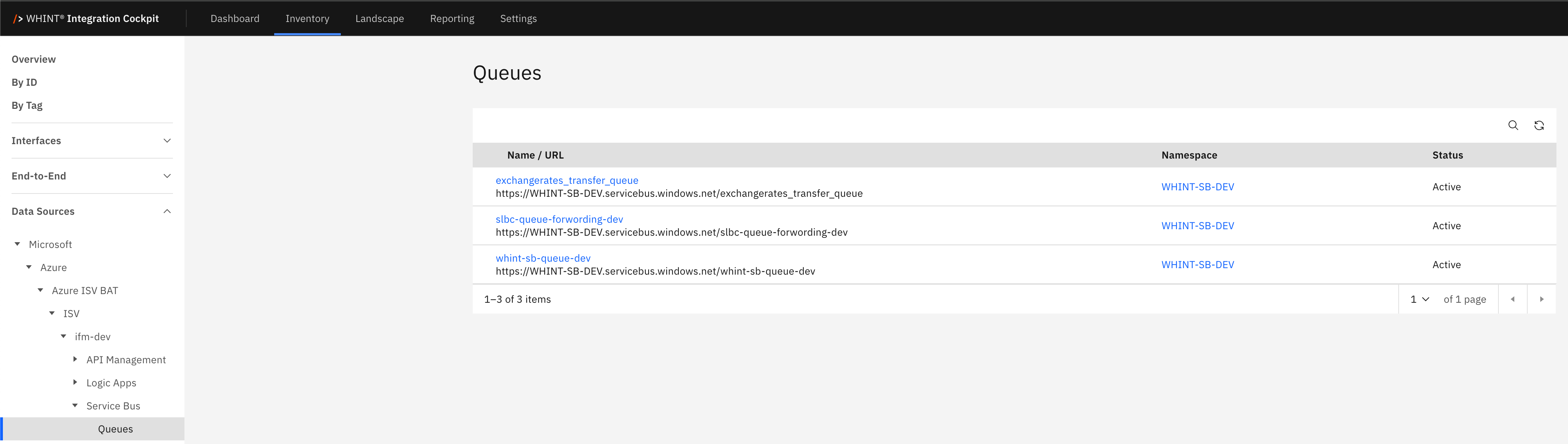
What you see:
-
Name / URL: Queue identifier with Service Bus endpoint URL below (clickable)
-
Namespace: Service Bus namespace containing the queue
-
Status: Current queue operational status (Active/Disabled)
Queue Detail View
Clicking a queue name opens a detailed view showing:
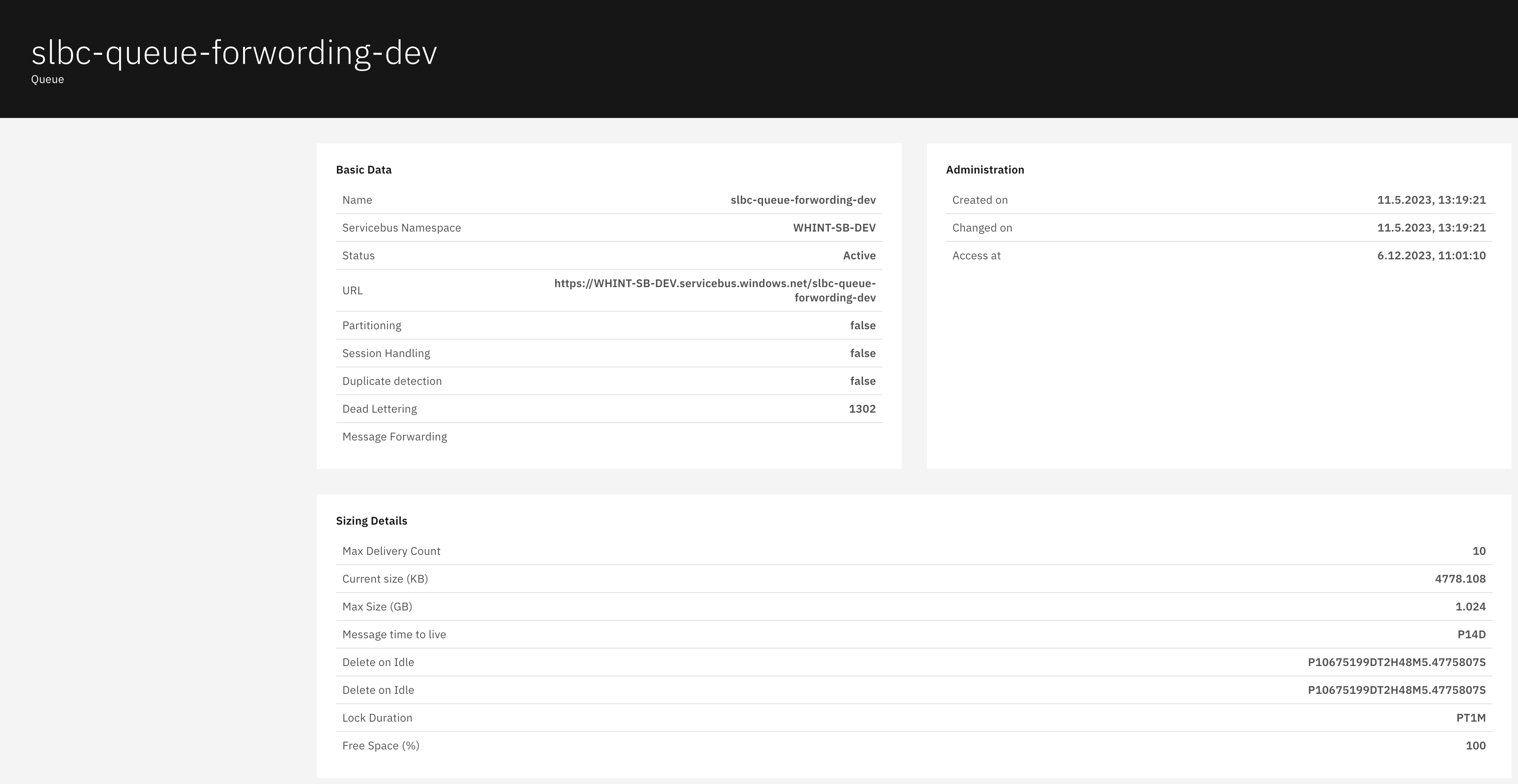
Basic Data section displays:
-
Name: Queue identifier
-
Servicebus Namespace: Parent namespace identifier
-
Status: Queue operational status (Active/Disabled)
-
URL: Complete Service Bus endpoint URL
-
Partitioning: Whether queue is partitioned across multiple message brokers (true/false)
-
Session Handling: Whether session-based FIFO ordering is enabled (true/false)
-
Duplicate detection: Whether automatic duplicate message removal is enabled (true/false)
-
Dead Lettering: Maximum delivery attempts before moving messages to dead letter queue
-
Message Forwarding: Target queue for automatic message forwarding (when configured)
Administration section displays:
-
Created on: Queue creation timestamp
-
Changed on: Last configuration change timestamp
-
Access at: Last access timestamp for monitoring
Sizing Details section displays:
-
Max Delivery Count: Maximum attempts to deliver a message before dead-lettering
-
Current size (KB): Current queue storage utilization
-
Max Size (GB): Maximum queue storage capacity
-
Message time to live: Message expiration period (e.g., P14D = 14 days)
-
Delete on Idle: Automatic queue deletion period when unused
-
Lock Duration: Message lock timeout for processing
-
Free Space (%): Available storage percentage
Topics
The Topics catalog displays publish-subscribe messaging entities that enable one-to-many communication patterns through subscriptions. This view helps you understand message distribution patterns, monitor topic utilization, and manage scenarios where multiple consumers need to process copies of the same message independently.
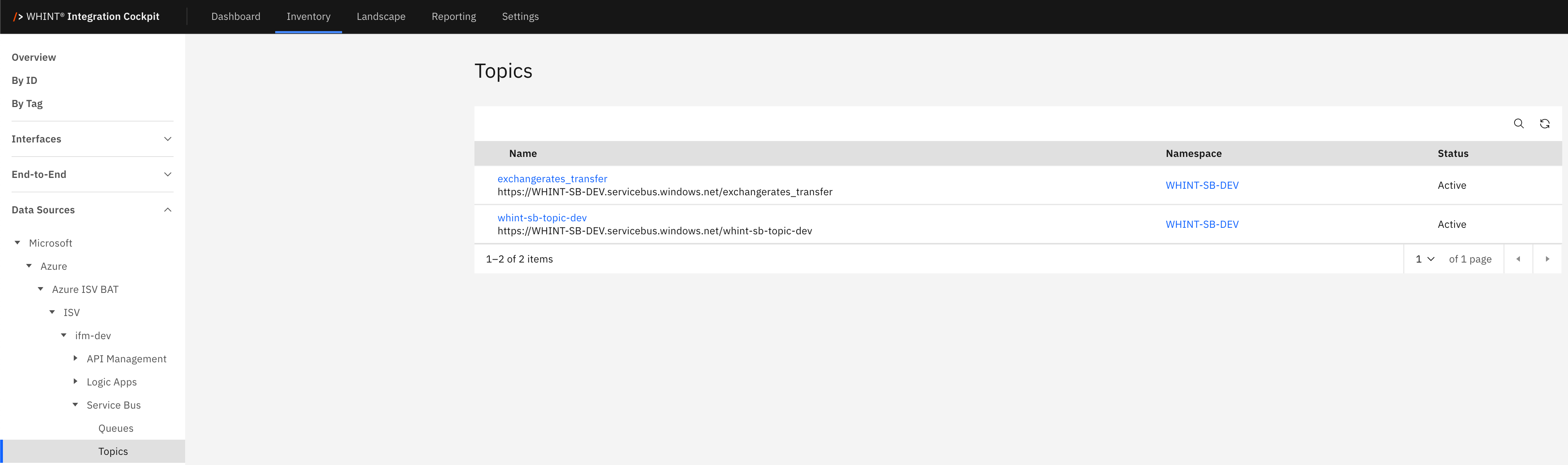
What you see:
-
Name: Topic identifier with Service Bus endpoint URL below (clickable)
-
Namespace: Service Bus namespace containing the topic
-
Status: Current topic operational status (Active/Disabled)
Topic Detail View
Clicking a topic name opens a detailed view showing:
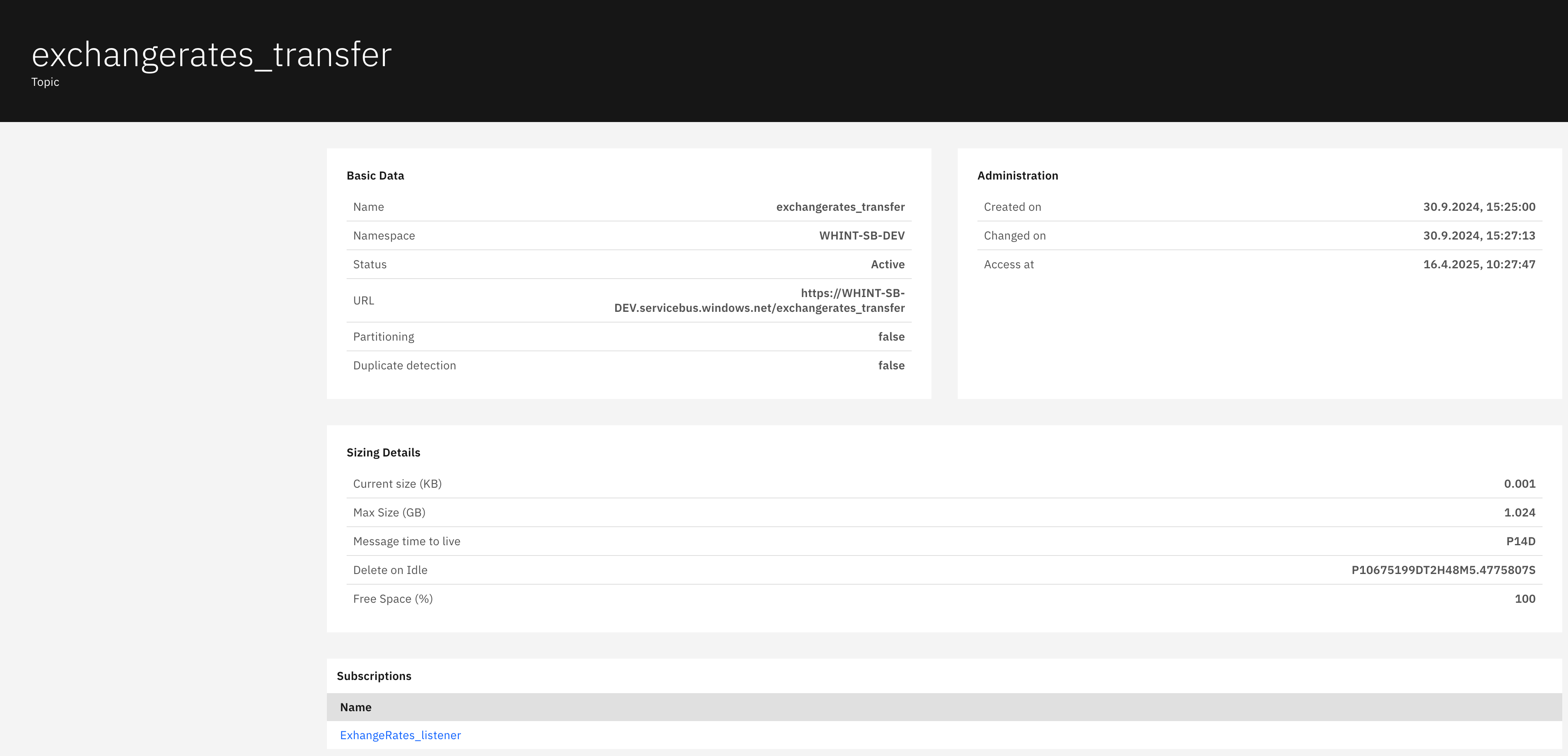
Basic Data section displays:
-
Name: Topic identifier
-
Namespace: Parent namespace identifier
-
Status: Topic operational status (Active/Disabled)
-
URL: Complete Service Bus endpoint URL
-
Partitioning: Whether topic is partitioned across multiple message brokers (true/false)
-
Duplicate detection: Whether automatic duplicate message removal is enabled (true/false)
Administration section displays:
-
Created on: Topic creation timestamp
-
Changed on: Last configuration change timestamp
-
Access at: Last access timestamp for monitoring
Sizing Details section displays:
-
Current size (KB): Current topic storage utilization
-
Max Size (GB): Maximum topic storage capacity
-
Message time to live: Message expiration period (e.g., P14D = 14 days)
-
Delete on Idle: Automatic topic deletion period when unused
-
Free Space (%): Available storage percentage
Subscriptions section displays:
-
Name: Subscription identifier for topic consumers (clickable)
This section shows all subscriptions that receive copies of messages sent to the topic, enabling the publish-subscribe messaging pattern where multiple consumers can independently process the same message.
Navigation
All catalog views include:
-
Search icon (magnifying glass) in the top right toolbar
-
Refresh icon next to the search
-
Pagination controls showing item counts and page navigation
-
Blue-highlighted names that open detailed views with additional configuration information
Last Updated: September 09, 2025