

The Property Propagation configuration transfers property values from one interface type to another.
Purpose: Keep metadata consistent across your inventory by automatically distributing values such as documentation links or external identifiers from architecture and planning sources to the technical interfaces that implement them.
Navigate to Settings → Properties → Propagation to manage your propagation rules.
For detailed guidance on property configuration, see 2.1.1 Properties in the Onboarding Guide.
Property Propagation Overview
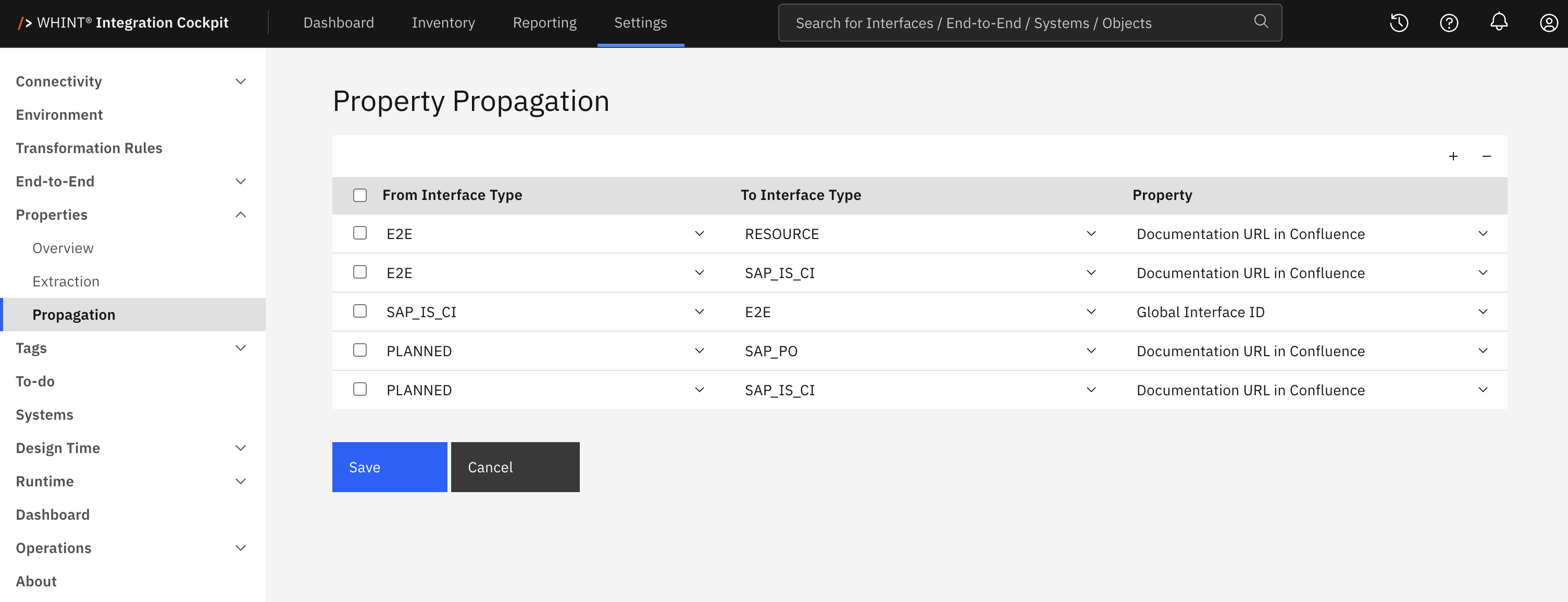
What you see in the interface:
-
From Interface Type column with dropdown selection for the source interface type
-
To Interface Type column with dropdown selection for the target interface type
-
Property column with dropdown selection of your configured properties
-
Add/Remove controls (+ and - buttons) for managing propagation rules
-
Save and Cancel buttons to apply or discard changes
Configuration and Management
Propagation Logic
Each rule consists of three elements:
-
From Interface Type – The source interface type providing the property value
-
To Interface Type – The target interface type receiving the value
-
Property – The property field to be transferred
Source and target must be different interface types. A rule with the same type on both sides is not supported.
Interface Matching
To determine which target interfaces receive a value, the system matches source and target interfaces in two stages:
-
By name – Interfaces with an identical name are matched first.
-
By identifier – Remaining interfaces are matched using a property with the ID format (for example GLIF-ID or Global Interface ID).
Only source interfaces that actually carry the configured property are considered. The source interfaces must belong to the data source whose task is running. The target interfaces can be in any data source.
Conflict Handling
If the target interface already has the selected property, the existing value is overwritten. If the property is not yet present, it is created. Propagation never produces duplicate entries for the same property.
Rule Management
Adding Propagation Rules
-
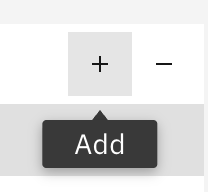
Click the "+" Add button to create a new rule.
-
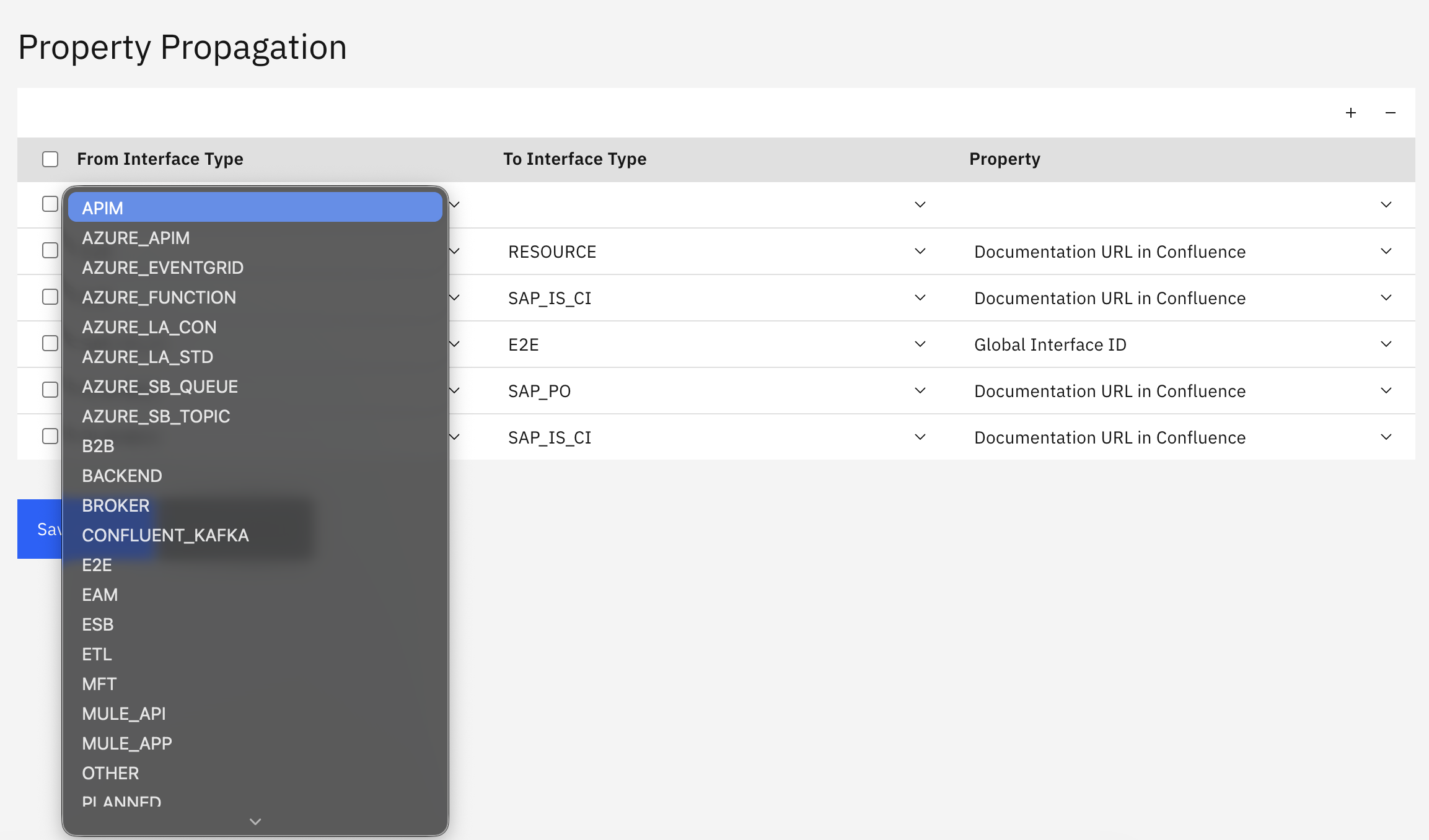
A new empty row appears at the top of the table.
-
Select the From Interface Type from the dropdown.
-
Select the To Interface Type from the dropdown. The same interface types are available on both sides.
-
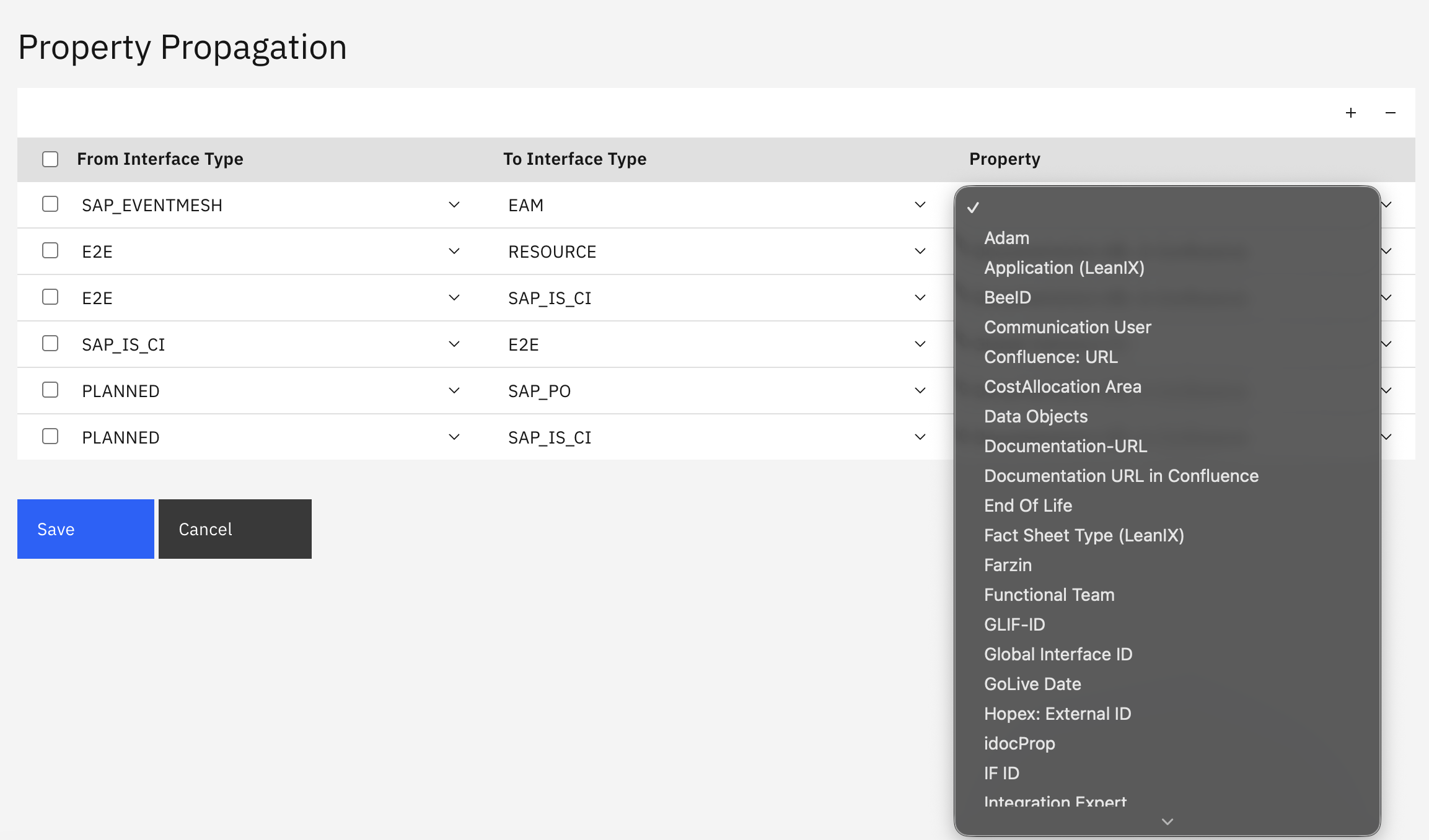
Select the Property to be propagated from your configured properties list.
-
Click Save to apply your rules.
Usage and Implementation
Propagation rules are applied automatically during the CONFIGURATION task. No additional activation is required on data source level.
Implementation Workflow:
-
Create Properties first in Settings → Properties → Overview
-
Maintain the property value on the source interfaces in the leading system
-
Configure propagation rules using the source type, target type and property
-
Run the CONFIGURATION job to apply the rules
-
Verify propagation in Inventory → Interfaces → Catalog on the affected target interfaces
Quick Tip
Use interface types from planning and architecture sources — such as EAM or PLANNED — as the source side of your rules. These typically hold the authoritative business metadata that should be distributed to the technical interfaces implementing them. Ensure a consistent naming convention or a shared ID property across systems, as these are what the matching relies on.
Requirements and Setup
Prerequisites:
-
Properties configured in Settings → Properties → Overview before defining propagation rules. The Property dropdown shows all available properties from your Properties configuration.
-
Matching criteria in place — either identical interface names across source and target, or a shared property with ID format
-
Different interface types for source and target within a single rule
Technical Requirements:
-
CONFIGURATION job execution to apply propagation rules
-
Data source connectivity for both the source and target platforms
Related Documentation
For comprehensive property configuration guidance:
-
Properties – Complete property reference and usage examples
-
Extraction (Properties) – Automatic extraction of metadata from interface raw data
-
Transformation Rules – Automated property assignment during data source processing
-
Tags – Overview of the tagging system. Propagation currently covers properties only.
-
Tag Propagation – Transfer of tag values between interface types
Last Updated: August 28, 2026