

The by Property view lists your systems alongside the values of up to three selected system properties, with one column per property. Use this view to compare how properties are maintained across your systems, for example, to check fact sheet types imported from your EAM tool.
Purpose: Compare selected system property values side by side and identify systems with missing values.
Navigate to Inventory → Systems → by Property to open the view.
Select Properties
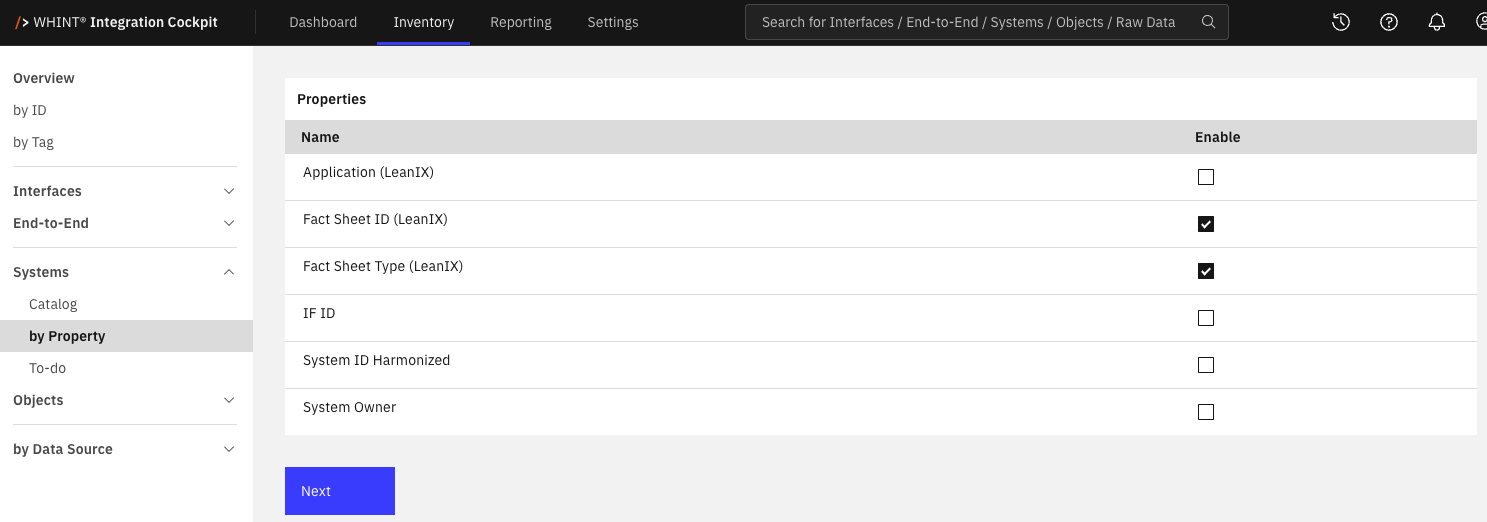
The view starts with a list of all property types defined for systems. Select Enable for up to three properties and click Next.
-
Selecting a fourth property is not allowed and displays a message.
-
Clicking Next without selecting a property is not allowed either.
The available property types are defined under Settings → Properties → Overview. Enable only selects which properties to display in this view. It does not change the property type definitions.
Systems with Properties
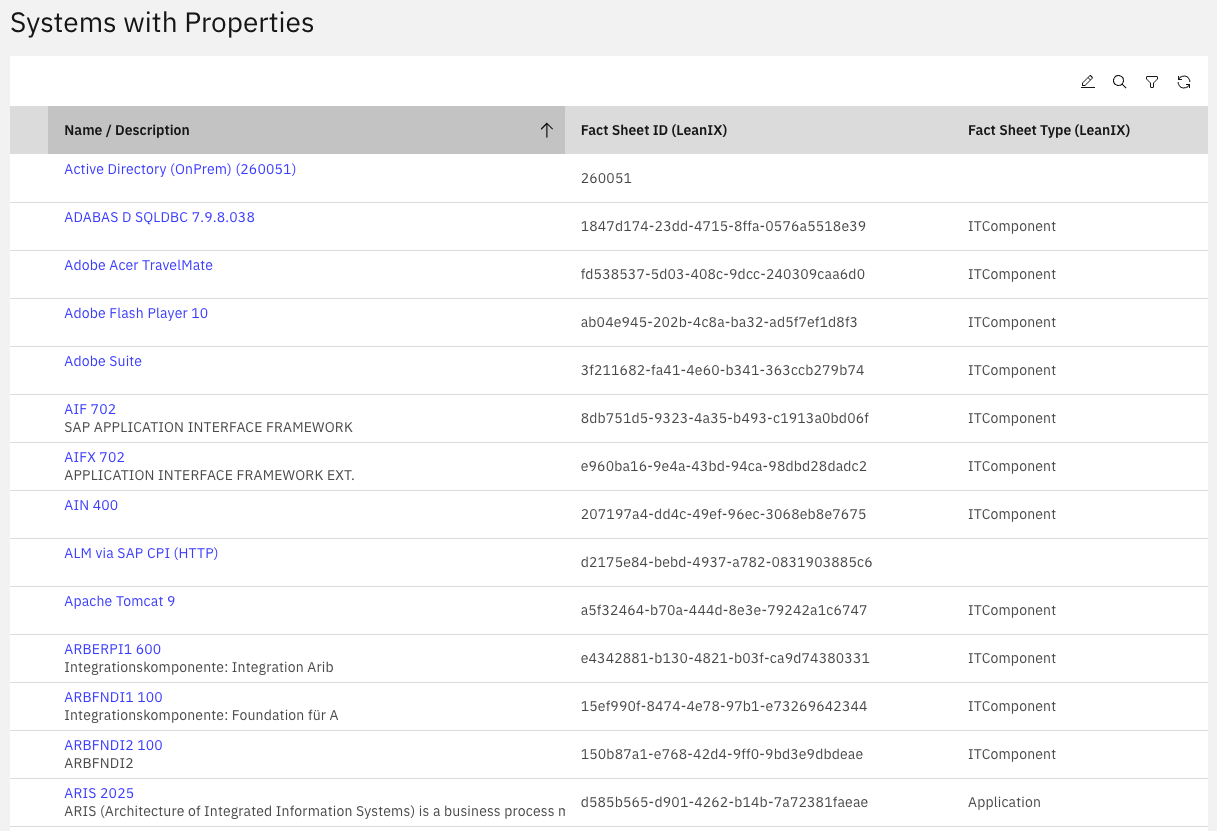
The list displays Name / Description and one column for each selected property. The property columns are arranged in alphabetical order by property name. For properties with a value list, the column displays the selected value.
A system is included as soon as at least one of the selected properties is assigned to it, even if the property has no value. An empty cell can therefore mean either that the property is assigned but has no value, or that the property is not assigned to the system.
Click a column header to sort the list by that column. Click a system name to open its details in Inventory → Systems → Catalog.
The toolbar provides the same controls as the Systems Catalog, except for Add and Configure columns:
|
Control |
What it does |
|---|---|
|
Mass maintenance for properties |
Switches the list to selection mode. Select multiple rows to add or remove properties for all selected systems, or delete the selected systems. |
|
Search |
Searches system names, descriptions, property values and metadata values. |
|
Filter |
Filters by Data Source, B2B Partner and Property. |
|
Reload |
Reloads the list. |
Mass maintenance is only available to users with write permission.
The selected properties are stored in the page address. You can bookmark the view or share its link with others. To select different properties, open Inventory → Systems → by Property again.
Related Documentation
-
Inventory → Systems → Catalog — View and maintain systems.
-
Settings → Properties → Overview — Define the property types available for systems.
-
Settings → To-do — Mark system properties as required.
-
Inventory → Interfaces → by Property — View interface properties in the same way.
-
Inventory → End-to-End → by Property — View End-to-End integration properties in the same way.
Last Updated: November 3, 2026